Uncategorized

“Introducing ChatGPT: The Next Generation of Language Processing”

ChatGPT is a cutting-edge language processing model developed by OpenAI that is capable of understanding and generating human-like text. It is based on the GPT (Generative Pre-training Transformer) architecture and has been trained on a massive dataset of internet text, allowing it to understand and generate a wide range of natural language text.

One of the most exciting features of ChatGPT is its ability to generate human-like responses to a wide range of questions and prompts. This makes it a powerful tool for a variety of applications, such as chatbots, virtual assistants, and automated content generation. It can be used to answer questions, generate summaries, write articles, and even compose poetry and fiction.

One of the key advantages of ChatGPT is its ability to understand context and generate text that is highly relevant to the given prompt. This allows it to generate text that is much more natural and conversational than traditional language processing models. It also makes it a powerful tool for tasks such as question answering, where understanding the context of the question is crucial for providing an accurate answer.

Another exciting feature of ChatGPT is its ability to generate text in a variety of formats, including but not limited to chat, articles, summaries, poetry, fiction, etc. This makes it a versatile tool that can be used for a wide range of applications, from customer service chatbots to automated content generation.

In conclusion, ChatGPT is a powerful language processing model that has the potential to revolutionize the way we interact with computers. Its ability to understand and generate human-like text makes it a valuable tool for a wide range of applications, from chatbots to content generation. As the technology continues to improve, we can expect to see even more exciting applications of ChatGPT in the future.
Uncategorized

  ADB Commands

ADB Debugging

1. adb devices
Prints a list of all attached emulator/device

ex: adb devices

In response, return serial number and state

e4b25377        device
emulator-5554  device

2. adb forward
forward socket connections

examples:

adb forward <local> <remote>

adb forward tcp:8000 tcp:9000 set up forwarding of host port 8000 to emulator/device port 9000

3. adb kill-server
terminates the adb server process

adb kill-server

Package Manager

1. adb install
          Pushes an Android application (specified as a full path to an .apk file) to an emulator/device.

Syntax:
adb install [option] <path>

examples:
adb install test.apk
adb install -l test.apk forward lock application
adb install -r test.apk replace existing application
adb install -t test.apk allow test packages
adb install -s test.apk install application on sdcard
adb install -d test.apk allow version code downgrade
adb install -p test.apk partial application install

2. adb uninstall
          Removes a package from the emulator/device.
adb uninstall [options] <PACKAGE>

adb uninstall com.test.app
adb uninstall -k com.test.app Keep the data and cache directories around after package removal.

3. adb shell pm list packages
          Prints all packages, optionally only those whose package name contains the text in <FILTER>.
adb shell pm list packages [options] <FILTER>

adb shell pm list packages
adb shell pm list packages -f See their associated file.
adb shell pm list packages -d Filter to only show disabled packages.
adb shell pm list packages -e Filter to only show enabled packages.
adb shell pm list packages -s Filter to only show system packages.
adb shell pm list packages -3 Filter to only show third party packages.
adb shell pm list packages -i See the installer for the packages.
adb shell pm list packages -u Also include uninstalled packages.
adb shell pm list packages –user <USER_ID> The user space to query.

4. adb shell pm path
           Print the path to the APK of the given <PACKAGE>.

adb shell pm path <PACKAGE>

adb shell pm path com.android.phone

package:/system/priv-app/TeleService/TeleService.apk

8. adb shell pm clear
           Deletes all data associated with a package.

adb shell pm clear <PACKAGE>

adb shell pm clear com.test.abc

File Manager

1. adb pull

         Download a specified file from an emulator/device to your computer.
adb pull <remote> [local]

adb pull /sdcard/demo.mp4
download /sdcard/demo.mp4  to <android-sdk-path>/platform-tools directory.
adb pull /sdcard/demo.mp4 e:\
download /sdcard/demo.mp4 to drive E.

2. adb push
         Upload a specified file from your computer to an emulator/device.
adb push <local> <remote>

adb push test.apk /sdcard
Copies <android-sdk-path>/platform-tools/test.apk to /sdcard directory.
adb push d:\test.apk /sdcard
Copies d:\test.apk to /sdcard directory.

3. adb shell ls
         list directory contents
ls [options] <directory>

STEP 1.

adb shell

STEP 2.

ls
ls -a do not hide entries starting with
ls -i print index number of each file
ls -s print size of each file, in blocks
ls -n list numeric UIDs and GIDs
ls -R list subdirectories recursively

4. adb shell cd
     change directory
cd <directory>

STEP 1.

adb shell

STEP 2.

cd /system

5. adb shell rm
      remove files or directories
rm [options] <files or directory>

STEP 1.

adb shell

STEP 2.

rm /sdcard/test.txt
rm -f /sdcard/test.txt force remove without prompt
rm -r /sdcard/tmp remove the contents of directories recursively
rm -d /sdcard/tmp remove directory, even if it is a non-empty directory

Notes: rm -d equal rmdir command

rm -i /sdcard/test.txt prompt before any removal

6. adb shell mkdir
   make directories
mkdir [options] <directory name>

mkdir /sdcard/tmp
mkdir -m 777 /sdcard/tmp set permission mode
mkdir -p /sdcard/tmp/sub1/sub2 create parent directories as needed

7. adb shell touch
   create empty file or change file timestamps
touch [options] <file>

STEP 1.

adb shell

STEP 2.

touch /sdcard/tmp/test.txt
ls /sdcard/tmp

8. adb shell pwd
  print current working directory location.

pwd

9. adb shell cp
        copy files and directories
cp [options] <source> <dest>

STEP 1.

adb shell

STEP 2.

cp /sdcard/test.txt /sdcard/demo.txt

10. adb shell mv
     move or rename files
mv [options] <source> <dest>

STEP 1.

adb shell

STEP 2.

mv /sdcard/tmp /system/tmp move
mv /sdcard/tmp /sdcard/test rename

Logcat

1. adb logcat

Prints log data to the screen.
adb logcat [option] [filter-specs]

adb logcat

Notes: press Ctrl-C to stop monitor

adb logcat *:V lowest priority, filter to only show Verbose level
adb logcat *:D filter to only show Debug level
adb logcat *:I filter to only show Info level
adb logcat *:W filter to only show Warning level
adb logcat *:E filter to only show Error level
adb logcat *:F filter to only show Fatal level
adb logcat *:S Silent, highest priority, on which nothing is ever printed
adb logcat -b <Buffer>
adb logcat -b radio View the buffer that contains radio/telephony related messages.
adb logcat -b event View the buffer containing events-related messages.
adb logcat -b main default
adb logcat -c Clears the entire log and exits.
adb logcat -d Dumps the log to the screen and exits.
adb logcat -f test.logs Writes log message output to test.logs .
adb logcat -g Prints the size of the specified log buffer and exits.
adb logcat -n <count> Sets the maximum number of rotated logs to <count>.

Notes: The default value is 4. Requires the -r option.

adb logcat -r <kbytes> Rotates the log file every <kbytes> of output.

Notes: The default value is 16. Requires the -f option.

adb logcat -s Sets the default filter spec to silent.
adb logcat -v <format>
adb logcat -v brief Display priority/tag and PID of the process issuing the message (default format).
adb logcat -v process Display PID only.)
adb logcat -v tag Display the priority/tag only.
adb logcat -v raw Display the raw log message, with no other metadata fields.
adb logcat -v time Display the date, invocation time, priority/tag, and PID of the process issuing the message.
adb logcat -v threadtime Display the date, invocation time, priority, tag, and the PID and TID of the thread issuing the message.
adb logcat -v long Display all metadata fields and separate messages with blank lines.

2. adb shell dumpsys
     dumps system data
adb shell dumpsys [options]

adb shell dumpsys
adb shell dumpsys meminfo
adb shell dumpsys battery

Notes: A mobile device with Developer Options enabled running Android 5.0 or higher.

adb shell dumpsys batterystats collects battery data from your device

Notes: Battery Historian converts that data into an HTML visualization. STEP 1 adb shell dumpsys batterystats > batterystats.txt STEP 2 python historian.py batterystats.txt > batterystats.html

adb shell dumpsys batterystats –reset erases old collection data
adb shell dumpsys activity
adb shell dumpsys gfxinfo com.android.phone measuring com.android.phone ui performance

3. adb shell dumpstate
   dumps state

adb shell dumpstate
adb shell dumpstate > state.logs dumps state to a file

Screenshot:

1. adb shell screencap
    Taking a screenshot of a device display.
adb shell screencap <filename>

adb shell screencap /sdcard/screen.png
download the file from the device
adb pull /sdcard/screen.png

2. adb shell screenrecord
     Recording the display of devices running Android 4.4 (API level 19) and higher.
adb shell screenrecord [options] <filename>

adb shell screenrecord /sdcard/demo.mp4
(press Ctrl-C to stop recording)
download the file from the device
adb pull /sdcard/demo.mp4

Notes: Stop the screen recording by pressing Ctrl-C, otherwise the recording stops automatically at three minutes or the time limit set by –time-limit.

adb shell screenrecord –size <WIDTHxHEIGHT>

Sets the video size: 1280×720. The default value is the device’s native display resolution (if supported), 1280×720 if not. For best results, use a size supported by your device’s Advanced Video Coding (AVC) encoder.

adb shell screenrecord –bit-rate <RATE>

Sets the video bit rate for the video, in megabits per second. The default value is 4Mbps. You can increase the bit rate to improve video quality, but doing so results in larger movie files. The following example sets the recording bit rate to 5Mbps: adb shell screenrecord –bit-rate 5000000 /sdcard/demo.mp4

adb shell screenrecord –time-limit <TIME>

Sets the maximum recording time, in seconds. The default and maximum value is 180 (3 minutes).

adb shell screenrecord –rotate
Rotates the output 90 degrees. This feature is experimental.
adb shell screenrecord –verbose

System:

1. adb root
        restarts the adbd daemon with root permissions

adb root

Notes: adbd cannot run as root in production builds (test in emulator)

2. adb sideload
     Flashing/restoring Android update.zip packages.

adb sideload <update.zip>

Notes: adb reboot sideload [Android M+]

3. adb shell ps
   Print process status
ps [options]

STEP 1.

adb shell

STEP 2.

ps
ps -p

4. adb shell top
   display top CPU processes
top [options]

STEP 1.

adb shell

STEP 2.

top

Notes: (press Ctrl-C to stop monitor)

top -t Show threads instead of processes.

5. adb shell getprop
   get property via the android property service
getprop [options]

STEP 1.

adb shell

STEP 2.

getprop
getprop ro.build.version.sdk
getprop ro.chipname
getprop | grep adb

6. adb shell setprop
  set property service
setprop <key> <value>

STEP 1.

adb shell

STEP 2.

setprop service.adb.tcp.port 5555

===============================================

Refrence:
http://adbshell.com/commands
https://www.androidcentral.com/android-201-10-basic-terminal-commands-you-should-know
https://developer.android.com/studio/command-line/adb.html

Automation Testing

Keyword Driven Framework

This is working example for Keyword driven framework, here in the code it will check in excel sheet for the test cases to execute.

for example here we have used: TC_Login, TC_Book Flight, TC_Logout

we have created methods for all the cases and added the business login inside the method.

Pre-requisite:

  1. As we are running this code in firefox hence geko driver is required.
  2. Download the keyword excel file.
  3. Changed the path of geko driver and excel sheet in done.

you are good to go, please run the code and try yourself.

package rkdemo1;

import java.io.File;
import java.io.IOException;

import org.openqa.selenium.By;
import org.openqa.selenium.WebDriver;
import org.openqa.selenium.firefox.FirefoxDriver;
import org.openqa.selenium.remote.DesiredCapabilities;
import org.openqa.selenium.support.ui.Select;
//import org.openqa.selenium.firefox.FirefoxDriver;
import org.openqa.selenium.remote.DesiredCapabilities;

import jxl.Sheet;
import jxl.Workbook;
import jxl.read.biff.BiffException;

public class Keyword_Driven {
	
	//Initiate Driver
   public static WebDriver driver; 
   
   @SuppressWarnings("deprecation")
public static void main(String[] args)
{
	//@SuppressWarnings("deprecation")
	System.setProperty("webdriver.gecko.driver","F:\\Selenium\\geckodriver.exe");
	//DesiredCapabilities capabilities = DesiredCapabilities.firefox();
    //capabilities.setCapability("marionette", true);
    driver = new FirefoxDriver();
    //Login
    driver.get("https://demo.guru99.com/test/newtours");
    
  
          Workbook workbook;
          try {
                 workbook = Workbook.getWorkbook(new File("F:\\Selenium\\topics\\Keyword.xls"));
                 Sheet sheet = workbook.getSheet(0);
                
          //code to read Test Case
                 int row=sheet.getRows();
                 for(int i=1;i<row;i++)
                 {
                       String Testcasename=sheet.getCell(0,i).getContents().toString();
                       //Call function ExecuteFunction to Read Mapped Function
                       ExecuteFunction(Testcasename);
                      
                
                 }
                 //Close Browser
                 quitdriver();
                
          } catch (BiffException e) {
                 // TODO Auto-generated catch block
                 e.printStackTrace();
          } catch (IOException e) {
                 // TODO Auto-generated catch block
                 e.printStackTrace();
          }
         
}
public static void ExecuteFunction(String Casename)
{
   String Option=Casename.trim();
  
if(Option.equalsIgnoreCase("TC_Login") )
{
  
    //Execute Login Function
    Login("Mercury", "mercury");
}
else if(Option.equalsIgnoreCase("TC_Book Flight"))
{
    //Execute FlighBook Function
    FlightBook();
}
else if(Option.equalsIgnoreCase("TC_Logout"))
{
   //Execute Logout
    Logout();
}
}
public static void Login(String Username,String Password)
{
    driver.findElement(By.name("userName")).sendKeys(Username);
    driver.findElement(By.name("password")).sendKeys(Password);
    driver.findElement(By.name("submit")).click();
    System.out.println("Loggdin Successfully");
    System.out.println(driver.getCurrentUrl());
}
public static void FlightBook()
{
	driver.findElement(By.xpath("/html/body/div[2]/table/tbody/tr/td[1]/table/tbody/tr/td/table/tbody/tr/td/table/tbody/tr[2]/td[2]/a")).click();
	//driver.navigate().to("https://demo.guru99.com/test/newtours/reservation.php");
    Select Passangers= new Select(driver.findElement(By.cssSelector("select[name='passCount']")));
    Passangers.selectByVisibleText("2");
    Select Departingfrom = new Select(driver.findElement(By.cssSelector("select[name='fromPort']")));
    Departingfrom.selectByVisibleText("Frankfurt");
    Select FromMonth = new Select(driver.findElement(By.cssSelector("select[name='fromMonth']")));
    FromMonth.selectByVisibleText("September");
    Select ArrivingIn = new Select(driver.findElement(By.cssSelector("select[name='toPort']")));
    ArrivingIn.selectByVisibleText("New York");
    Select ToMonth = new Select(driver.findElement(By.cssSelector("select[name='toMonth']")));
    ToMonth.selectByIndex(10);
    driver.findElement(By.xpath("/html/body/div/table/tbody/tr/td[2]/table/tbody/tr[4]/td/table/tbody/tr/td[2]/table/tbody/tr[5]/td/form/table/tbody/tr[9]/td[2]/font/font/input")).click();
    driver.findElement(By.name("findFlights")).click();
    driver.findElement(By.xpath("/html/body/div[2]/table/tbody/tr/td[2]/table/tbody/tr[4]/td/table/tbody/tr[1]/td[2]/table/tbody/tr[2]/td/a/img")).click();
    
    //driver.findElement(By.name("reserveFlights")).click();
   // driver.findElement(By.name("passFirst0")).sendKeys("Name1");
   // driver.findElement(By.name("passLast0")).sendKeys("LastName");
    //driver.findElement(By.name("creditnumber")).sendKeys("1234566");
   // driver.findElement(By.name("buyFlights")).click();
    
}
public static void Logout()
{
//driver.findElement(By.linkText("SIGN-OFF")).click();
	driver.findElement(By.xpath("/html/body/div[2]/table/tbody/tr/td[2]/table/tbody/tr[2]/td/table/tbody/tr/td[1]/a")).click();
}

public static void quitdriver()
{
driver.quit();
}
}
Automation Testing

Extent Report in Page Object Modal

Page Object Model with Page Factory in Selenium and Generating Extent report.

Creating a Page Object Model with Page Factory in Selenium WebDriver:

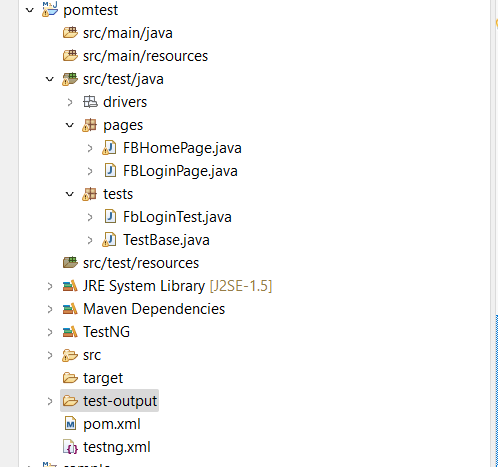
Project Structure:

Step 1: Creating TestBase class. Here we create an object of WebDriver, maximize browser, implementing waits, launching URL and etc.,

In the below example program, I have taken chrome browser and set the System Property to launch chrome browser.

TestBase.java (BASE CLASS)

package tests;

import java.io.File;
import java.io.IOException;
import java.text.SimpleDateFormat;
import java.util.Date;
import java.util.concurrent.TimeUnit;

import org.apache.commons.io.FileUtils;
import org.openqa.selenium.OutputType;
import org.openqa.selenium.TakesScreenshot;
import org.openqa.selenium.WebDriver;
import org.openqa.selenium.chrome.ChromeDriver;
import org.openqa.selenium.chrome.ChromeOptions;
import org.testng.annotations.AfterSuite;
import org.testng.annotations.BeforeSuite;
import org.testng.annotations.Test;

import com.aventstack.extentreports.ExtentReports;
import com.aventstack.extentreports.ExtentTest;
import com.aventstack.extentreports.reporter.ExtentSparkReporter;
import com.aventstack.extentreports.reporter.configuration.Theme;

public class TestBase {
	public static WebDriver driver = null;
	public static ExtentSparkReporter spark = null;
	public static ExtentReports extent = null;
	public static ExtentTest logger = null;
	
	
	@BeforeSuite
	public void initialize() throws IOException{
		
		extent = new ExtentReports();
		 
		spark = new ExtentSparkReporter(System.getProperty("user.dir") + "/test-output/RKExtentReport.html");
		extent.attachReporter(spark);
		extent.setSystemInfo("Host Name", "Testing Buddy");
         extent.setSystemInfo("Environment", "Production");
         extent.setSystemInfo("User Name", "Rahulkundu");
         spark.config().setDocumentTitle("Title of the Report Comes here ");
                // Name of the report
         spark.config().setReportName("Name of the Report Comes here ");
                // Dark Theme
         spark.config().setTheme(Theme.STANDARD);
         
         
         /*
 			String dateName = new SimpleDateFormat("yyyyMMddhhmmss").format(new Date());
 			TakesScreenshot ts = (TakesScreenshot) driver;
 			File source = ts.getScreenshotAs(OutputType.FILE);
 			// after execution, you could see a folder "FailedTestsScreenshots" under src folder
 			String destination = System.getProperty("user.dir") + "/Screenshots/" + screenshotName + dateName + ".png";
 			File finalDestination = new File(destination);
 			FileUtils.copyFile(source, finalDestination);*/
 			
 			
	System.setProperty("webdriver.chrome.driver", System.getProperty("user.dir")+"\\src\\test\\java\\drivers\\chromedriver.exe");
	
	ChromeOptions coptions = new ChromeOptions();
	coptions.addArguments("--disable-notifications");
	
	driver = new ChromeDriver(coptions);
	//To maximize browser
	                driver.manage().window().maximize();
	        //Implicit wait
	         driver.manage().timeouts().implicitlyWait(20, TimeUnit.SECONDS);
	//To open facebook
	                driver.get("https://www.facebook.com/login");
	}


	@AfterSuite
	//Test cleanup
	public void TeardownTest()
	    { 
			TestBase.extent.flush();
	        TestBase.driver.quit();
	    }
}


Step 2: Creating classes for each page (Eg., Facebook Login Page, Facebook Inbox Page) to hold element locators and their methods. Usually, we create page objects for all available pages in the AUT. For each page, we create a separate class with a constructor. Identify all the locators and keep them in one class. It allows us to reuse the locators in multiple methods. It allows us to do easy maintenance, if there is any change in the UI, we can simply change on one Page.

Here, I create java files (FacebookLoginPage.java and FacebookInboxPage.java) for the corresponding pages (Facebook Login Page, and Facebook Inbox Page) to hold element locators and their methods.

FBHomePage.java (Webpage 1)

package pages;
import org.openqa.selenium.By;
import org.openqa.selenium.WebDriver;
import org.openqa.selenium.WebElement;
import org.openqa.selenium.support.FindBy;
import org.openqa.selenium.support.How;
public class FBHomePage {
WebDriver driver;

public FBHomePage(WebDriver driver){
this.driver=driver;
}
//Using FindBy for locating elements


@FindBy(how=How.CLASS_NAME, using="x3ajldb") WebElement profileDropdown;
@FindBy(how=How.XPATH, using="//span[contains(.,'Log Out')]") WebElement logoutLink;
@FindBy(how=How.XPATH, using="//a[@aria-label='Rahul Kundu'][contains(.,'Rahul Kundu')]") WebElement loggedInUserNameText;

//Defining all the user actions (Methods) that can be performed in the Facebook home page
// This method to click on Profile Dropdown
public void clickOnProfileDropdown(){
//WebElement profileDropdown = driver.findElement(By.className("x3ajldb"));
profileDropdown.click();
}
//This method to click on Logout link
public void clickOnLogoutLink(){

logoutLink.click();
}
//This method to verify LoggedIn Username Text
public String verifyLoggedInUserNameText(){
String userName = loggedInUserNameText.getText();
return userName;
}
}

FBLoginPage.java (Webpage 2)

package pages;
import org.openqa.selenium.WebDriver;
import org.openqa.selenium.WebElement;
import org.openqa.selenium.support.FindBy;
import org.openqa.selenium.support.How;
public class FBLoginPage {
WebDriver driver;

public FBLoginPage(WebDriver driver){
this.driver=driver;
}
//Using FindBy for locating elements
@FindBy(how=How.XPATH, using="//input[contains(@name,'email')]") WebElement emailTextBox;
@FindBy(how=How.XPATH, using="//input[@type='password']") WebElement passwordTextBox;
@FindBy(how=How.XPATH, using="//button[@name='login']") WebElement signinButton;
// Defining all the user actions (Methods) that can be performed in the Facebook home page
// This method is to set Email in the email text box
public void setEmail(String strEmail){
emailTextBox.sendKeys(strEmail);
}
//This method is to set Password in the password text box
public void setPassword(String strPassword){
passwordTextBox.sendKeys(strPassword);
}
//This method is to click on Login Button
public void clickOnLoginButton(){
signinButton.click();
}
}

Step 3: Creating Test (Eg., FBLoginTest) based on above pages. As per my test scenario which was mentioned above, scripts run as follows.

  1. Launch browser and open facebook.com
  2. Enter user credentials and do signin
  3. Verify the loggedIn user name and do logout

FBLoginTest.java (Test Case 1)

package tests;

import org.openqa.selenium.support.PageFactory;
import org.testng.annotations.AfterTest;
import org.testng.annotations.Test;

import pages.FBHomePage;
import pages.FBLoginPage;

public class FbLoginTest extends TestBase{
	
	@Test
	public void init() throws Exception{

			//driver.get("https://www.facebook.com");
			logger = extent.createTest("To verify FB Login");
			FBLoginPage loginpage = PageFactory.initElements(driver, FBLoginPage.class);
			loginpage.setEmail("rahul.kundu1@gmail.com");
			logger.createNode("Email id entered");
			loginpage.setPassword("Rk@1991987");
			logger.createNode("password entered");
			loginpage.clickOnLoginButton();
			logger.createNode("Click on login button");
			
			logger = extent.createTest("To verify home page");
			FBHomePage homepage = PageFactory.initElements(driver, FBHomePage.class);
			homepage.clickOnProfileDropdown();
			logger.createNode("Clicked on profile dropdown");
			homepage.verifyLoggedInUserNameText();
			logger.createNode("verified that logged in text");
			homepage.clickOnLogoutLink();	
			logger.createNode("Clicked on logout link");
		}
	
}

Step 4: Creating testng.xml file

<?xml version="1.0" encoding="UTF-8"?>
<!DOCTYPE suite SYSTEM "http://testng.org/testng-1.0.dtd">
<suite name="Everjobs Suite">
 
<test name="Page Object Model Project">
<classes>
<class name="tests.TestBase" />
<class name="tests.FbLoginTest" />
</classes>
</test>
</suite> <!-- Suite -->

Please check the pom.xml that i have used.

<project xmlns="http://maven.apache.org/POM/4.0.0" xmlns:xsi="http://www.w3.org/2001/XMLSchema-instance" xsi:schemaLocation="http://maven.apache.org/POM/4.0.0 https://maven.apache.org/xsd/maven-4.0.0.xsd">
  <modelVersion>4.0.0</modelVersion>
  <groupId>PageObjectModel</groupId>
  <artifactId>pomtest</artifactId>
  <version>0.0.1-SNAPSHOT</version>
  
  <dependencies>
    <dependency>
      <groupId>junit</groupId>
      <artifactId>junit</artifactId>
      <version>4.11</version>
      <scope>test</scope>
    </dependency>
    
    <dependency>
    <groupId>org.seleniumhq.selenium</groupId>
    <artifactId>selenium-java</artifactId>
    <version>4.6.0</version>
</dependency>
<dependency>
  <groupId>org.testng</groupId>
  <artifactId>testng</artifactId>
  <version>7.6.0</version>
  <scope>test</scope>
</dependency>
 <dependency>
		<groupId>com.aventstack</groupId>
		<artifactId>extentreports</artifactId>
		<version>5.0.9</version>
	 </dependency>
	 <!-- https://mvnrepository.com/artifact/commons-io/commons-io -->
	<dependency>
    <groupId>commons-io</groupId>
    <artifactId>commons-io</artifactId>
    <version>2.6</version>
	</dependency>

  </dependencies>
</project>
For extent report add the following dependency in your pom.xml:

         <dependency>
		<groupId>com.aventstack</groupId>
		<artifactId>extentreports</artifactId>
		<version>5.0.9</version>
	 </dependency>
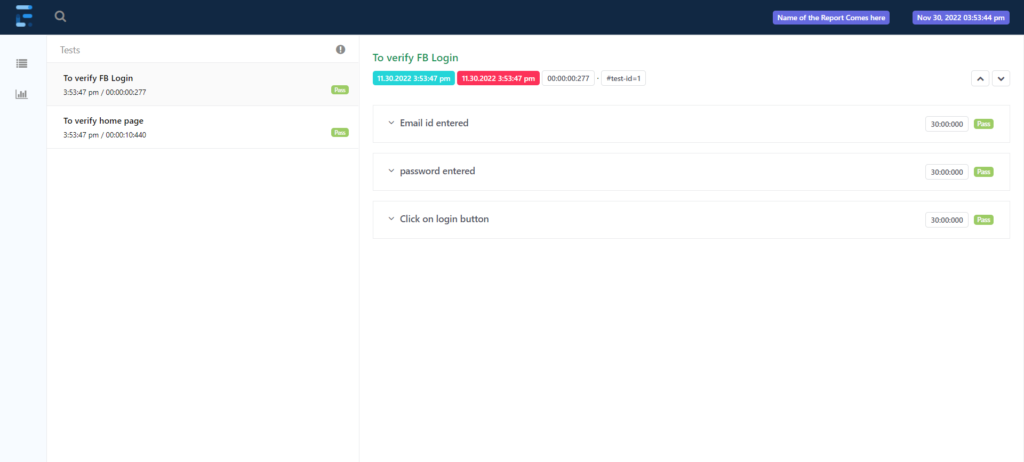
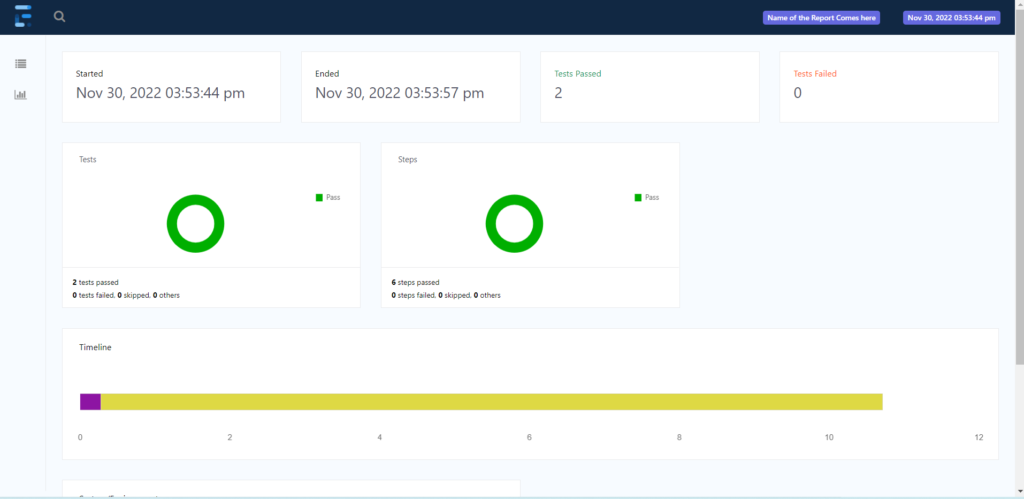
Please check the Extent report generated after refreshing the project, you will see "RKExtentReport.html" under test-output folder.


This is 100% working code and if you find any difficulty then you can post your queries.

RK

Automation Testing

Generate Extent Reports in Selenium Webdriver

What are the Extent Reports?

ExtentReports is an open-source reporting library used in selenium test automation. Extent reports become the first choice of Selenium Automation Testers, even though Selenium comes with inbuilt reports using frameworks like JUnit and TestNG. With extent reports, you can offer a more extensive and insightful perspective on the execution of your automation scripts. So let’s see why Automation testers prefer Extent reports to others.

Advantages of Extent Reports

Some of the advantages of Extent Reports are as follows

  • Extent reports are more customizable than others.
  • Captures screenshots at every test step
  • Displays the time taken for test case execution within the report.
  • Extent API can produce more interactive reports, a dashboard view, graphical view, and emailable reports
  • You can easily track multiple test case runs that occur within a single suite.
  • It can be easily integrated with frameworks like JUnit, NUnit, & TestNG

Steps To Generate Extent Reports

Step #1: Firstly, create a TestNG project in eclipse

Step #2: Download extent library files (Extent reports Version 5 JAR file – Extent Spark Reporter) and add the downloaded library files to your project

If you are using pom.xml file then you can add Extent Reports Maven dependency 5.0.9 in your maven project.

<dependency>
<groupId>com.aventstack</groupId>
<artifactId>extentreports</artifactId>
<version>5.0.9</version>
</dependency>

Step #3: Create a java class say ‘ExtentReportsClass’ and add the following code to it

Code to validate title and logo on Google home page.

Given clear explanation in the comments section with in the program itself. Please go through it to understand the flow.

package com.test.traveltest;

import java.io.File;
import java.io.IOException;
import java.text.SimpleDateFormat;
import java.util.Date;
import org.apache.commons.io.FileUtils;
import org.openqa.selenium.*;
import org.openqa.selenium.chrome.ChromeDriver;
import org.testng.Assert;
import org.testng.ITestResult;
import org.testng.SkipException;
import org.testng.annotations.*;
import com.aventstack.extentreports.ExtentReports;
import com.aventstack.extentreports.ExtentTest;
import com.aventstack.extentreports.Status;
import com.aventstack.extentreports.markuputils.ExtentColor;
import com.aventstack.extentreports.markuputils.MarkupHelper;
import com.aventstack.extentreports.reporter.ExtentSparkReporter;
//import com.aventstack.extentreports.reporter.configuration.ChartLocation;
import com.aventstack.extentreports.reporter.configuration.Theme;
public class ExtentReportsClass {
		public WebDriver driver;
		public ExtentSparkReporter spark;
		public ExtentReports extent;
		public ExtentTest logger;
@BeforeTest
public void startReport() {
         // Create an object of Extent Reports
		extent = new ExtentReports();
 
		spark = new ExtentSparkReporter(System.getProperty("user.dir") + "/test-output/RKExtentReport.html");
		extent.attachReporter(spark);
		extent.setSystemInfo("Host Name", "Testing Buddy");
         extent.setSystemInfo("Environment", "Production");
         extent.setSystemInfo("User Name", "Rahulkundu");
         spark.config().setDocumentTitle("Title of the Report Comes here ");
                // Name of the report
         spark.config().setReportName("Name of the Report Comes here ");
                // Dark Theme
         spark.config().setTheme(Theme.STANDARD);
}
//This method is to capture the screenshot and return the path of the screenshot.
		public static String getScreenShot(WebDriver driver, String screenshotName) throws IOException {
			String dateName = new SimpleDateFormat("yyyyMMddhhmmss").format(new Date());
			TakesScreenshot ts = (TakesScreenshot) driver;
			File source = ts.getScreenshotAs(OutputType.FILE);
			// after execution, you could see a folder "FailedTestsScreenshots" under src folder
			String destination = System.getProperty("user.dir") + "/Screenshots/" + screenshotName + dateName + ".png";
			File finalDestination = new File(destination);
			FileUtils.copyFile(source, finalDestination);
			return destination;
}
@BeforeMethod
public void setup() {
		System.setProperty("webdriver.chrome.driver",System.getProperty("user.dir")+"\\src\\main\\java\\drivers\\chromedriver.exe");
		driver = new ChromeDriver();
		driver.manage().window().maximize();
		driver.get("https://www.google.com/");
}
@Test
public void verifyTitle() {
	logger = extent.createTest("To verify Google Title");
	Assert.assertEquals(driver.getTitle(),"Google");
}
	
@Test
public void verifyLogo() {
	logger = extent.createTest("To verify Google Logo");
	boolean img = driver.findElement(By.xpath("//img[contains(@class,'lnXdpd')]")).isDisplayed();
	logger.createNode("Image is Present");
	Assert.assertTrue(img);
	logger.createNode("Image is not Present");
	Assert.assertFalse(img);
}
@Test
public void verifySearchEnabled() {
	logger = extent.createTest("To verify search field");
	boolean img1 = driver.findElement(By.xpath("//img[contains(@class,'lnXdpd')]")).isEnabled();
	logger.createNode("Text field is enabled ");
	Assert.assertTrue(img1);
}
@Test
public void verifySearch() {
	logger = extent.createTest("To verify search works");
	driver.findElement(By.xpath("//input[@name='q']")).sendKeys("rahul");
	logger.createNode("rahul entered for search");
	driver.findElement(By.className("gNO89b")).click();
	logger.createNode("search button is clicked");
	
}
@AfterMethod
public void getResult(ITestResult result) throws Exception{
		if(result.getStatus() == ITestResult.FAILURE){
//MarkupHelper is used to display the output in different colors
			logger.log(Status.FAIL, MarkupHelper.createLabel(result.getName() + " - Test Case Failed", ExtentColor.RED));
			logger.log(Status.FAIL, MarkupHelper.createLabel(result.getThrowable() + " - Test Case Failed", ExtentColor.RED));
//To capture screenshot path and store the path of the screenshot in the string "screenshotPath"
//We do pass the path captured by this method in to the extent reports using "logger.addScreenCapture" method.
//String Scrnshot=TakeScreenshot.captuerScreenshot(driver,"TestCaseFailed");
			String screenshotPath = getScreenShot(driver, result.getName());
//To add it in the extent report
			logger.fail("Test Case Failed Snapshot is below " + logger.addScreenCaptureFromPath(screenshotPath));
		}
		else if(result.getStatus() == ITestResult.SKIP){
			logger.log(Status.SKIP, MarkupHelper.createLabel(result.getName() + " - Test Case Skipped", ExtentColor.ORANGE));
		}
		else if(result.getStatus() == ITestResult.SUCCESS)
		{
			logger.log(Status.PASS, MarkupHelper.createLabel(result.getName()+" Test Case PASSED", ExtentColor.GREEN));
		}
		driver.quit();
	}
@AfterTest
public void endReport() {
		extent.flush();
	}
}
Automation Testing

Page Object Model with Page Factory in Selenium (Facebook…

What is Page Object Model Design Patten (POM):

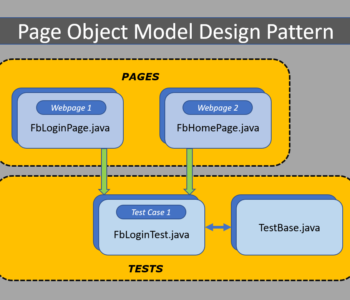
Page Object Model is a Design Pattern which has become popular in Selenium Test Automation. It is widely used design pattern in Selenium for enhancing test maintenance and reducing code duplication. Page object model (POM) can be used in any kind of framework such as modular, data-driven, keyword driven, hybrid framework etc.  A page object is an object-oriented class that serves as an interface to a page of your Application Under Test(AUT). The tests then use the methods of this page object class whenever they need to interact with the User Interface (UI) of that page. The benefit is that if the UI changes for the page, the tests themselves don’t need to change, only the code within the page object needs to change. Subsequently, all changes to support that new UI is located in one place.

What is Page Factory:

We have seen that ‘Page Object Model’ is a way of representing an application in a test framework. For every ‘page’ in the application, we create a Page Object to reference the ‘page’ whereas a ‘Page Factory’ is one way of implementing the ‘Page Object Model’.

What is the difference between Page Object Model (POM) and Page Factory:

Page Object is a class that represents a web page and hold the functionality and members.
Page Factory is a way to initialize the web elements you want to interact with within the page object when you create an instance of it.

Advantages of Page Object Model Framework:

  • Code reusability – We could achieve code reusability by writing the code once and use it in different tests.
  • Code maintainability – There is a clean separation between test code and page specific code such as locators and layout which becomes very easy to maintain code. Code changes only on Page Object Classes when a UI change occurs. It enhances test maintenance and reduces code duplication.
  • Object Repository – Each page will be defined as a java class. All the fields in the page will be defined in an interface as members. The class will then implement the interface.
  • Readability – Improves readability due to clean separation between test code and page specific code

Creating a Page Object Model with Page Factory in Selenium WebDriver:

Project Structure:

Step 1: Creating TestBase class. Here we create an object of WebDriver, maximize browser, implementing waits, launching URL and etc.,

In the below example program, I have taken chrome browser and set the System Property to launch chrome browser.

TestBase.java (BASE CLASS)

package tests;

import java.io.IOException;
import java.util.concurrent.TimeUnit;

import org.openqa.selenium.WebDriver;
import org.openqa.selenium.chrome.ChromeDriver;
import org.openqa.selenium.chrome.ChromeOptions;
import org.testng.annotations.AfterSuite;
import org.testng.annotations.BeforeSuite;
import org.testng.annotations.Test;

public class TestBase {
	public static WebDriver driver = null;
	@BeforeSuite
	public void initialize() throws IOException{
	System.setProperty("webdriver.chrome.driver", System.getProperty("user.dir")+"\\src\\test\\java\\drivers\\chromedriver.exe");
	
	ChromeOptions coptions = new ChromeOptions();
	coptions.addArguments("--disable-notifications");
	
	driver = new ChromeDriver(coptions);
	//To maximize browser
	                driver.manage().window().maximize();
	        //Implicit wait
	         driver.manage().timeouts().implicitlyWait(20, TimeUnit.SECONDS);
	//To open facebook
	                driver.get("https://www.facebook.com/login");
	}
	@AfterSuite
	//Test cleanup
	public void TeardownTest()
	    {
	        TestBase.driver.quit();
	    }
}

Step 2: Creating classes for each page (Eg., Facebook Login Page,  Facebook Inbox Page) to hold element locators and their methods. Usually, we create page objects for all available pages in the AUT. For each page, we create a separate class with a constructor. Identify all the locators and keep them in one class. It allows us to reuse the locators in multiple methods. It allows us to do easy maintenance, if there is any change in the UI, we can simply change on one Page.

Here, I create java files (FacebookLoginPage.java and FacebookInboxPage.java) for the corresponding pages (Facebook Login Page, and Facebook Inbox Page) to hold element locators and their methods.

FBHomePage.java (Webpage 1)

package pages;

import org.openqa.selenium.By;
import org.openqa.selenium.WebDriver;
import org.openqa.selenium.WebElement;
import org.openqa.selenium.support.FindBy;
import org.openqa.selenium.support.How;

public class FBHomePage {
	WebDriver driver;
	 
    public FBHomePage(WebDriver driver){
            this.driver=driver;
    }
    //Using FindBy for locating elements
    
    
@FindBy(how=How.CLASS_NAME, using="x3ajldb") WebElement profileDropdown;
@FindBy(how=How.XPATH, using="//span[contains(.,'Log Out')]") WebElement logoutLink;
@FindBy(how=How.XPATH, using="//a[@aria-label='Rahul Kundu'][contains(.,'Rahul Kundu')]") WebElement loggedInUserNameText;
    
//Defining all the user actions (Methods) that can be performed in the Facebook home page

    // This method to click on Profile Dropdown
public void clickOnProfileDropdown(){

//WebElement profileDropdown = driver.findElement(By.className("x3ajldb"));
profileDropdown.click();
}
//This method to click on Logout link
public void clickOnLogoutLink(){
	
logoutLink.click();
}
//This method to verify LoggedIn Username Text
public String verifyLoggedInUserNameText(){
String userName = loggedInUserNameText.getText();
return userName;
}

}

FBLoginPage.java (Webpage 2)

package pages;

import org.openqa.selenium.WebDriver;
import org.openqa.selenium.WebElement;
import org.openqa.selenium.support.FindBy;
import org.openqa.selenium.support.How;

public class FBLoginPage {
	WebDriver driver;
	 
    public FBLoginPage(WebDriver driver){
             this.driver=driver;
    }

//Using FindBy for locating elements
@FindBy(how=How.XPATH, using="//input[contains(@name,'email')]") WebElement emailTextBox;
@FindBy(how=How.XPATH, using="//input[@type='password']") WebElement passwordTextBox;
@FindBy(how=How.XPATH, using="//button[@name='login']") WebElement signinButton;
    // Defining all the user actions (Methods) that can be performed in the Facebook home page

    // This method is to set Email in the email text box
public void setEmail(String strEmail){
emailTextBox.sendKeys(strEmail);
}
//This method is to set Password in the password text box
public void setPassword(String strPassword){
passwordTextBox.sendKeys(strPassword);
}
//This method is to click on Login Button
public void clickOnLoginButton(){
signinButton.click();
}

}

Step 3: Creating Test (Eg., FBLoginTest) based on above pages. As per my test scenario which was mentioned above, scripts run as follows.

  1. Launch browser and open facebook.com
  2. Enter user credentials and do signin
  3. Verify the loggedIn user name and do logout

FBLoginTest.java (Test Case 1)

package tests;

import org.openqa.selenium.support.PageFactory;
import org.testng.annotations.Test;

import pages.FBHomePage;
import pages.FBLoginPage;

public class FbLoginTest extends TestBase{
	
	@Test
	public void init() throws Exception{

			//driver.get("https://www.facebook.com");
			FBLoginPage loginpage = PageFactory.initElements(driver, FBLoginPage.class);
			loginpage.setEmail("rahul.******@gmail.com");
			loginpage.setPassword("*********");
			loginpage.clickOnLoginButton();
			
			FBHomePage homepage = PageFactory.initElements(driver, FBHomePage.class);
			homepage.clickOnProfileDropdown();
			homepage.verifyLoggedInUserNameText();
			homepage.clickOnLogoutLink();	
		}
	
}

Step 4: Creating testng.xml file

<?xml version="1.0" encoding="UTF-8"?>
<!DOCTYPE suite SYSTEM "http://testng.org/testng-1.0.dtd">
<suite name="POM Suite">
 
<test name="Page Object Model Project">
<classes>
<class name="tests.TestBase" />
<class name="tests.FbLoginTest" />
</classes>
</test>
</suite> <!-- Suite -->

Please check the pom.xml that i have used.

<project xmlns="http://maven.apache.org/POM/4.0.0" xmlns:xsi="http://www.w3.org/2001/XMLSchema-instance" xsi:schemaLocation="http://maven.apache.org/POM/4.0.0 https://maven.apache.org/xsd/maven-4.0.0.xsd">
  <modelVersion>4.0.0</modelVersion>
  <groupId>PageObjectModel</groupId>
  <artifactId>pomtest</artifactId>
  <version>0.0.1-SNAPSHOT</version>
  
  <dependencies>
    <dependency>
      <groupId>junit</groupId>
      <artifactId>junit</artifactId>
      <version>4.11</version>
      <scope>test</scope>
    </dependency>
    
    <dependency>
    <groupId>org.seleniumhq.selenium</groupId>
    <artifactId>selenium-java</artifactId>
    <version>4.6.0</version>
</dependency>
<dependency>
  <groupId>org.testng</groupId>
  <artifactId>testng</artifactId>
  <version>7.6.0</version>
  <scope>test</scope>
</dependency>

  </dependencies>
</project>

This is 100% working code and if you find any difficulty then you can post your queries.

RK

snapdeal login Uncategorized

Selenium Assignment – 6 (Snapdeal Login)

Scenario:

  • Open a browser of your choice like Mozilla Firefox.
  • Navigate to Snapdeal site (https://www.snapdeal.com/login)
  • Enter Email Id or Phone Number.
  • Enter password.
  • Click login button.
  • Verify that user is logged in successfully.
package com.test.traveltest;

import java.util.concurrent.TimeUnit;

import org.openqa.selenium.By;
import org.openqa.selenium.WebDriver;
import org.openqa.selenium.firefox.FirefoxDriver;
import org.testng.annotations.BeforeClass;
import org.testng.annotations.Test;

public class Assignment6 {
	WebDriver driver;
	String Url = "https://www.snapdeal.com/login";
	//WebElement webFrame;
	
	@BeforeClass
	public void invokeBrowser(){
		System.setProperty("webdriver.gecko.driver",
				"D:\\Selenium\\geckodriver-v0.31.0-win64\\geckodriver.exe");
		driver = new FirefoxDriver();

		driver.manage().window().maximize();

		driver.manage().timeouts().implicitlyWait(10, TimeUnit.SECONDS);

		driver.get(Url);
	}
	
  @Test
  public void Test1() {
	  driver.findElement(By.id("userName")).sendKeys("r-----@gmail.com");
	  driver.findElement(By.id("checkUser")).click();
	  driver.manage().timeouts().implicitlyWait(10, TimeUnit.SECONDS);
  }
  @Test
  public void Test2() {
	  driver.findElement(By.className("otpValueCode")).sendKeys("0000");
	  driver.findElement(By.id("loginUsingOtp")).click();
  }
  @AfterTest
	public void testComplete() {
		driver.close();
	}


}
Flipkart login Automation Testing

Selenium Assignment – 5 (Flipkart Login)

In this selenium Assignment, we will practice some dynamic xpath using different functions.

Scenario:

  • Open a browser of your choice like Mozilla Firefox.
  • Navigate to Flipkart site (http://www.flipkart.com/login)
  • Enter Email Id or Phone Number.
  • Enter password.
  • Click login button.
  • Verify that user is logged in successfully.
package com.test.traveltest;

import java.util.concurrent.TimeUnit;

import org.openqa.selenium.By;
import org.openqa.selenium.WebDriver;
import org.openqa.selenium.WebElement;
import org.openqa.selenium.firefox.FirefoxDriver;
import org.testng.annotations.AfterTest;
import org.testng.annotations.BeforeClass;
import org.testng.annotations.Test;

public class Assignment5 {
	
	WebDriver driver;
	String Url = "https://www.flipkart.com/account/login";
	//WebElement webFrame;
	
	@BeforeClass
	public void invokeBrowser(){
		System.setProperty("webdriver.gecko.driver",
				"D:\\Selenium\\geckodriver-v0.31.0-win64\\geckodriver.exe");
		driver = new FirefoxDriver();

		driver.manage().window().maximize();

		driver.manage().timeouts().implicitlyWait(10, TimeUnit.SECONDS);

		driver.get(Url);
	}
	
  @Test
  public void Test1() {
	  
	  driver.findElement(By.xpath("(//input[@type='text'])[2]")).sendKeys("test@gmail.com");
      driver.findElement(By.xpath("//input[@type='password']")).sendKeys("test123$");
      driver.findElement(By.xpath("(//button[@type='submit'])[2]")).click();
	  
  }
  
  @AfterTest
	public void testComplete() {
		driver.close();
	}
}

Another method for handling Login popup of Flipkart:

package com.suite1;

import java.util.concurrent.TimeUnit;

import org.openqa.selenium.By;
import org.openqa.selenium.WebDriver;
import org.openqa.selenium.firefox.FirefoxDriver;
import org.testng.annotations.AfterTest;
import org.testng.annotations.BeforeClass;
import org.testng.annotations.Test;

public class flipkart2 {
	WebDriver driver;
    String driverPath = "D:\\Selenium\\geckodriver-v0.31.0-win64\\geckodriver.exe";
	String username = ""; // Change to your username and passwrod
	String password = "";

	// This method is to navigate flipkart URL
	@BeforeClass
	public void init() {
		System.setProperty("webdriver.gecko.driver", driverPath);
		driver = new FirefoxDriver();
		driver.manage().window().maximize();

		driver.manage().deleteAllCookies();

		driver.manage().timeouts().pageLoadTimeout(90, TimeUnit.SECONDS);

		driver.manage().timeouts().implicitlyWait(6, TimeUnit.SECONDS);

		driver.get("https://www.flipkart.com");
	}
	
	
	@Test
	public void loginTest() throws InterruptedException {
		String winHandleBefore = driver.getWindowHandle();
		for (String winHandle : driver.getWindowHandles()) {
			
			driver.switchTo().window(winHandle);
			System.out.println(driver.getTitle());
			
		Thread.sleep(3000);
		
		driver.findElement(By.xpath("//input[@class='_2IX_2- VJZDxU']")).sendKeys("testuser@abc.com");
		Thread.sleep(3000);
		driver.findElement(By.xpath("//input[@type='password']")).sendKeys("Test@1234");
		Thread.sleep(3000);
		driver.findElement(By.xpath("//button[@class='_2KpZ6l _2HKlqd _3AWRsL'][contains(.,'Login')]")).click();
		}
	}
	@AfterTest
	public void TestComplete() {
		driver.close();
	}
}
Drag and Drop Automation Testing

Selenium Assignment – 4 (Drag and Drop)

In this Selenium Assignment, we will be practicing iframe handling, CSS property verification and a mouse hover operation – drop and drop operation using actions class.

Scenario:

  • Open a browser of your choice for example – Chrome Browser.
  • Navigate to http://jqueryui.com/droppable/ webpage.
drag and drop using selenium
  • Consider “Drag me to my target” as a source and “Drop here” as a target.
  • Write a code to perform drag and drop operation from source to target.
Drag and Drop operation
  • After drag and drop verify the operation is successfully by checking the color property of CSS and also verify text change. (Use assert statement to verify that color and text are as expected.)
package com.test.traveltest;

import java.util.concurrent.TimeUnit;

import org.openqa.selenium.By;
import org.openqa.selenium.WebDriver;
import org.openqa.selenium.WebElement;
import org.openqa.selenium.firefox.FirefoxDriver;
import org.openqa.selenium.interactions.Actions;
import org.testng.annotations.AfterTest;
import org.testng.annotations.BeforeClass;
import org.testng.annotations.Test;

public class Assignment4 {

	WebDriver driver;
	String Url = "https://jqueryui.com/droppable/";
	WebElement webFrame;
	
	@BeforeClass
	public void invokeBrowser(){
		System.setProperty("webdriver.gecko.driver",
				"D:\\Selenium\\geckodriver-v0.31.0-win64\\geckodriver.exe");
		driver = new FirefoxDriver();

		driver.manage().window().maximize();

		driver.manage().timeouts().pageLoadTimeout(20, TimeUnit.SECONDS);

		driver.get(Url);
	}
	@Test
	public void Test1() {
		webFrame = driver.findElement(By.className("demo-frame"));
		
		driver.switchTo().frame(webFrame);
		WebElement source = driver.findElement(By.id("draggable"));
		WebElement target = driver.findElement(By.id("droppable"));
		
		Actions action = new Actions(driver);
		String colourBeforeDnD = target.getCssValue("color");
		//action.dragAndDrop(source, target).build().perform();
		action.moveToElement(source).clickAndHold().moveToElement(target).release().build().perform();
		String colorAfterDnD = target.getCssValue("color");
		
		System.out.println("Color before Drag and Drop : "+ colourBeforeDnD);
		
		System.out.println("Color after Drag and Drop : "+ colorAfterDnD);
		
	}
	@AfterTest
	public void testComplete() {
		driver.close();
	}
}
Assignment for finding all links in web page Automation Testing

Selenium Assignment – 3

Here is the third assignment in the series of real-time scenarios to practice. In this assignment, we are focusing on working with links and getAttribute() method.

Number of Links on a Page:

Scenario:

  1. Open a Browser (write the generic code such that by changing the parameter browser can be changed.)
  2. Navigate to https://flipkart.com website.
  3. Write a method to find the count (number of) links on the homepage of Flipkart.
  4. Write another method to print link text and URLs of all the links on the page of Flipkart.

Try this.

package com.test.traveltest;

import java.util.List;
import java.util.concurrent.TimeUnit;

import org.openqa.selenium.By;
import org.openqa.selenium.WebDriver;
import org.openqa.selenium.WebElement;
import org.openqa.selenium.firefox.FirefoxDriver;
import org.testng.annotations.AfterTest;
import org.testng.annotations.BeforeClass;
import org.testng.annotations.Test;

public class Assignment3 {
	WebDriver driver;
	String flipkartUrl = "https://www.flipkart.com";
	
	@BeforeClass
	public void invokeBrowser(){
		System.setProperty("webdriver.gecko.driver",
				"D:\\Selenium\\geckodriver-v0.31.0-win64\\geckodriver.exe");
		driver = new FirefoxDriver();

		driver.manage().window().maximize();
		driver.manage().deleteAllCookies();
		driver.manage().timeouts().pageLoadTimeout(90, TimeUnit.SECONDS);
		driver.manage().timeouts().implicitlyWait(6, TimeUnit.SECONDS);
		driver.get(flipkartUrl);
	}


	@Test
	public void getLinkCount(){
		List<WebElement> allLink = driver.findElements(By.tagName("a"));
		System.out.println("Number of links on a page :: "+allLink.size());
	}
	
	@Test
	public void getLinkUrl(){
		String url = driver.findElement(By.linkText("Amazon Pay")).getAttribute("href");
		
		System.out.println("Url :: "+ url);
	}
	@Test
	public void getAllLinkInfo(){
		List<WebElement> allLink = driver.findElements(By.tagName("a"));
		
		for(WebElement link:allLink){
			System.out.println("Link Text :: "+ link.getText());
			System.out.println("Link URL  :: "+ link.getAttribute("href"));
			
			System.out.println("-------------------------------------------");
		}
	}
	@AfterTest
	public void testComplete() {
		driver.close();
	}
}