
Crashes and ANR's Mobile Testing

Crashes and ANR’s

Crashes:

A crash occurs when a mobile application unexpectedly terminates and stops functioning due to an unhandled exception or error in the code. When a crash happens, the app is forcibly closed by the operating system to prevent it from causing further issues or affecting the device’s stability. Crashes are typically caused by programming errors, bugs, or unexpected conditions that the app’s code fails to handle properly.

Common Causes of Crashes:

a. Null Pointer Exception: When the app attempts to access an object or variable that is set to null, resulting in a runtime error.

b. Array Index Out of Bounds: Occurs when the app tries to access an element in an array with an invalid index, causing the app to crash.

c. Divide By Zero: If the app performs a division operation with zero as the divisor, it leads to an arithmetic exception and causes a crash.

d. Out of Memory: When the app exhausts its available memory due to memory leaks or excessive memory usage, it may crash.

e. Concurrent Modification: If multiple threads try to modify the same data structure simultaneously without proper synchronization, it can lead to crashes.

How Crashes are Handled:

When an app crashes, the operating system generates a crash report or stack trace, which includes information about the state of the app at the time of the crash. Developers can use crash reporting tools or logging mechanisms to collect crash reports and identify the root cause of the crash. These crash reports help developers identify and fix bugs in their code to prevent future crashes.

ANRs (Application Not Responding):

ANR stands for “Application Not Responding,” and it occurs when the user interface (UI) of the mobile application becomes unresponsive for a significant period. When the main thread of the app is busy performing long-running operations or blocking UI updates, it is unable to respond to user interactions or system events, leading to an ANR.

Common Causes of ANRs:

a. Long-Running Operations: When the app performs time-consuming tasks on the main thread, such as complex computations or data processing, the UI becomes unresponsive.

b. Network Operations on Main Thread: Performing network requests on the main thread can cause ANRs, especially if the network connection is slow or experiences delays.

c. Database Operations on Main Thread: When the app executes database queries or data manipulation on the main thread, it can block UI updates and lead to ANRs.

d. Synchronization Issues: Poorly synchronized code or deadlocks can cause the main thread to become stuck, resulting in ANRs.

How ANRs are Handled:

When an ANR occurs, the Android system detects the unresponsiveness and displays a dialog to the user, indicating that the app is not responding. The dialog gives the user the option to wait for the app to respond or force-close the app. ANRs are typically logged, and developers can use the information to analyze the problematic code sections and optimize long-running operations.

Preventing Crashes and ANRs:

To prevent crashes and ANRs in mobile applications, developers should follow best practices such as:

  • Handling exceptions properly by using try-catch blocks to handle potential errors.
  • Offloading long-running tasks to background threads to keep the main thread responsive.
  • Using asynchronous programming techniques for network requests and database operations.
  • Regularly testing the app and monitoring for crashes and ANRs using crash reporting tools.
  • Optimizing memory usage and handling resource-intensive operations efficiently.

By addressing and resolving crashes and ANRs, developers can create stable and responsive mobile applications, providing a positive user experience for their users.

Difference Between Crashes and ANR’s:

Crash and ANR (Application Not Responding) are two different types of issues that can occur in mobile applications, and they have distinct characteristics and implications:

  1. Crash:
    • A crash occurs when the mobile application abruptly stops working and exits unexpectedly. It is usually caused by an unhandled exception or error in the app’s code, resulting in the app terminating abruptly.
    • When a crash happens, the app may display an error message to the user, and the system may generate a crash report or stack trace, providing information about the cause of the crash.
    • Common causes of crashes include null pointer exceptions, array index out of bounds, and other runtime errors.
  2. ANR (Application Not Responding):
    • ANR stands for Application Not Responding, and it occurs when the user interface (UI) of the mobile application becomes unresponsive for a significant period, typically around 5 seconds or more.
    • ANRs happen when the main thread of the app is busy performing long-running tasks (e.g., complex computations, network operations) without releasing control to the system’s event loop to process user input or handle UI updates.
    • When an ANR occurs, the Android system detects the unresponsiveness and displays a dialog to the user, stating that the app is not responding and giving the option to wait or force-close the app.

In summary, the main difference between a crash and an ANR is that a crash is an unexpected termination of the app due to a fatal error in the code, while an ANR occurs when the app becomes unresponsive for a certain period due to long-running operations on the main thread. Both issues are undesirable for mobile applications, as they can lead to a negative user experience and impact the app’s reputation. Developers should regularly test their apps, handle exceptions properly, and optimize long-running tasks to minimize the occurrence of crashes and ANRs.

Mobile Testing

Functional and Non Functional Testing in Mobile Application

Functional Testing in Mobile APp

Functional testing in mobile application testing is the process of evaluating the app’s functionality to ensure that it works as intended and meets the specified requirements. It focuses on verifying whether the app’s features and functionalities perform as expected and deliver the desired outcomes. Functional testing ensures that the app functions correctly across different devices, operating systems, and user scenarios. Here are key aspects and approaches to functional testing in mobile applications:

  1. Functional Test Scenarios:
    • Identify and design test scenarios that cover various aspects of the app’s functionality.
    • Test scenarios should represent real-world user interactions and cover positive, negative, and edge cases.
  2. User Interface (UI) Testing:
    • Verify that the app’s user interface elements are correctly displayed and responsive.
    • Check the alignment, layout, and visual elements on different devices with varying screen sizes and resolutions.
  3. Navigation Testing:
    • Test the app’s navigation flow to ensure smooth transitions between screens and modules.
    • Validate that back, home, and other navigation buttons function as expected.
  4. User Input and Output Testing:
    • Validate user input fields, buttons, and other interactive elements for accurate input and output responses.
    • Test form submissions, data entry, and validation of user inputs.
  5. Functional Integration Testing:
    • Test interactions between different app components, such as activities, services, and external APIs.
    • Verify that integrated features work seamlessly and exchange data correctly.
  6. Database and Backend Testing:
    • Validate data storage and retrieval in the app’s local database or backend server.
    • Test CRUD (Create, Read, Update, Delete) operations for data integrity.
  7. Feature Testing:
    • Test each app feature independently and in combination with other features.
    • Ensure that all features work as per their requirements and do not conflict with each other.
  8. Offline Functionality Testing:
    • Test the app’s behavior when there is no internet connection.
    • Verify that the app provides appropriate offline support and data synchronization when the connection is restored.
  9. Device-Specific Testing:
    • Perform testing on various devices and screen sizes to ensure compatibility and consistent functionality.
    • Test on different operating system versions to verify backward compatibility.
  10. Localization Testing:
    • Validate the app’s functionality with different languages and locales.
    • Ensure that localized content and user interfaces are accurate and displayed correctly.
  11. Accessibility Testing:
    • Check the app’s accessibility features for users with disabilities, such as voiceover, large text, and contrast adjustments.

Functional testing is a critical part of mobile application testing as it ensures that the app meets the user’s expectations and performs its intended functions without errors or glitches. By conducting comprehensive functional testing, developers can identify and address issues early in the development process, leading to a higher quality and more user-friendly mobile app.

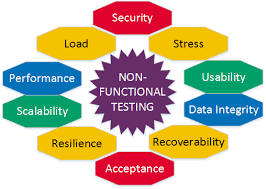
Non Functional Testing in Mobile Application

Non-functional testing in mobile application testing focuses on evaluating aspects of the app’s performance, usability, security, and other quality attributes that are not directly related to its functionality. These tests assess how well the app performs under different conditions and how it meets the non-functional requirements and user expectations. Here are key aspects and approaches to non-functional testing in mobile applications:

  1. Performance Testing:
    • Load Testing: Assess the app’s performance under various user loads to ensure it can handle concurrent users without significant slowdowns or crashes.
    • Stress Testing: Test the app’s stability and performance under extreme conditions, such as high load or low network connectivity.
    • Responsiveness Testing: Measure the app’s response time to user actions, ensuring quick and smooth interactions.
  2. Usability Testing:
    • User Experience (UX) Testing: Evaluate the app’s user interface and interactions to ensure they are intuitive, user-friendly, and visually appealing.
    • Navigation Testing: Verify that users can navigate through the app efficiently and without confusion.
    • User Feedback Collection: Gather feedback from real users to identify usability issues and areas for improvement.
  3. Compatibility Testing:
    • Device Compatibility: Test the app on different devices with various screen sizes, resolutions, hardware configurations, and operating system versions.
    • OS Compatibility: Verify the app’s compatibility with different versions of the target operating systems.
  4. Security Testing:
    • Vulnerability Testing: Identify and address security vulnerabilities, such as data breaches, insecure data storage, and inadequate authentication mechanisms.
    • Authorization and Authentication Testing: Verify that the app enforces proper user authentication and authorization controls.
  5. Network Connectivity Testing:
    • Test the app’s behavior under varying network conditions, including Wi-Fi, 3G, 4G, and offline scenarios.
    • Validate the app’s handling of network interruptions and data synchronization.
  6. Battery and Resource Usage Testing:
    • Evaluate the app’s impact on the device’s battery life and resource consumption (CPU, memory).
    • Optimize the app to minimize battery drain and resource usage.
  7. Install/Uninstall Testing:
    • Verify that the app installs and uninstalls correctly without leaving behind any residual files or data.
  8. Compliance Testing:
    • Check the app’s compliance with relevant industry standards, regulations, and guidelines.
  9. Localization and Internationalization Testing:
    • Ensure that the app functions correctly with different languages, date formats, and regional settings.
  10. Recovery Testing:
    • Test the app’s ability to recover from crashes, network failures, and other unexpected events.

Non-functional testing is crucial for delivering a high-quality mobile app that not only works as intended but also meets user expectations in terms of performance, security, usability, and overall user experience. By conducting comprehensive non-functional testing, developers can identify and address potential issues that may impact the app’s usability and reliability in real-world scenarios.

Mobile Testing

What is Manifest.xml in Android App?

The manifest file, also known as the “AndroidManifest.xml” file, is an essential configuration file in Android app development. It is a static XML file that provides essential information about the Android app to the Android operating system. Every Android app must include a manifest file in its root directory.

The AndroidManifest.xml file contains critical metadata and instructions that the Android operating system uses to understand and interact with the app. It serves several important purposes:

  1. App Information: The manifest file contains information about the app, such as its package name, version code, version name, app name, and icon. This information helps the operating system identify and manage the app.
  2. Components Declaration: The manifest file declares all the components of the app, including activities, services, broadcast receivers, and content providers. Each component is defined with its name, type, and intent filters to indicate which actions it can handle.
  3. Permissions Declaration: The manifest file lists the permissions required by the app to access specific features or data on the device. These permissions must be explicitly declared, and users are informed about them during app installation.
  4. App Configuration: The manifest file includes configuration settings for the app, such as supported screen orientations, minimum and target SDK versions, hardware requirements, and more.
  5. Intent Filters: Intent filters in the manifest file specify the types of intents (messages) that the app can handle. For example, an activity may have an intent filter to handle the “VIEW” action for specific data types, allowing the app to be launched when certain URLs or files are clicked.
  6. App Components Relationships: The manifest file defines the relationships between different app components, such as which activity is the main entry point of the app.

The AndroidManifest.xml file plays a crucial role in the Android app’s lifecycle and defines the app’s identity, capabilities, and interactions with the Android system and other apps. It acts as a contract between the app and the operating system, allowing the system to manage app installations, permissions, and user interactions effectively. Developers must ensure that the manifest file is correctly configured and contains all the necessary information and declarations required for the app to function correctly on Android devices.

Mobile Testing

What is Info.plist in IOS App?

Info.plist is a configuration file used in iOS and macOS app development. It is an XML property list file that contains essential metadata and configuration details about the app. The Info.plist file is a crucial part of every iOS and macOS app bundle, and it is automatically created when you create a new project in Xcode.

In iOS development, the Info.plist file contains information about the app’s identity, version, supported devices, required permissions, app icons, and launch screen configuration, among other details. It is used by the iOS operating system to understand and manage the app during installation and runtime.

Key contents of the Info.plist file in iOS app development include:

  1. Bundle Identifier: A unique string that identifies the app, typically in reverse domain name notation (e.g., com.example.appname).
  2. App Version and Build Number: Version number and build number of the app for tracking different app releases.
  3. Supported Device Orientations: Specifies the supported interface orientations (portrait, landscape) for the app.
  4. Required Device Capabilities: Describes the hardware features and capabilities required by the app (e.g., camera, accelerometer).
  5. App Icons: The names of the app’s icon files to be used on the home screen and in the App Store.
  6. Launch Screen Configuration: Specifies the initial screen or storyboard to be shown when the app is launched.
  7. Supported iOS Versions: The minimum and maximum iOS versions supported by the app.
  8. Required Permissions: Declares the app’s permissions for accessing sensitive data, hardware, or system resources.

In macOS app development, the Info.plist file serves a similar purpose and includes configuration information specific to macOS apps.

The Info.plist file is an integral part of the app bundle and is automatically generated and updated by Xcode as developers modify the app’s settings and configurations. It ensures that the app is correctly recognized and managed by the operating system and provides essential information for app reviewers and users in the App Store. Developers should be cautious when editing the Info.plist file manually to avoid errors that could affect the app’s functionality and compatibility.

Uncategorized

  ADB Commands

ADB Debugging

1. adb devices
Prints a list of all attached emulator/device

ex: adb devices

In response, return serial number and state

e4b25377        device
emulator-5554  device

2. adb forward
forward socket connections

examples:

adb forward <local> <remote>

adb forward tcp:8000 tcp:9000 set up forwarding of host port 8000 to emulator/device port 9000

3. adb kill-server
terminates the adb server process

adb kill-server

Package Manager

1. adb install
          Pushes an Android application (specified as a full path to an .apk file) to an emulator/device.

Syntax:
adb install [option] <path>

examples:
adb install test.apk
adb install -l test.apk forward lock application
adb install -r test.apk replace existing application
adb install -t test.apk allow test packages
adb install -s test.apk install application on sdcard
adb install -d test.apk allow version code downgrade
adb install -p test.apk partial application install

2. adb uninstall
          Removes a package from the emulator/device.
adb uninstall [options] <PACKAGE>

adb uninstall com.test.app
adb uninstall -k com.test.app Keep the data and cache directories around after package removal.

3. adb shell pm list packages
          Prints all packages, optionally only those whose package name contains the text in <FILTER>.
adb shell pm list packages [options] <FILTER>

adb shell pm list packages
adb shell pm list packages -f See their associated file.
adb shell pm list packages -d Filter to only show disabled packages.
adb shell pm list packages -e Filter to only show enabled packages.
adb shell pm list packages -s Filter to only show system packages.
adb shell pm list packages -3 Filter to only show third party packages.
adb shell pm list packages -i See the installer for the packages.
adb shell pm list packages -u Also include uninstalled packages.
adb shell pm list packages –user <USER_ID> The user space to query.

4. adb shell pm path
           Print the path to the APK of the given <PACKAGE>.

adb shell pm path <PACKAGE>

adb shell pm path com.android.phone

package:/system/priv-app/TeleService/TeleService.apk

8. adb shell pm clear
           Deletes all data associated with a package.

adb shell pm clear <PACKAGE>

adb shell pm clear com.test.abc

File Manager

1. adb pull

         Download a specified file from an emulator/device to your computer.
adb pull <remote> [local]

adb pull /sdcard/demo.mp4
download /sdcard/demo.mp4  to <android-sdk-path>/platform-tools directory.
adb pull /sdcard/demo.mp4 e:\
download /sdcard/demo.mp4 to drive E.

2. adb push
         Upload a specified file from your computer to an emulator/device.
adb push <local> <remote>

adb push test.apk /sdcard
Copies <android-sdk-path>/platform-tools/test.apk to /sdcard directory.
adb push d:\test.apk /sdcard
Copies d:\test.apk to /sdcard directory.

3. adb shell ls
         list directory contents
ls [options] <directory>

STEP 1.

adb shell

STEP 2.

ls
ls -a do not hide entries starting with
ls -i print index number of each file
ls -s print size of each file, in blocks
ls -n list numeric UIDs and GIDs
ls -R list subdirectories recursively

4. adb shell cd
     change directory
cd <directory>

STEP 1.

adb shell

STEP 2.

cd /system

5. adb shell rm
      remove files or directories
rm [options] <files or directory>

STEP 1.

adb shell

STEP 2.

rm /sdcard/test.txt
rm -f /sdcard/test.txt force remove without prompt
rm -r /sdcard/tmp remove the contents of directories recursively
rm -d /sdcard/tmp remove directory, even if it is a non-empty directory

Notes: rm -d equal rmdir command

rm -i /sdcard/test.txt prompt before any removal

6. adb shell mkdir
   make directories
mkdir [options] <directory name>

mkdir /sdcard/tmp
mkdir -m 777 /sdcard/tmp set permission mode
mkdir -p /sdcard/tmp/sub1/sub2 create parent directories as needed

7. adb shell touch
   create empty file or change file timestamps
touch [options] <file>

STEP 1.

adb shell

STEP 2.

touch /sdcard/tmp/test.txt
ls /sdcard/tmp

8. adb shell pwd
  print current working directory location.

pwd

9. adb shell cp
        copy files and directories
cp [options] <source> <dest>

STEP 1.

adb shell

STEP 2.

cp /sdcard/test.txt /sdcard/demo.txt

10. adb shell mv
     move or rename files
mv [options] <source> <dest>

STEP 1.

adb shell

STEP 2.

mv /sdcard/tmp /system/tmp move
mv /sdcard/tmp /sdcard/test rename

Logcat

1. adb logcat

Prints log data to the screen.
adb logcat [option] [filter-specs]

adb logcat

Notes: press Ctrl-C to stop monitor

adb logcat *:V lowest priority, filter to only show Verbose level
adb logcat *:D filter to only show Debug level
adb logcat *:I filter to only show Info level
adb logcat *:W filter to only show Warning level
adb logcat *:E filter to only show Error level
adb logcat *:F filter to only show Fatal level
adb logcat *:S Silent, highest priority, on which nothing is ever printed
adb logcat -b <Buffer>
adb logcat -b radio View the buffer that contains radio/telephony related messages.
adb logcat -b event View the buffer containing events-related messages.
adb logcat -b main default
adb logcat -c Clears the entire log and exits.
adb logcat -d Dumps the log to the screen and exits.
adb logcat -f test.logs Writes log message output to test.logs .
adb logcat -g Prints the size of the specified log buffer and exits.
adb logcat -n <count> Sets the maximum number of rotated logs to <count>.

Notes: The default value is 4. Requires the -r option.

adb logcat -r <kbytes> Rotates the log file every <kbytes> of output.

Notes: The default value is 16. Requires the -f option.

adb logcat -s Sets the default filter spec to silent.
adb logcat -v <format>
adb logcat -v brief Display priority/tag and PID of the process issuing the message (default format).
adb logcat -v process Display PID only.)
adb logcat -v tag Display the priority/tag only.
adb logcat -v raw Display the raw log message, with no other metadata fields.
adb logcat -v time Display the date, invocation time, priority/tag, and PID of the process issuing the message.
adb logcat -v threadtime Display the date, invocation time, priority, tag, and the PID and TID of the thread issuing the message.
adb logcat -v long Display all metadata fields and separate messages with blank lines.

2. adb shell dumpsys
     dumps system data
adb shell dumpsys [options]

adb shell dumpsys
adb shell dumpsys meminfo
adb shell dumpsys battery

Notes: A mobile device with Developer Options enabled running Android 5.0 or higher.

adb shell dumpsys batterystats collects battery data from your device

Notes: Battery Historian converts that data into an HTML visualization. STEP 1 adb shell dumpsys batterystats > batterystats.txt STEP 2 python historian.py batterystats.txt > batterystats.html

adb shell dumpsys batterystats –reset erases old collection data
adb shell dumpsys activity
adb shell dumpsys gfxinfo com.android.phone measuring com.android.phone ui performance

3. adb shell dumpstate
   dumps state

adb shell dumpstate
adb shell dumpstate > state.logs dumps state to a file

Screenshot:

1. adb shell screencap
    Taking a screenshot of a device display.
adb shell screencap <filename>

adb shell screencap /sdcard/screen.png
download the file from the device
adb pull /sdcard/screen.png

2. adb shell screenrecord
     Recording the display of devices running Android 4.4 (API level 19) and higher.
adb shell screenrecord [options] <filename>

adb shell screenrecord /sdcard/demo.mp4
(press Ctrl-C to stop recording)
download the file from the device
adb pull /sdcard/demo.mp4

Notes: Stop the screen recording by pressing Ctrl-C, otherwise the recording stops automatically at three minutes or the time limit set by –time-limit.

adb shell screenrecord –size <WIDTHxHEIGHT>

Sets the video size: 1280×720. The default value is the device’s native display resolution (if supported), 1280×720 if not. For best results, use a size supported by your device’s Advanced Video Coding (AVC) encoder.

adb shell screenrecord –bit-rate <RATE>

Sets the video bit rate for the video, in megabits per second. The default value is 4Mbps. You can increase the bit rate to improve video quality, but doing so results in larger movie files. The following example sets the recording bit rate to 5Mbps: adb shell screenrecord –bit-rate 5000000 /sdcard/demo.mp4

adb shell screenrecord –time-limit <TIME>

Sets the maximum recording time, in seconds. The default and maximum value is 180 (3 minutes).

adb shell screenrecord –rotate
Rotates the output 90 degrees. This feature is experimental.
adb shell screenrecord –verbose

System:

1. adb root
        restarts the adbd daemon with root permissions

adb root

Notes: adbd cannot run as root in production builds (test in emulator)

2. adb sideload
     Flashing/restoring Android update.zip packages.

adb sideload <update.zip>

Notes: adb reboot sideload [Android M+]

3. adb shell ps
   Print process status
ps [options]

STEP 1.

adb shell

STEP 2.

ps
ps -p

4. adb shell top
   display top CPU processes
top [options]

STEP 1.

adb shell

STEP 2.

top

Notes: (press Ctrl-C to stop monitor)

top -t Show threads instead of processes.

5. adb shell getprop
   get property via the android property service
getprop [options]

STEP 1.

adb shell

STEP 2.

getprop
getprop ro.build.version.sdk
getprop ro.chipname
getprop | grep adb

6. adb shell setprop
  set property service
setprop <key> <value>

STEP 1.

adb shell

STEP 2.

setprop service.adb.tcp.port 5555

===============================================

Refrence:
http://adbshell.com/commands
https://www.androidcentral.com/android-201-10-basic-terminal-commands-you-should-know
https://developer.android.com/studio/command-line/adb.html