Automation Testing

How can we submit a form without click method?

The click() and submit() functions are quite similar in terms of functionalities. However there are minor differences. Let us discuss some differences between them.

The submit() function is applicable only for <form> and makes handling of form easier. It can be used with any element inside a form. The click() is only applicable to buttons with type submit in a form.

The submit() function shall wait for the page to load however the click() waits only if any explicit wait condition is provided. If a form has a submit of type button, the submit() method cannot be used. Also, if a button is outside <form>, then submit() will not work.

Thus we see that click() works for both type buttons irrespective of the fact that the button is inside or outside of <form>. Let us take up the below form for implementation.

package com.test.traveltest;

import java.util.concurrent.TimeUnit;

import org.openqa.selenium.By;
import org.openqa.selenium.WebDriver;
import org.openqa.selenium.chrome.ChromeDriver;

public class SubmitForm {

	@SuppressWarnings("deprecation")
	public static void main(String[] args) {
		// TODO Auto-generated method stub
		
		System.setProperty("webdriver.chrome.driver", System.getProperty("user.dir")+"\\src\\main\\java\\drivers\\chromedriver.exe");
		WebDriver driver = new ChromeDriver();
	      String url = "https://www.facebook.com/";
	      driver.get(url);
	      driver.manage().timeouts().implicitlyWait(5, TimeUnit.SECONDS);
	      // identify elements
	      driver.findElement(By.id("email")).sendKeys("abc@gmail.com");
	      driver.findElement(By.id("pass")).sendKeys("123456");
	      // submitting form with submit()
	      driver.findElement(By.id("pass")).submit();
	      driver.quit();

	}
Automation Testing

How to obtain the page title using Selenium webdriver?

We can obtain the page title using Selenium webdriver. The method getTitle() is used to obtain the present page title and then we can get the result in the console.

Syntax

t = driver.getTitle();

Let us find the title of the current page

package RK1.Building_a_selenium_project;

import java.util.concurrent.TimeUnit;

import org.openqa.selenium.WebDriver;
import org.openqa.selenium.chrome.ChromeDriver;

public class PageTitle {
	
	public static WebDriver wd;

	public static void main(String[] args) {
		// TODO Auto-generated method stub
		
		System.setProperty("webdriver.chrome.driver", "F:\\Work Environment\\MyProject\\chromedriver.exe");
		wd = new ChromeDriver();


		//application launch
	    wd.get("https://www.testingbuddy.co.in/");
	    wd.manage().timeouts().implicitlyWait(5, TimeUnit.SECONDS);
	    wd.manage().window().maximize();
	    
	    // getTitle() to obtain page title
	    String title = wd.getTitle();
	    
	    System.out.println(wd.getTitle());
	    System.out.println(wd.getCurrentUrl());
		
	    wd.quit();


	}

}
Automation Testing

How to obtain the tagname of the parent element…

We can obtain the tagname of the parent element in Selenium webdriver. First of all, we need to identify the child element with help of any of the locators like id, class, name, xpath, or CSS. Then we have to identify the parent with the findElement(By.xpath()) method.

We can identify the parent from the child, by localizing it with the child and then passing (parent::*) as a parameter to the findElement(By.xpath()). Next, to get the tagname of the parent, we have to use the getTagName() method.

Syntax

child.findElement(By.xpath("parent::*"));

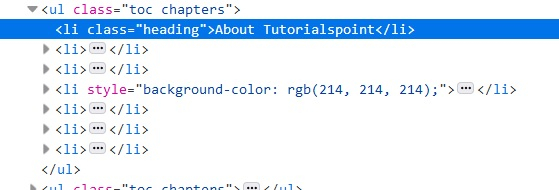
Let us identify tagname of the parent of child element li in the below html code −

The tagname of the parent should be ul.

Example

Code Implementation.

package RK1.Building_a_selenium_project;

import java.util.concurrent.TimeUnit;

import org.openqa.selenium.By;
import org.openqa.selenium.WebDriver;
import org.openqa.selenium.WebElement;
import org.openqa.selenium.chrome.ChromeDriver;

public class ParentTagName {

	public static void main(String[] args) {
		// TODO Auto-generated method stub
		
		System.setProperty("webdriver.chrome.driver", "F:\\Work Environment\\MyProject\\chromedriver.exe");
		WebDriver wd = new ChromeDriver();
		
		String url = "https://www.tutorialspoint.com/about/about_careers.htm";
		
		wd.get(url);
		wd.manage().window().maximize();
		wd.manage().timeouts().implicitlyWait(5, TimeUnit.SECONDS);
		
		// identify element
	      WebElement p=wd.findElement(By.xpath("//li[@class='heading']"));

	      //identify parent from child element
	      WebElement t= p.findElement(By.xpath("parent::*"));

	      //getTagName() to get parent element tag
	      System.out.println("Parent tagname: " + t.getTagName());
	      wd.close();

	}

}

Output

Starting ChromeDriver 104.0.5112.79 (3cf3e8c8a07d104b9e1260c910efb8f383285dc5-refs/branch-heads/5112@{#1307}) on port 16278
Only local connections are allowed.
Please see https://chromedriver.chromium.org/security-considerations for suggestions on keeping ChromeDriver safe.
ChromeDriver was started successfully.
Aug 19, 2022 3:05:02 PM org.openqa.selenium.remote.ProtocolHandshake createSession
INFO: Detected dialect: W3C
Parent tagname: ul
Automation Testing

How to scroll up/down a page using Actions class…

We can perform scroll up/down a page using Actions class in Selenium webdriver. First of all, we have to create an object of this Actions class and then apply the sendKeys method on it.

Now, to scroll down a page, we have to pass the parameter Keys.PAGE_DOWN to this method. To again scroll up a page, we have to pass the parameter Keys.PAGE_UP to the sendKeys method. Finally, we have to use the build and perform methods to actually perform this action.

Syntax

Actions a = new Actions(driver);
//scroll down a page
a.sendKeys(Keys.PAGE_DOWN).build().perform();
//scroll up a page
a.sendKeys(Keys.PAGE_UP).build().perform();
package RK1.Building_a_selenium_project;

import java.util.concurrent.TimeUnit;

import org.openqa.selenium.By;
import org.openqa.selenium.Keys;
import org.openqa.selenium.WebDriver;
import org.openqa.selenium.WebElement;
import org.openqa.selenium.chrome.ChromeDriver;
import org.openqa.selenium.interactions.Actions;

public class ScrollUpDownAction {

	public static void main(String[] args) {
		// TODO Auto-generated method stub
		
		System.setProperty("webdriver.chrome.driver", "F:\\Work Environment\\MyProject\\chromedriver.exe");
		WebDriver wd = new ChromeDriver();
		
		String url = "https://www.tutorialspoint.com/index.htm";
		
		wd.get(url);
		wd.manage().window().maximize();
		wd.manage().timeouts().implicitlyWait(5, TimeUnit.SECONDS);
		
		// object of Actions class to scroll up and down
	      Actions at = new Actions(wd);
	      at.sendKeys(Keys.PAGE_DOWN).build().perform();
	      //identify element on scroll down
	      WebElement l = wd.findElement(By.linkText("Careers"));
	      String strn = l.getText();
	      System.out.println("Text obtained by scrolling down is :"+strn);

	      at.sendKeys(Keys.PAGE_UP).build().perform();
	      //identify element on scroll up
	      WebElement m = wd.findElement(By.tagName("h1"));
	      String s = m.getText();
	      System.out.println("Text obtained by scrolling up is :"+s);
	      wd.quit();
		

	}

}
Automation Testing

How to automate drag & drop functionality using Selenium…

The drag and drop action is done with the help of a mouse. It happens when we drag and then place an element from one place to another. This is a common scenario when we try to move a file from one folder to another by simply drag and drop action.

Selenium uses the Actions class to perform the drag drop action. The dragAndDrop(source, destination) is a method under Actions class to do drag and drop operation. The method will first do a left click on the element, then continue the click to hold the source element. Next it shall move to the destination location and release the mouse.

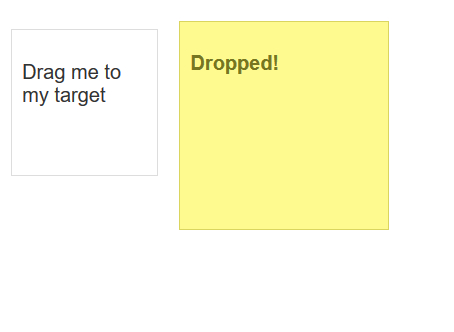
Our aim to drag and drop the first box to the second box.

Example

Code Implementation.

package RK1.Building_a_selenium_project;

import java.util.concurrent.TimeUnit;

import org.openqa.selenium.By;
import org.openqa.selenium.WebDriver;
import org.openqa.selenium.WebElement;
import org.openqa.selenium.chrome.ChromeDriver;
import org.openqa.selenium.interactions.Actions;

public class DragandDrop {

	public static void main(String[] args) {
		// TODO Auto-generated method stub
		System.setProperty("webdriver.chrome.driver", "F:\\Work Environment\\MyProject\\chromedriver.exe");
		WebDriver wd = new ChromeDriver();
		
		String url = "https://jqueryui.com/droppable/";
		
		wd.get(url);
		wd.manage().window().maximize();
		wd.manage().timeouts().implicitlyWait(5, TimeUnit.SECONDS);
		
	    wd.switchTo().frame(0);
	      // identify source and target element
	      WebElement s=wd.findElement(By.id("draggable"));
	      WebElement t=wd.findElement(By.id("droppable"));
	      //Actions class with dragAndDrop()
	      Actions act = new Actions(wd);
	      act.dragAndDrop(s, t).build().perform();
	      wd.quit();


	}

}
Automation Testing

How to automate gmail login process using selenium webdriver…


We can automate the Gmail login process using Selenium webdriver in Java. To perform this task, first we have to launch the Gmail login page and locate the email, password and other elements with the findElement method and then perform actions on them.

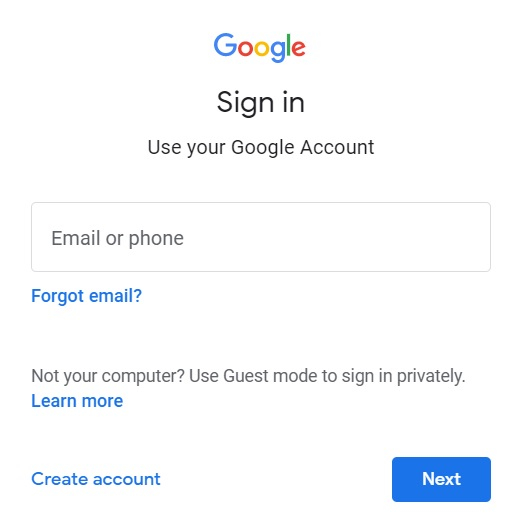
Let us have the look at the Gmail login page −

Code Implementation

package RK1.Building_a_selenium_project;
import org.openqa.selenium.WebDriver;
import org.openqa.selenium.WebElement;
import org.openqa.selenium.chrome.ChromeDriver;
import org.openqa.selenium.firefox.FirefoxDriver;
import java.util.concurrent.TimeUnit;
import org.openqa.selenium.By;

public class GmailLogin {

	public static void main(String[] args) {
		System.setProperty("webdriver.chrome.driver", "F:\\Work Environment\\MyProject\\QA_Round\\chromedriver.exe");
	      WebDriver driver = new ChromeDriver();
	      //implicit wait
	      driver.manage().timeouts().implicitlyWait(5, TimeUnit.SECONDS);
	      //URL launch
	      driver.get("https://accounts.google.com/signin");
	      //identify email
	      WebElement l = driver
	      .findElement(By.name("identifier"));
	      l.sendKeys("abc@gmail.com");
	      WebElement b = driver
	      .findElement(By.className("VfPpkd-LgbsSe"));
	      b.click();
	      //identify password
	      WebElement p = driver
	      .findElement(By.name("password"));
	      p.sendKeys("123456");
	      b.click();
	      //close browser
	      driver.close();
	   }
	}
Automation Testing

How to automate instagram login page using java in…


We can automate Instagram login page with Selenium webdriver in Java. To achieve this, first we have to launch the Instagram login page and identify the elements like email, password and login with the findElement method and interact with them.

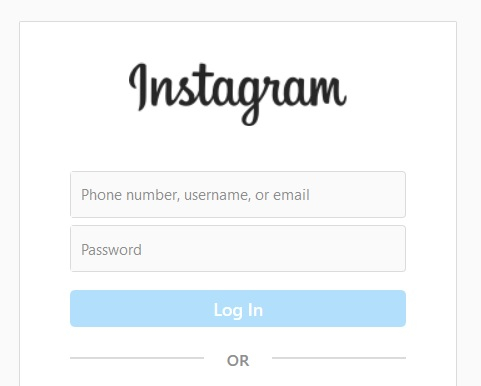
Let us have the look at the Instagram login page −

Code Implementation

package RK1.Building_a_selenium_project;
import org.openqa.selenium.WebDriver;
import org.openqa.selenium.WebElement;
import org.openqa.selenium.chrome.ChromeDriver;
import org.openqa.selenium.firefox.FirefoxDriver;
import java.util.concurrent.TimeUnit;
import org.openqa.selenium.By;

public class InstaLogin {

	public static void main(String[] args) {
		System.setProperty("webdriver.chrome.driver", "F:\\Work Environment\\MyProject\\QA_Round\\chromedriver.exe");
	      WebDriver driver = new ChromeDriver();
	      //implicit wait
	      driver.manage().timeouts().implicitlyWait(5, TimeUnit.SECONDS);
	      //URL launch
	      driver.get("https://www.instagram.com/");
	      //identify username
	      WebElement l = driver
	      . findElement(By.name("username"));
	      l.sendKeys("test@gmail.com");
	      //identify password
	      WebElement p = driver
	      .findElement(By.name("password"));
	      p.sendKeys("test123");
	      WebElement b = driver
	      .findElement(By.className("Igw0E"));
	      b.click();
	      //obtain value entered for username
	      String s = l.getAttribute("value");
	      System.out.println("Value entered for username: " + s);
	      //quit browser
	      driver.quit();
	   }
	}


Output:

Starting ChromeDriver 97.0.4692.71 (adefa7837d02a07a604c1e6eff0b3a09422ab88d-refs/branch-heads/4692@{#1247}) on port 13129
Only local connections are allowed.
Please see https://chromedriver.chromium.org/security-considerations for suggestions on keeping ChromeDriver safe.
ChromeDriver was started successfully.
Jan 19, 2022 11:39:02 PM org.openqa.selenium.remote.ProtocolHandshake createSession
INFO: Detected dialect: W3C
Value entered for username: test@gmail.com

Automation Testing

How to Open New Browser Tab in Selenuim


Answer − We can open a new browser tab in Selenium webdriver. The methods – Keys.chord and sendKeys are required to achieve this task. The Keys.chord method is used to send multiple keys at once.

We shall pass Keys.CONTROL and Keys.ENTER as parameters to this method. The complete string is again passed as a parameter to the sendKeys. Finally, the method sendKeys shall be applied on the link which we want to open in a new tab

Syntax

String l = Keys.chord(Keys.CONTROL,Keys.ENTER);
driver.findElement(By.xpath("//*[text()='Links']")). sendKeys(l);

Code Implementation

package RK1.Building_a_selenium_project;

import java.util.concurrent.TimeUnit;

import org.openqa.selenium.WebDriver;
import org.openqa.selenium.chrome.ChromeDriver;
import org.openqa.selenium.By;
import org.openqa.selenium.Keys;

public class OpenNextTab {

	public static void main(String[] args) {
		// TODO Auto-generated method stub
		System.setProperty("webdriver.chrome.driver", "F:\\Work Environment\\MyProject\\QA_Round\\chromedriver.exe");

		WebDriver driver = new ChromeDriver();

		// wait of 5 seconds
	      driver.manage().timeouts().implicitlyWait(5, TimeUnit.SECONDS);
	      //url launch
	      driver.get("https://www.tutorialspoint.com/about/about_careers.htm");
	      // Keys.Chord string
	      String l = Keys.chord(Keys.CONTROL,Keys.ENTER);
	      // open new tab
	      driver.findElement(By.xpath("//*[text()='Terms of Use']")).sendKeys(l);
	      driver.quit();
	   }

	}

Automation Testing

How can I capture network traffic of a specific…


We can capture network traffic on a specific page using Selenium webdriver in Python. To achieve this, we take the help of the JavaScript Executor. Selenium can execute JavaScript commands with the help of the execute_script method.

JavaScript command to be executed is passed as a parameter to this method. To capture the network traffic, we have to pass the command: return window.performance.getEntries() as a parameter to the execute_script method.

Syntax

r = driver.execute_script("return window.performance.getEntries();")

Example

Code Implementation


from selenium import webdriver
#configure chromedriver path
driver = webdriver.Chrome(executable_path='F:\\Work Environment\\MyProject\\QA_Round\\chromedriver.exe')
#implicit wait
driver.implicitly_wait(0.5)
#url launch
driver.get("https://www.google.com/")
#JavaScript command to traffic
r = driver.execute_script("return window.performance.getEntries();")
for res in r:
    print(res['name'])
#browser close
driver.close()

Output:

DevTools listening on ws://127.0.0.1:56201/devtools/browser/4da6ea83-b808-4ec5-8ae3-5d9a644abfe6
https://www.google.com/
https://www.google.com/xjs//js/k=xjs.s.en_GB.jS3OP7-RYWo.O/am=CCgA2EAAAAQzAAAAAAAAAIBA4MEAIAASSQAAAAAAQQAARACXAwQAAADwEZ8BAv4GAEbQhAsAAAAAAAAIwCXFUINEQQAIAAAAABCrqSsGgEAg/d=1/ed=1/dg=2/esmo=1/br=1/rs=ACT90oHGOS_vgEofFOFQIJLil3vVNM6d2g/m=cdos,dpf,hsm,jsa,d,csi https://www.google.com/logos/doodles/2022/get-vaccinated-wear-a-mask-save-lives-january-17-copy-6753651837109683-law.gif https://www.google.com/images/searchbox/desktop_searchbox_sprites318_hr.webp first-paint first-contentful-paint https://www.gstatic.com/og//js/k=og.qtm.en_US.9pElbIcw614.O/rt=j/m=qabr,q_dnp,qcwid,qapid,qald/exm=qaaw,qadd,qaid,qein,qhaw,qhbr,qhch,qhga,qhid,qhin,qhpr/d=1/ed=1/rs=AA2YrTsg7Vn-zTR579BY_X_YWcvF5v0w8g
https://www.gstatic.com/og//ss/k=og.qtm.ofT4jE96td0.L.W.O/m=qcwid/excm=qaaw,qadd,qaid,qein,qhaw,qhbr,qhch,qhga,qhid,qhin,qhpr/d=1/ed=1/ct=zgms/rs=AA2YrTvubo9qkY4L_hGiF_giXJgemAw0Bw https://www.google.com/gen_204?s=webhp&t=aft&atyp=csi&ei=XfzmYcrbD7WD4-EP-PSZwAY&rt=wsrt.1279,aft.212,afti.212,prt.188&imn=2&ima=1&imad=0&aftp=620&bl=UJOX O7jPNb kDcP9b https://www.google.com/complete/search?q&cp=0&client=gws-wiz&xssi=t&hl=en-IN&authuser=0&psi=XfzmYcrbD7WD4-EP-PSZwAY.1642527829192&nolsbt=1&dpr=1 https://www.google.com/xjs//js/k=xjs.s.en_GB.jS3OP7-RYWo.O/ck=xjs.s.O9zdDYGJ4io.L.W.O/am=CCgA2EAAAAQzAAAAAAAAAIBA4MEAIAASSQAAAAAAQQAARACXAwQAAADwEZ8BAv4GAEbQhAsAAAAAAAAIwCXFUINEQQAIAAAAABCrqSsGgEAg/d=1/exm=cdos,csi,d,dpf,hsm,jsa/esmo=1/ed=1/dg=2/br=1/rs=ACT90oEY3toiTZYMSoFCT5U_006iXLyKLw/ee=yxTchf:KUM7Z;qddgKe:x4FYXe;uY49fb:COQbmf;wR5FRb:TtcOte;iFQyKf:QIhFr;dIoSBb:ZgGg9b;eBAeSb:Ck63tb;g8nkx:U4MzKc;wQlYve:aLUfP;kbAm9d:MkHyGd;F9mqte:UoRcbe;sTsDMc:kHVSUb;vfVwPd:OXTqFb;dtl0hd:lLQWFe;q92ire:wPVhqc;pXdRYb:JKoKVe;KpRAue:Tia57b;EVNhjf:pw70Gc;nAFL3:s39S4;LQlyHd:KJbvFf;aZ61od:arTwJ;JXS8fb:Qj0suc;rQSrae:C6D5Fc;qavrXe:zQzcXe;pNsl2d:j9Yuyc;UDrY1c:eps46d;nKl0s:xxrckd;Nyt6ic:jn2sGd;w3bZCb:ZPGaIb;imqimf:jKGL2e;KQzWid:mB4wNe;Np8Qkd:Dpx6qc;BjwMce:cXX2Wb;oGtAuc:sOXFj;whEZac:iuHkw;Fmv9Nc:O1Tzwc;hK67qb:QWEO5b;jVtPve:wQ95P;R4IIIb:QWfeKf;xbe2wc:wbTLEd;tosKvd:ZCqP3;NSEoX:lazG7b;kCQyJ:ueyPK;oSUNyd:fTfGO;SJsSc:H1GVub;SMDL4c:fTfGO;NPKaK:PVlQOd;zOsCQe:Ko78Df;WCEKNd:I46Hvd;LBgRLc:XVMNvd;TxfV6d:YORN0b;GleZL:J1A7Od;qaS3gd:yiLg6e;VGRfx:VFqbr;aAJE9c:WHW6Ef;BgS6mb:fidj5d;z97YGf:oug9te;CxXAWb:YyRLvc;Pguwyb:Xm4ZCd;VN6jIc:ddQyuf;SLtqO:Kh1xYe;WDGyFe:jcVOxd;DULqB:RKfG5c;gaub4:TN6bMe;DpcR3d:zL72xf;hjRo6e:F62sG;w9w86d:dt4g2b;lkq0A:Z0MWEf;eHDfl:ofjVkb;SNUn3:x8cHvb;LEikZe:byfTOb,lsjVmc;io8t5d:sgY6Zb;j7137d:KG2eXe;Oj465e:KG2eXe;sP4Vbe:VwDzFe;kMFpHd:blwjVc/m=DhPYme,EkevXb,GU4Gab,NzU6V,aa,abd,async,dvl,fKZehd,mu,pHXghd,sb_wiz,sf,sonic,spch?xjs=s1
https://www.google.com/client_204?&atyp=i&biw=1034&bih=575&ei=XfzmYcrbD7WD4-EP-PSZwAY
https://www.google.com/xjs//js/k=xjs.s.en_GB.jS3OP7-RYWo.O/ck=xjs.s.O9zdDYGJ4io.L.W.O/am=CCgA2EAAAAQzAAAAAAAAAIBA4MEAIAASSQAAAAAAQQAARACXAwQAAADwEZ8BAv4GAEbQhAsAAAAAAAAIwCXFUINEQQAIAAAAABCrqSsGgEAg/d=1/exm=DhPYme,EkevXb,GU4Gab,NzU6V,aa,abd,async,cdos,csi,d,dpf,dvl,fKZehd,hsm,jsa,mu,pHXghd,sb_wiz,sf,sonic,spch/esmo=1/ed=1/dg=2/br=1/rs=ACT90oEY3toiTZYMSoFCT5U_006iXLyKLw/ee=yxTchf:KUM7Z;qddgKe:x4FYXe;uY49fb:COQbmf;wR5FRb:TtcOte;iFQyKf:QIhFr;dIoSBb:ZgGg9b;eBAeSb:Ck63tb;g8nkx:U4MzKc;wQlYve:aLUfP;kbAm9d:MkHyGd;F9mqte:UoRcbe;sTsDMc:kHVSUb;vfVwPd:OXTqFb;dtl0hd:lLQWFe;q92ire:wPVhqc;pXdRYb:JKoKVe;KpRAue:Tia57b;EVNhjf:pw70Gc;nAFL3:s39S4;LQlyHd:KJbvFf;aZ61od:arTwJ;JXS8fb:Qj0suc;rQSrae:C6D5Fc;qavrXe:zQzcXe;pNsl2d:j9Yuyc;UDrY1c:eps46d;nKl0s:xxrckd;Nyt6ic:jn2sGd;w3bZCb:ZPGaIb;imqimf:jKGL2e;KQzWid:mB4wNe;Np8Qkd:Dpx6qc;BjwMce:cXX2Wb;oGtAuc:sOXFj;whEZac:iuHkw;Fmv9Nc:O1Tzwc;hK67qb:QWEO5b;jVtPve:wQ95P;R4IIIb:QWfeKf;xbe2wc:wbTLEd;tosKvd:ZCqP3;NSEoX:lazG7b;kCQyJ:ueyPK;oSUNyd:fTfGO;SJsSc:H1GVub;SMDL4c:fTfGO;NPKaK:PVlQOd;zOsCQe:Ko78Df;WCEKNd:I46Hvd;LBgRLc:XVMNvd;TxfV6d:YORN0b;GleZL:J1A7Od;qaS3gd:yiLg6e;VGRfx:VFqbr;aAJE9c:WHW6Ef;BgS6mb:fidj5d;z97YGf:oug9te;CxXAWb:YyRLvc;Pguwyb:Xm4ZCd;VN6jIc:ddQyuf;SLtqO:Kh1xYe;WDGyFe:jcVOxd;DULqB:RKfG5c;gaub4:TN6bMe;DpcR3d:zL72xf;hjRo6e:F62sG;w9w86d:dt4g2b;lkq0A:Z0MWEf;eHDfl:ofjVkb;SNUn3:x8cHvb;LEikZe:byfTOb,lsjVmc;io8t5d:sgY6Zb;j7137d:KG2eXe;Oj465e:KG2eXe;sP4Vbe:VwDzFe;kMFpHd:blwjVc/m=LtQuz,VsqSCc,fXO0xe,kQvlef?xjs=s2 https://www.google.com/gen_204?atyp=i&ei=XfzmYcrbD7WD4-EP-PSZwAY&dt19=2&zx=1642527829299 https://www.google.com/client_204?cs=1 https://apis.google.com//scs/abc-static//js/k=gapi.gapi.en.h3Hb0D_ghuM.O/m=gapi_iframes,googleapis_client/rt=j/sv=1/d=1/ed=1/rs=AHpOoo8HKYs3uYwO3D8vrT9sPLRNofSg0A/cb=gapi.loaded_0 https://www.google.com/xjs//js/k=xjs.s.en_GB.jS3OP7-RYWo.O/ck=xjs.s.O9zdDYGJ4io.L.W.O/am=CCgA2EAAAAQzAAAAAAAAAIBA4MEAIAASSQAAAAAAQQAARACXAwQAAADwEZ8BAv4GAEbQhAsAAAAAAAAIwCXFUINEQQAIAAAAABCrqSsGgEAg/d=1/exm=DhPYme,EkevXb,GU4Gab,LtQuz,NzU6V,VsqSCc,aa,abd,async,cdos,csi,d,dpf,dvl,fKZehd,fXO0xe,hsm,jsa,kQvlef,mu,pHXghd,sb_wiz,sf,sonic,spch/esmo=1/ed=1/dg=2/br=1/rs=ACT90oEY3toiTZYMSoFCT5U_006iXLyKLw/ee=yxTchf:KUM7Z;qddgKe:x4FYXe;uY49fb:COQbmf;wR5FRb:TtcOte;iFQyKf:QIhFr;dIoSBb:ZgGg9b;eBAeSb:Ck63tb;g8nkx:U4MzKc;wQlYve:aLUfP;kbAm9d:MkHyGd;F9mqte:UoRcbe;sTsDMc:kHVSUb;vfVwPd:OXTqFb;dtl0hd:lLQWFe;q92ire:wPVhqc;pXdRYb:JKoKVe;KpRAue:Tia57b;EVNhjf:pw70Gc;nAFL3:s39S4;LQlyHd:KJbvFf;aZ61od:arTwJ;JXS8fb:Qj0suc;rQSrae:C6D5Fc;qavrXe:zQzcXe;pNsl2d:j9Yuyc;UDrY1c:eps46d;nKl0s:xxrckd;Nyt6ic:jn2sGd;w3bZCb:ZPGaIb;imqimf:jKGL2e;KQzWid:mB4wNe;Np8Qkd:Dpx6qc;BjwMce:cXX2Wb;oGtAuc:sOXFj;whEZac:iuHkw;Fmv9Nc:O1Tzwc;hK67qb:QWEO5b;jVtPve:wQ95P;R4IIIb:QWfeKf;xbe2wc:wbTLEd;tosKvd:ZCqP3;NSEoX:lazG7b;kCQyJ:ueyPK;oSUNyd:fTfGO;SJsSc:H1GVub;SMDL4c:fTfGO;NPKaK:PVlQOd;zOsCQe:Ko78Df;WCEKNd:I46Hvd;LBgRLc:XVMNvd;TxfV6d:YORN0b;GleZL:J1A7Od;qaS3gd:yiLg6e;VGRfx:VFqbr;aAJE9c:WHW6Ef;BgS6mb:fidj5d;z97YGf:oug9te;CxXAWb:YyRLvc;Pguwyb:Xm4ZCd;VN6jIc:ddQyuf;SLtqO:Kh1xYe;WDGyFe:jcVOxd;DULqB:RKfG5c;gaub4:TN6bMe;DpcR3d:zL72xf;hjRo6e:F62sG;w9w86d:dt4g2b;lkq0A:Z0MWEf;eHDfl:ofjVkb;SNUn3:x8cHvb;LEikZe:byfTOb,lsjVmc;io8t5d:sgY6Zb;j7137d:KG2eXe;Oj465e:KG2eXe;sP4Vbe:VwDzFe;kMFpHd:blwjVc/m=aLUfP?xjs=s2

In Java:

package RK1.Building_a_selenium_project;

import org.testng.annotations.Test;

import java.util.Date;
import java.util.List;
import java.util.logging.Level;

import org.openqa.selenium.WebDriver;
import org.openqa.selenium.chrome.ChromeDriver;
import org.openqa.selenium.chrome.ChromeOptions;
import org.openqa.selenium.logging.LogEntry;
import org.openqa.selenium.logging.LogType;
import org.openqa.selenium.logging.LoggingPreferences;
import org.openqa.selenium.remote.CapabilityType;
import org.openqa.selenium.remote.DesiredCapabilities;
import org.testng.Reporter;
import org.testng.annotations.AfterTest;

public class NetworkState {
	public static WebDriver driver;

  @SuppressWarnings("deprecation")
@Test
  public void test1() {
	  System.setProperty("webdriver.chrome.driver", "F:\\Work Environment\\MyProject\\QA_Round\\chromedriver.exe");

	  DesiredCapabilities caps = DesiredCapabilities.chrome();
	  ChromeOptions options = new ChromeOptions();
	  LoggingPreferences logPrefs = new LoggingPreferences();
	  logPrefs.enable(LogType.PERFORMANCE, Level.ALL);
	  options.setCapability( "goog:loggingPrefs", logPrefs );

	  caps.setCapability(CapabilityType.LOGGING_PREFS, logPrefs);
	  driver = new ChromeDriver(caps);
	  
	  
	  driver.navigate().to("https://www.google.com/");
	  List<LogEntry> entries = driver.manage().logs().get(LogType.BROWSER).getAll();

	  System.out.println(entries.size() + " " + LogType.PERFORMANCE + " log entries found");

	  for (LogEntry entry : entries) {
	      System.out.println(new Date(entry.getTimestamp()) + " " + entry.getLevel() + " " + entry.getMessage());

  }
  }
  
  @AfterTest
  public void afterTest() {
	  driver.close();
	  driver.quit();
	  Reporter.log("Test is complete: Exit");
  }


}
Automation Testing

What is the difference between findElement and findElements in…


There are differences between findElement and findElements in the Selenium webdriver. Both of them can be used to locate elements on a webpage. The findElement points to a single element, while the findElements method returns a list of matching elements.

The return type of findElements is a list but the return type of findElement is a WebElement. If there is no matching element, a NoSuchElementException is thrown by the findElement, however, an empty list is returned by the findElements method.

Good usage of the findElements method usage is counting the total number of images or accessing each of images by iterating with a loop.

Syntax −

WebElement i = driver.findElement(By.id("img-loc"));
List<WebElement> s =
driver.findElements(By.tagName("img"));

Example

Code Implementation

import org.openqa.selenium.By;
import org.openqa.selenium.WebDriver;
import org.openqa.selenium.WebElement;
import org.openqa.selenium.chrome.ChromeDriver;
import java.util.concurrent.TimeUnit;
import java.util.List;
public class FindElementFindElementMthds{
   public static void main(String[] args) {
      System.setProperty("webdriver.chrome.driver", "C:\\Users\\ghs6kor\\Desktop\\Java\\chromedriver.exe");
      WebDriver driver = new ChromeDriver();

      //implicit wait
      driver.manage().timeouts().implicitlyWait(5, TimeUnit.SECONDS);

      //URL launch
      driver.get("https://www.tutorialspoint.com/upsc_ias_exams.htm");

      //identify single element
      WebElement elm = driver.findElement(By.tagName("h2"));
      String s = elm.getText();
      System.out.println("Get text on element: " + s);

      //identify all elements with tagname
      List<WebElement> i = driver.findElements(By.tagName("img"));

      //count
      int c = i.size();
      System.out.println("Number of images: " + c);

      //browser close
      driver.close();
   }
}