Automation for facebook Automation Testing

Selenium Assignment – 2

This is the second assignment in the series of real-time scenarios

Facebook Sign up:

Scenario:

  1. Open a Firefox browser.
  2. Navigate to “http://www.facebook.com/register”
  3. Verify that the page is redirected to “http://www.facebook.com/register”, by getting the current URL. use Assert.assertequals() in case you are familiar with TestNG or JUnit
  4. Verify that there is a “Create an account” section on the page.
  5. Fill in the text boxes: First Name, Surname, Mobile Number or email address, “Re-enter mobile number”, new password.
  6. Update the date of birth in the drop-down.
  7. Select gender.
  8. Click on “Create an account”.
  9. Verify that the account is created successfully.
package com.test.traveltest;

import java.util.concurrent.TimeUnit;

import org.openqa.selenium.By;
import org.openqa.selenium.WebDriver;
import org.openqa.selenium.firefox.FirefoxDriver;
import org.openqa.selenium.support.ui.Select;
import org.testng.Assert;
import org.testng.annotations.AfterClass;
import org.testng.annotations.BeforeClass;
import org.testng.annotations.BeforeTest;
import org.testng.annotations.Test;

public class Assignment2 {
	WebDriver driver;
	
	String fbUrl = "https://www.fb.com";
	String facebookUrl = "https://www.facebook.com/register";
	
	@BeforeClass
	public void invokeBrowser(){
		System.setProperty("webdriver.gecko.driver",
				"D:\\Selenium\\geckodriver-v0.31.0-win64\\geckodriver.exe");
		driver = new FirefoxDriver();

		driver.manage().window().maximize();

		driver.manage().timeouts().pageLoadTimeout(20, TimeUnit.SECONDS);

		driver.get(facebookUrl);
	}
	
	@Test
	public void verifyURL(){
		
		String urlFromBrowser = driver.getCurrentUrl();
		
		Assert.assertEquals(urlFromBrowser, facebookUrl, "No redirection happened");
		
		
	}
	
	
	@Test
	public void facebookSignUp() {
		
		driver.findElement(By.name("firstname")).sendKeys("Test");
		driver.findElement(By.name("lastname")).sendKeys("User");
		driver.findElement(By.name("reg_email__")).sendKeys("testuser@test.com");
		driver.findElement(By.name("reg_passwd__")).sendKeys("testPassword");
		
		Select selDate = new Select(driver.findElement(By.id("day")));
		Select selMonth = new Select(driver.findElement(By.id("month")));
		Select selYear = new Select(driver.findElement(By.id("year")));
		
		selDate.selectByVisibleText("21");
		selMonth.selectByVisibleText("Jun");
		selYear.selectByVisibleText("1989");
		
		driver.findElement(By.xpath("//input[@type='radio' and @value='2']")).click();
		
		driver.findElement(By.xpath("//button[text()='Sign Up']")).click();
	}
	
	
	@AfterClass
	public void closeBrowser(){
		
		driver.quit();
		
	}

}
Automation Testing

Selenium Assignment – 1

Here is the first assignment of this series of real-time scenarios, to practice Selenium from TestingBuddy. This assignment mainly focuses on how to invoke the Firefox browser, maximizing the window, navigate commands, etc.

This assignment is not considering proper framework development. Once you are good with frameworks, try this again considering framework.

Note: If you are very new to selenium, go through Environment setup for Selenium WebDriver and other articles before starting.

Scenario:

  1. Open the Firefox browser.
  2. Maximize the browser window.
  3. Navigate to “https://testingbuddy.co.in/?p=169”.
  4. Write a method to print PASS if the title of the page matches with “QA Automation Tools Trainings and Tutorials | QA Tech Hub” else FAIL. (If you are familiar with TestNG or JUnit use assert statement like assert.assertequals(actual, expected) to give a verdict of the pass or fail status.
  5. Navigate to the Facebook page (https://www.facebook.com)
  6. Navigate back to the QA Tech Hub website.
  7. Print the URL of the current page.
  8. Navigate forward.
  9. Reload the page.
  10. Close the Browser.

Try this code. Send us your feedback and if you have any questions, queries or comments.

package com.test.traveltest;

import java.util.concurrent.TimeUnit;

import org.openqa.selenium.firefox.FirefoxDriver;
import org.testng.Assert;
import org.testng.annotations.AfterTest;
import org.testng.annotations.BeforeTest;
import org.testng.annotations.Test;

public class Assignment1 {
	FirefoxDriver driver;
	String tbUrl = "https://testingbuddy.co.in/?p=169";
	String facebookUrl = "https://www.facebook.com";
	
	@BeforeTest
	public void invokeBrowser(){
		System.setProperty("webdriver.gecko.driver",
				"D:\\Selenium\\geckodriver-v0.31.0-win64\\geckodriver.exe");
		driver = new FirefoxDriver();

		driver.manage().window().maximize();

		driver.manage().timeouts().pageLoadTimeout(20, TimeUnit.SECONDS);

		driver.get(tbUrl);
	}
	

	@Test(priority=0)
	public void Test1() {


		String titleOfThePage = driver.getTitle();
		System.out.println(titleOfThePage);
		Assert.assertEquals(titleOfThePage, "Difference between abstract class and interface - Testingbuddy");

	}

	@Test(priority= 1)
	public void Test2() {
		driver.navigate().to(facebookUrl);

		String currentUrl = driver.getCurrentUrl();

		System.out.println("Current URL :: " + currentUrl);
		driver.navigate().back();

		driver.navigate().forward();

		driver.navigate().refresh();

                
	}
	
	@AfterTest
	public void testComplete() {
		driver.quit();
	}

}
Automation Testing

Interview Question for Automation Testing

Here are Automation Testing interview questions and answers for fresher and experienced candidates to get their dream job.


1) What is Automation testing?
Automation Testing uses an automation tool to execute test cases. The main goal of Automation Testing is to reduce the number of test cases to be run manually and not eliminate Manual Testing.


2) When will you automate a test?
Automation is preferred in the following cases

Repetitive Tasks.
Regression Testing
Smoke and Sanity Tests.
Test with multiple data sets.
Testing is not recommended for one-off test cases. Usually, the decision on which test cases to automate is based on the ROI (Return on Investment). The more times the automated test is executed, the better the ROI.

3) When will you not Automate testing?
One should not automate in the following cases

When the Application Under Test changes frequently
One-time test cases
Adhoc – Random Testing
Exploratory Testing
Usability tests that generally need manual intervention to check the test results
Test cases with detailed setup requirements to be done before each execution
Test cases that return unpredicted test results
Exclude unplanned test case


4) What are the steps involved in the Automation Process?
In the automation process, the steps involved are

Selecting the Test tool
Define the scope of automation
Planning, design, and development
Test execution
Maintenance


5) What are the points covered while planning the phase of automation?
During the planning phase of automation, things that must be taken into concern are:

Selection of the “right” Automation tool
Selection Automation Framework, if any.
List of in-scope and out-of-scope items for automation.
Test Environment Setup.
Preparing Gantt Chart of Project timelines for test script development & execution.
Identify Test Deliverables.

6) In what condition you can’t use automation testing for the Agile method?
Automation testing is not helpful for agile methods in the following conditions:

When user stories are constantly changing
When an exhaustive level of documentation is required in Agile.
Only suitable for regression tests during agile testing, like continuous integration.
Learn more about Agile Testing.

7) What is a test script?
A test script is a code to perform a set of instructions on an application. It is used to verify whether the application is functioning as per the software requirements.

When you run your script, it gives the test results as a pass or fails, which is determined by whether the application works as per the expectations.

8) How to select a good test automation tool?
Wide Test Environment support
Easy to use
Good debugging facility
Robust object identification
Record and Playback
Supports common programming languages for test script creation, for example, Java
Image testing abilities
Testing of database
Parameterization
Support multiple automation frameworks
Type of support is available for the tools like documentation, tutorials, training, etc
Cost and budget
Good reporting system


9) Can you tell me some good coding practices while automation?
Here are good automation practices:

Add appropriate comments to explain that coding part.
You should identify the reusable methods and write them in a separate file.
Must follow the language-specific coding conventions.
Store the test data in a separate file.
Run your scripts regularly.

10) What is a Modular Testing framework?
Modular Testing framework is built on the concept of abstraction. In this type of framework, the tester creates scripts for all the application modules under test, and then these scripts are combined in a hierarchical order to create test cases.

11) Data-Driven Testing framework
Data Driven Testing Image
In Data driven testing framework, the input and expected output data corresponding to the input data is stored in a file or database.

The automated script runs the same test steps for multiple data sets. It also allows you to run multiple test cases where only the input data differs, but the steps of execution remain the same.

12) What version control systems do you use?
We use GitHub. Version control helps you to track code changes. It controls the test script source code with a recorded history of changes to simplify the modification process. You may also revert to previous code versions if you make a mistake.

13) What are XPath Axes? Name some of them.
XPath is a syntax that manipulates XML (Extensible Markup Language) data. They help to locate nodes related to those on the tree. Some important XPath Axes are ancestor, child, namespace, parent, etc.

14) How can you speed up an auto test suite?
Applications that require UI testing that interacts with multiple elements can slow down the testing process. It’s better to create a simple test script that speeds up test execution.

15) Is documentation necessary in Automation Testing?
Documentation plays a vital role in Test Automation. You should document all the methods and procedures to ensure their repeatability. Test specifications, designs, code changes, test cases, automation plans, bug reports

16) What types of frameworks are used in software automation testing?
Four types of frameworks used are

Data-driven automation framework
Keyword-driven automation framework
Modular automation framework
Hybrid automation framework
Learn more about automation frameworks

17) Is it possible to achieve 100% automation?
No, it is not possible to automate everything. Achieving 100% automation is difficult as there are some scenarios where a registration page has a captcha or some test cases we don’t execute often. Moreover, automating these test cases will not add value to the automation or bring positive ROI.

18) What is the average number of test cases you have automated per day?
The answer depends on the length and complexity of the test scenario. Generally, a QA tester can automate 2-4 test scenarios daily when the complexity is limited. However, sometimes it might reduce to 1-2 when the complexity is high.

19) What is the scripting standard while performing automation testing?
While writing the scripts for automation, you must consider the following things:

Uniform naming convention.
3 lines of comments for every 10 lines of code.
Adequate indentation.
Robust error handling and recovery scenario.
Use of Frameworks wherever possible.
20) What are the most popular tools for automation testing?
The most popular test tool for automation testing are:

Selenium
UFT.
Rational Robot.
Here is a complete list of automation testing tools.

21) How can you measure the success of automation testing?
Following criteria can map the success of automation testing:

Defect Detection Ratio
Automation execution time and time savings to release the product
Reduction in Labour & other costs
22) Can you list out some disadvantages of manual testing?
Manual testing requires more time and more resources.
Inaccuracy
Executing the same test case repeatedly is error-prone and tedious.
It is impractical to do manual testing on very large and time-bound projects.
23) What are the differences between open-source tools, vendor tools, & in-house tools in automation testing?
Here are the differences between all:

Open-Source Tools: They are free tools with source code available on the internet. Example: Selenium
Vendor Tools: These testing tools are developed by companies, and you need to purchase their licenses. Example: Microfocus UFT.
In-house Tools: It is built by companies for their use.
24) What are the Prerequisites of Automation Testing?
A few important pre-requisites of Automation Testing are:

A stable build
Functionalities to be tested
Test cases for automated Testing
25) Can you do automation without a framework?
Frameworks are guidelines and not mandatory to create and execute automation scripts. So, yes, we can automate without a framework. Enhancing and maintaining test scripts would be easy if we created and followed a framework.

26) Tell me what you know about Selenium
Selenium is a free (open source) test automation suite. It is used to automate Web and Mobile environments. It consists of the following.

Selenium IDE (Browser Addon–Record and Playback Tool)
Selenium WebDriver
Selenium Grid (Distributed Testing)
Selenium supports scripting in languages like Java, C#, Python, Ruby, PHP, Perl, and JavaScript.
27) Tell me about QTP
QTP (Quick Test Professional) is now known as Microfocus UFT. It is a commercial automation tool and supports an extensive range of test environments: Web, Desktop, SAP, Delphi, Net, ActiveX, Flex, Java, Oracle, Mobile, PeopleSoft, PowerBuilder, Siebel, Stingray, and Visual Basic, amongst others.

The scripting language is VBScript. The tool gels well with ALM (Test Management Tool) and LoadRunner (Performance Testing Tool).

Salient features of QTP include Business Process Testing, keyword-driven framework, XML support, robust checkpoints, and test results.

28) What is SikuliX?
SikuliX is a tool that uses the “Visual Image Match” method to automate the graphical user interface. All the web elements in SikuliX should be taken as an image and stored inside the project.

SikuliX is comprised of

SikuliX Script
Visual Scripting API for Jython
SikuliX IDE
Practical uses of SikuliX are:

It can automate window-based applications and anything you see on screen without using internal API support.
It provides a simple API.
It can be easily linked with tools like Selenium.
Web applications can be automated.
SikuliX offers extensive support to automate flash objects.
It can work on any technology -.NET, Java.
29) Mention what the difference between Selenium and SikuliX is?
SikuliX Selenium
It provides extensive support to automate flash objects It cannot automate flash objects like video players or audio players.
It has a simple API It has got complicated API
It uses a visual match to find elements on the screen. So, we can automate anything we see on the screen. It uses CSS, ID, locators, and other selected to identify GUI elements
It can automate the web as well as windows application It can automate only web applications
30) What are the attributes of a good automation framework?
Here are some important attributes of a good automation framework:

Modular: It is a framework that should be adaptable to change. So that testers should be able to modify the scripts as per the environment.
Reusable: It should be reusable so that methods or utilities should be written in a common file accessible to all the scripts.
Consistent: It should be written in a consistent format.
Independent: The automation scripts should be written in such a way that they are independent of each other.
Integration: Automation Framework should be developed in such a way that it is easy to integrate with other applications.
31) What is Cross-Browser Testing?
It is a subset of browser automation testing that helps you ensure that the online application operates correctly across different browsers. Google Chrome, Mozilla Firefox, Microsoft Edge, Safari, etc.

Cross Browser Testing using Selenium WebDriver
The main aim of cross-browser testing is to check that your website or web app works correctly on different combinations of browsers and OS.

32) Which Testing can be done using the Selenium Framework?
You can use a Selenium framework for the following testing:

Load testing of web applications.
Regression testing of web applications.
Functional testing of web applications.
33) Is Automation testing white box testing or black box testing?
Automation testing is primarily black box testing.

34) What keyword is used to fetch the URL of the current page in Selenium?
Selenium WebDriver can help you find the current URL of a page with the getcurrentURL(). This method will find the URL of the open applications and result in a string.

35) Where will you maintain information like URL, login, and password?
URL, login, and password are important information used very often and change frequently. They should always be maintained in a separate file. If not done, then the automation tester must change it in every file with its reference.

36) What are the Extensions and Test Assets of QTP?
Some Important Test Assets and extensions of QTP are:

Results .xml
Recovery scenario .qrs
Test batch runner .mtb
Shared object repository .tsr
Local object repository .mtr
Test file .mts
Function library .qfl
37) What are the differences between manual testing and automation testing?
Here are some major differences between manual and automation testing:

Parameters Manual Testing Automation Testing
Time consumption More Less
STLC Follow manually Follows using tool
Cos Less expensive Expensive
Reliability Less Reliable Highly Reliable
Quality Low High
Skill Set Less skill set required High skill set is required.
38) What are the essential modules of an automation testing framework?
Here are some essential modules of the automation testing framework:

Test Assertion Tool: This testing tool will provide assert statements for assessing the expected values in the application under test. For Example, Junit, TestNG, Junit, etc.
Data Setup: Ensures that each test case takes the test data from the database, a file, or embedded in the test script.
Build Management Tool: The framework requires to be built and deployed to create test scripts.
Continuous integration tool: They are required to integrate and deploy the changes done in the framework at each iteration.
Reporting tool: It helps to generate a readable report after the test cases for a better view of the steps, failures, and results.
Logging tool: They help in better debugging of the error and bugs.
39) What is Cucumber?
Cucumber is an open-source (BDE) behavior-driven development tool. It is used tool for web-based application automation testing and supports languages like Java, Ruby, Ruby, Scala, Groovy, etc. Cucumber reads executable specifications written in plain text and tests the application under test for those specifications.

40) What is Test Complete?
TestComplete is an automated UI testing tool for desktop applications, web, mobile, etc. It offers the flexibility to record a test case on one browser and run it on multiple browsers, thus supporting cross browsers testing.

41) What is Cypress?
Cypress is an open-source testing framework. It is developed in JavaScript and has lately gained popularity because of its simplicity and extensive capabilities that enable browser testing, and user manuals should be thoroughly documented.

42) How can you handle the alert popups in Selenium WebDriver?
Selenium gives alerts if there are issues while you test. The pop-up interface allows you to handle the alert by switching the control to the pop-up, pressing the OK or Cancel buttons, and turning back to the source page screen.

String srcPage = driver.getWindowHandle();
Alert pop = driver.switchTo().alert(); // shift control to the alert pop-up.
Pop.accept(); // click k button.


43) What is a Hybrid Testing framework?
The Hybrid Testing framework develops the test cases from modular scripts by combining them in the modular testing framework.

44) Write steps to automate primary “login” functionality test cases for an application?
Here are the steps to automate basic login functionality:

Step 1) Understand the project requirement.

Step 2) Identify the Test scenarios

Step 3) Prepare a data input file with the data corresponding to each scenario

Step 4) Launch the tool from the program.

Step 5) Identify the username, password, and login buttons.

Step 6) Verify that the error message for negative scenarios is the same as the success message for positive test -scenarios.

These are the interview questions

Automation Testing

How to obtain the page title using Selenium webdriver?

We can obtain the page title using Selenium webdriver. The method getTitle() is used to obtain the present page title and then we can get the result in the console.

Syntax

t = driver.getTitle();

Let us find the title of the current page

package RK1.Building_a_selenium_project;

import java.util.concurrent.TimeUnit;

import org.openqa.selenium.WebDriver;
import org.openqa.selenium.chrome.ChromeDriver;

public class PageTitle {
	
	public static WebDriver wd;

	public static void main(String[] args) {
		// TODO Auto-generated method stub
		
		System.setProperty("webdriver.chrome.driver", "F:\\Work Environment\\MyProject\\chromedriver.exe");
		wd = new ChromeDriver();


		//application launch
	    wd.get("https://www.testingbuddy.co.in/");
	    wd.manage().timeouts().implicitlyWait(5, TimeUnit.SECONDS);
	    wd.manage().window().maximize();
	    
	    // getTitle() to obtain page title
	    String title = wd.getTitle();
	    
	    System.out.println(wd.getTitle());
	    System.out.println(wd.getCurrentUrl());
		
	    wd.quit();


	}

}
Automation Testing

How to obtain the tagname of the parent element…

We can obtain the tagname of the parent element in Selenium webdriver. First of all, we need to identify the child element with help of any of the locators like id, class, name, xpath, or CSS. Then we have to identify the parent with the findElement(By.xpath()) method.

We can identify the parent from the child, by localizing it with the child and then passing (parent::*) as a parameter to the findElement(By.xpath()). Next, to get the tagname of the parent, we have to use the getTagName() method.

Syntax

child.findElement(By.xpath("parent::*"));

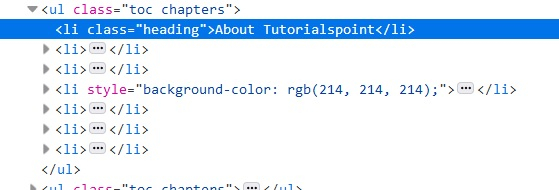
Let us identify tagname of the parent of child element li in the below html code −

The tagname of the parent should be ul.

Example

Code Implementation.

package RK1.Building_a_selenium_project;

import java.util.concurrent.TimeUnit;

import org.openqa.selenium.By;
import org.openqa.selenium.WebDriver;
import org.openqa.selenium.WebElement;
import org.openqa.selenium.chrome.ChromeDriver;

public class ParentTagName {

	public static void main(String[] args) {
		// TODO Auto-generated method stub
		
		System.setProperty("webdriver.chrome.driver", "F:\\Work Environment\\MyProject\\chromedriver.exe");
		WebDriver wd = new ChromeDriver();
		
		String url = "https://www.tutorialspoint.com/about/about_careers.htm";
		
		wd.get(url);
		wd.manage().window().maximize();
		wd.manage().timeouts().implicitlyWait(5, TimeUnit.SECONDS);
		
		// identify element
	      WebElement p=wd.findElement(By.xpath("//li[@class='heading']"));

	      //identify parent from child element
	      WebElement t= p.findElement(By.xpath("parent::*"));

	      //getTagName() to get parent element tag
	      System.out.println("Parent tagname: " + t.getTagName());
	      wd.close();

	}

}

Output

Starting ChromeDriver 104.0.5112.79 (3cf3e8c8a07d104b9e1260c910efb8f383285dc5-refs/branch-heads/5112@{#1307}) on port 16278
Only local connections are allowed.
Please see https://chromedriver.chromium.org/security-considerations for suggestions on keeping ChromeDriver safe.
ChromeDriver was started successfully.
Aug 19, 2022 3:05:02 PM org.openqa.selenium.remote.ProtocolHandshake createSession
INFO: Detected dialect: W3C
Parent tagname: ul
Automation Testing

How to scroll up/down a page using Actions class…

We can perform scroll up/down a page using Actions class in Selenium webdriver. First of all, we have to create an object of this Actions class and then apply the sendKeys method on it.

Now, to scroll down a page, we have to pass the parameter Keys.PAGE_DOWN to this method. To again scroll up a page, we have to pass the parameter Keys.PAGE_UP to the sendKeys method. Finally, we have to use the build and perform methods to actually perform this action.

Syntax

Actions a = new Actions(driver);
//scroll down a page
a.sendKeys(Keys.PAGE_DOWN).build().perform();
//scroll up a page
a.sendKeys(Keys.PAGE_UP).build().perform();
package RK1.Building_a_selenium_project;

import java.util.concurrent.TimeUnit;

import org.openqa.selenium.By;
import org.openqa.selenium.Keys;
import org.openqa.selenium.WebDriver;
import org.openqa.selenium.WebElement;
import org.openqa.selenium.chrome.ChromeDriver;
import org.openqa.selenium.interactions.Actions;

public class ScrollUpDownAction {

	public static void main(String[] args) {
		// TODO Auto-generated method stub
		
		System.setProperty("webdriver.chrome.driver", "F:\\Work Environment\\MyProject\\chromedriver.exe");
		WebDriver wd = new ChromeDriver();
		
		String url = "https://www.tutorialspoint.com/index.htm";
		
		wd.get(url);
		wd.manage().window().maximize();
		wd.manage().timeouts().implicitlyWait(5, TimeUnit.SECONDS);
		
		// object of Actions class to scroll up and down
	      Actions at = new Actions(wd);
	      at.sendKeys(Keys.PAGE_DOWN).build().perform();
	      //identify element on scroll down
	      WebElement l = wd.findElement(By.linkText("Careers"));
	      String strn = l.getText();
	      System.out.println("Text obtained by scrolling down is :"+strn);

	      at.sendKeys(Keys.PAGE_UP).build().perform();
	      //identify element on scroll up
	      WebElement m = wd.findElement(By.tagName("h1"));
	      String s = m.getText();
	      System.out.println("Text obtained by scrolling up is :"+s);
	      wd.quit();
		

	}

}
Automation Testing

How to automate drag & drop functionality using Selenium…

The drag and drop action is done with the help of a mouse. It happens when we drag and then place an element from one place to another. This is a common scenario when we try to move a file from one folder to another by simply drag and drop action.

Selenium uses the Actions class to perform the drag drop action. The dragAndDrop(source, destination) is a method under Actions class to do drag and drop operation. The method will first do a left click on the element, then continue the click to hold the source element. Next it shall move to the destination location and release the mouse.

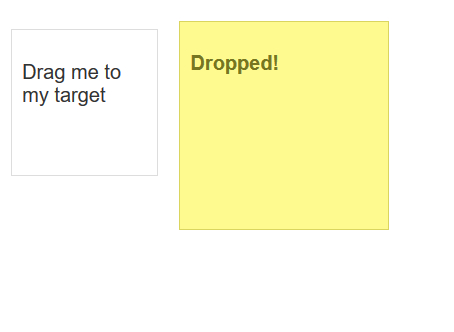
Our aim to drag and drop the first box to the second box.

Example

Code Implementation.

package RK1.Building_a_selenium_project;

import java.util.concurrent.TimeUnit;

import org.openqa.selenium.By;
import org.openqa.selenium.WebDriver;
import org.openqa.selenium.WebElement;
import org.openqa.selenium.chrome.ChromeDriver;
import org.openqa.selenium.interactions.Actions;

public class DragandDrop {

	public static void main(String[] args) {
		// TODO Auto-generated method stub
		System.setProperty("webdriver.chrome.driver", "F:\\Work Environment\\MyProject\\chromedriver.exe");
		WebDriver wd = new ChromeDriver();
		
		String url = "https://jqueryui.com/droppable/";
		
		wd.get(url);
		wd.manage().window().maximize();
		wd.manage().timeouts().implicitlyWait(5, TimeUnit.SECONDS);
		
	    wd.switchTo().frame(0);
	      // identify source and target element
	      WebElement s=wd.findElement(By.id("draggable"));
	      WebElement t=wd.findElement(By.id("droppable"));
	      //Actions class with dragAndDrop()
	      Actions act = new Actions(wd);
	      act.dragAndDrop(s, t).build().perform();
	      wd.quit();


	}

}
Automation Testing

TestNG Interview Questions

TestNG Interview Questions

A list of top frequently asked TestNG Interview Questions and answers are given below.

1) What is TestNG?

TestNG stands for “Testing Next Generation“. It is an` automation testing framework used for java programming language developed by Credric beust, and it comes after the inspiration from the JUnit framework. TestNG consists of all the features of JUnit framework but also contains some more additional features that make TestNG more powerful.


2) What are the advantages of TestNG?

The following are the advantages of TestNG are:

  • It generates the report in a proper format, which includes the following information:
    • Number of test cases executed.
    • Number of test cases passed.
    • Number of test cases failed.
    • Number of test cases skipped
  • Multiple test cases can be grouped easily by converting them into a testng.xml file, in which you can set the priority of each test case that determines which test case should be executed first.
  • With the help of TestNG, you can execute the multiple test cases on multiple browsers known as cross-browser testing.
  • The TestNG framework can be easily integrated with other tools such as Maven. Jenkins, etc.
  • Annotations used in a TestNG framework are easily understandable such as @BeforeMethod, @AfterMethod, @BeforeTest, @AfterTest.
  • WebDriver does not generate the reports while TestNG generates the reports in a readable format.
  • TestNG simplifies the way the test cases are coded. We do not have to write the static main method. The sequence of actions is maintained by the annotations only.
  • TestNG allows you to execute the test cases separately. For example, if you have six test cases, then one method is written for each test case. When we run the program, five methods are executed successfully, and the sixth method is failed. To remove the error, we need to run only the sixth method, and this can be possible only through TestNG. Because TestNG generates testng-failed.xml file in the test output folder, we will run only this xml file to execute the failed test case.

3) How to run the test script in TestNG?

You can run the test script in TestNG by clicking right click on the TestNG class, click on “Run As” and then select “TestNG test”.


4) What are the annotations used in the TestNG?

The following are the annotations used in the TestNG are:

  • Precondition annotations
    Precondition annotations are executed before the execution of test methods The Precondition annotations are @BeforeSuite, @BeforeClass, @BeforeTest, @BeforeMethod.
  • Test annotation
    Test annotation is specified before the definition of the test method. It is specified as @Test.
  • Postcondition annotations
    The postcondition annotations are executed after the execution of all the test methods. The postcondition annotation can be @AfterSuite, @AfterClass, @AfterTest, @AfterMethod.

5) What is the sequence of execution of all the annotations in TestNG?

The sequence of execution of all the annotations in TestNG is given below:

  • @BeforeSuite
  • @BeforeTest
  • @BeforeClass
  • @BeforeMethod
  • @Test
  • @AfterSuite
  • @AfterTest
  • @AfterClass
  • @AfterMethod

6) How to set the priorities in TestNG?

If we do not prioritize the test methods, then the test methods are selected alphabetically and executed. If we want the test methods to be executed in the sequence we want, then we need to provide the priority along with the @Test annotation.

Let’s understand through an example.

  1. package com.javatpoint;  
  2. import org.testng.annotations.Test;  
  3. public class Test_methods   
  4. {  
  5. @Test(priority=2)  
  6. public void test1()  
  7. {  
  8. System.out.println(“Test1”);  
  9. }  
  10. @Test(priority=1)  
  11. public void test2()  
  12. {  
  13. System.out.print(“Test2”);  
  14. }  
  15. }  

7) Define grouping in TestNG?

The group is an attribute in TestNG that allows you to execute the multiple test cases. For example, if we have 100 test cases of it_department and 10 test cases of hr_department, and if you want to run all the test cases of it_department together in a single suite, this can be possible only through the grouping.

Let’s understand through an example.

  1. package com.javatpoint;  
  2. import org.testng.annotations.Test;  
  3. public class Test_methods   
  4. {  
  5. @Test(groups=”it_department”)  
  6. public void java()  
  7. {  
  8. System.out.println(“I am a java developer”);  
  9. }  
  10. @Test(groups=”it_department”)  
  11. public void dot_net()  
  12. {  
  13. System.out.println(“I am a .Net developer”);  
  14. }  
  15. @Test(groups=”it_department”)  
  16. public void tester()  
  17. {  
  18. System.out.println(“I am a software tester”);  
  19. }  
  20. @Test (groups=”hr”)  
  21. public void hr()  
  22. {  
  23. System.out.print(“I am hr”);  
  24. }  
  25. }  

testng.xml

  1. ?xml version=”1.0″ encoding=”UTF-8″?>  
  2. <!DOCTYPE suite SYSTEM “http://testng.org/testng-1.0.dtd”>  
  3. <suite name=”Suite”>  
  4. <test name=”It Company”>  
  5. <groups>  
  6. <run>  
  7. <include name=”it_department”/>  
  8. </run>  
  9. </groups>  
  10. <classes>  
  11. <class name=”com.javatpoint.Test_methods”></class>  
  12. </classes>  
  13. </test>  
  14. </suite> <!– Suite –>  

8) What is dependency in TestNG?

When we want to run the test cases in a specific order, then we use the concept of dependency in TestNG.

Two types of dependency attributes used in TestNG:

  • dependsOnMethods
    The dependsOnMethods attribute tells the TestNG on which methods this test will be dependent on, so that those methods will be executed before this test method.

  1. package com.javatpoint;  
  2. import org.testng.annotations.Test;  
  3. public class Login   
  4. {  
  5.  @Test  
  6.  public void login()  
  7.  {  
  8.      System.out.println(“Login page”);  
  9.  }  
  10.  @Test(dependsOnMethods=”login”)  
  11.  public void home()  
  12.  {  
  13.      System.out.println(“Home page”);  
  14.        
  15.  }  
  16. }  
  • dependsOnGroups
    It is similar to the dependsOnMethods attribute. It allows the test methods to depend on the group of test methods. It executes the group of test methods before the dependent test method.

  1. package com.javatpoint;  
  2. import org.testng.annotations.Test;  
  3. public class Test_cases  
  4. {  
  5.  @Test(groups=”test”)  
  6.  public void testcase1()  
  7.  {  
  8.      System.out.println(“testcase1”);  
  9.  }  
  10.  @Test(groups=”test”)  
  11.  public void testcase2()  
  12.  {  
  13.      System.out.println(“testcase2”);  
  14.  }  
  15.  @Test(dependsOnGroups=”test”)  
  16.  public void testcase3()  
  17.  {  
  18.      System.out.println(“testcase3”);  
  19.  }  
  20. }  

9) What is timeOut in TestNG?

While running test cases, there can be a case when some test cases take much more time than expected. In such a case, we can mark the test case as a failed test case by using timeOut.

TimeOut in TestNG allows you to configure the time period to wait for a test to get completely executed. It can be configured in two levels:

  • At the suit level: It will be available to all the test methods.
  • At each method level: It will be available to a particular test method.

The timeOut attribute can be specified as shown below:

  1. @Test( timeOut = 700)  

The above @Test annotation tells that the test method will be given 700 ms to complete its execution otherwise it will be marked as a failed test case.


10) What is invocationCount in TestNG?

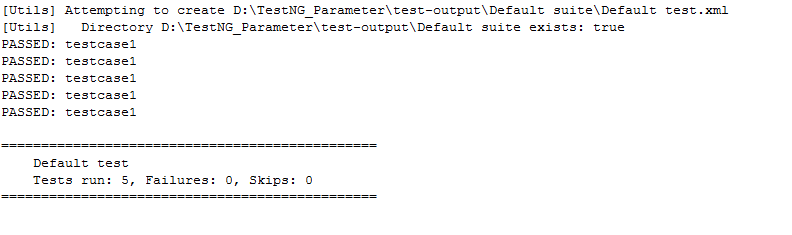
An invocationCount in TestNG is the number of times that we want to execute the same test.

  1. package com.javatpoint;  
  2. import org.testng.annotations.Test;  
  3. public class Test_cases  
  4. {  
  5.  @Test(invocationCount=5)  
  6.  public void testcase1()  
  7.  {  
  8.      System.out.println(“testcase1”);  
  9.  }  
  10.   
  11. }  

Output

TestNG Interview Questions

11) What is the importance of testng.xml file?

The testng.xml file is important because of the following reasons:

  • It defines the order of the execution of all the test cases.
  • It allows you to group the test cases and can be executed as per the requirements.
  • It executes the selected test cases.
  • In TestNG, listeners can be implemented at the suite level.
  • It allows you to integrate the TestNG framework with tools such as Jenkins.

12) How to pass the parameter in test case through testng.xml file?

We can also pass the value to test methods at runtime, we can achieve this by sending parameter values through the testng.xml file. We can use the @Parameter annotation:

  1. @Parameter(“param-name”);  

Let’s understand through an example:

  1. package com.javatpoint;  
  2. import org.openqa.selenium.By;  
  3. import org.openqa.selenium.WebDriver;  
  4. import org.openqa.selenium.chrome.ChromeDriver;  
  5. import org.testng.annotations.Test;  
  6. import org.testng.annotations.Parameters;  
  7. public class Web {  
  8. @Parameters({“text”})  
  9. @Test  
  10. public void search()  
  11. {  
  12. // TODO Auto-generated method stub  
  13. System.setProperty(“webdriver.chrome.driver”, “D:\\chromedriver.exe”);  
  14. WebDriver driver=new ChromeDriver();  
  15. driver.get(“http://www.google.com/”);  
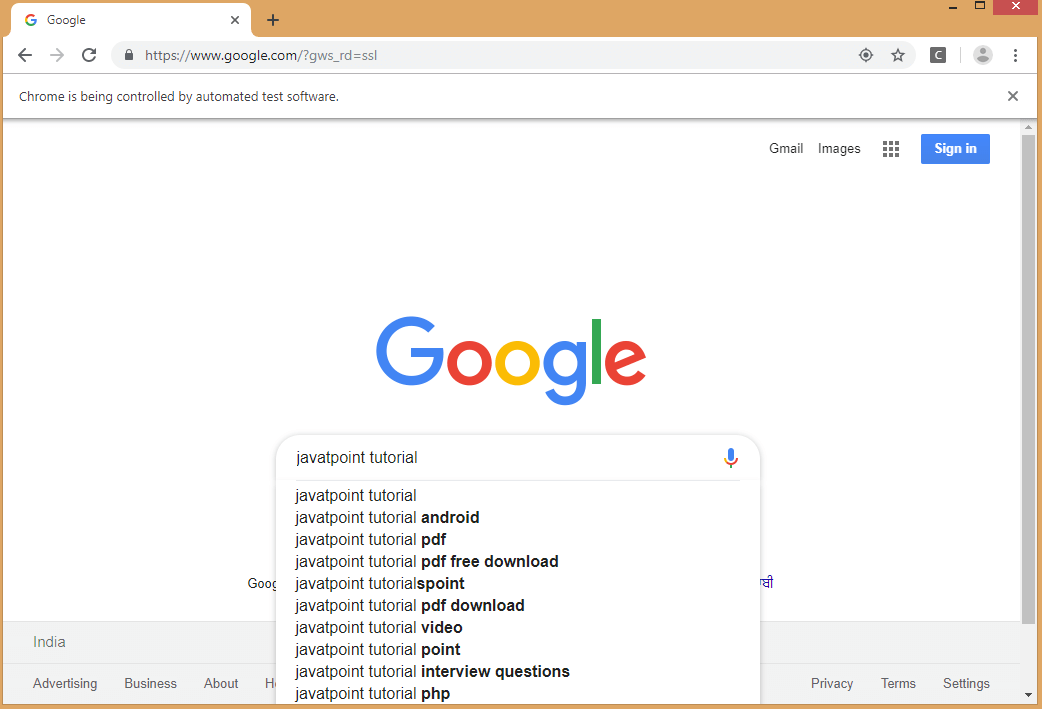
  16. driver.findElement(By.name(“q”)).sendKeys(“javatpoint tutorial”);  
  17. }  
  18. }  

testng.xml file

  1. <?xml version=”1.0″ encoding=”UTF-8″?>  
  2. <!DOCTYPE suite SYSTEM “http://testng.org/testng-1.0.dtd”>  
  3. <suite name=”Suite”>  
  4. <test name=”It Company”>  
  5. <parameter name=”text” value=”javatpoint”/>  
  6. <classes>  
  7. <class name=”com.javatpoint.Web”></class>  
  8. </classes>  
  9. </test>  
  10. </suite> <!– Suite –>  

On running the testng.xml file, we get the output as shown below:

TestNG Interview Questions

13) How can we disable the test case from running?

We can disable the test case from running by using the enabled attribute. We can assign the false value to the enabled attribute, in this way we can disable the test case from running.

  1. package com.javatpoint;  
  2. import org.testng.annotations.Test;  
  3. public class Test_cases  
  4. {  
  5.  @Test(enabled=false)  
  6.  public void testcase1()  
  7.  {  
  8.      System.out.println(“testcase1”);  
  9.  }  
  10.  @Test   
  11.  public void testcase2()  
  12.  {  
  13.      System.out.println(“testcase2”);  
  14.  }  
  15.   
  16. }  

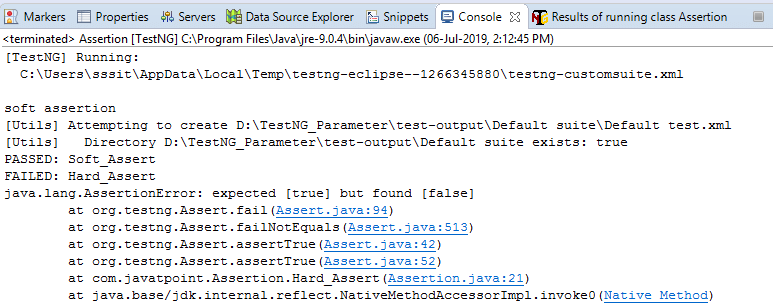
14) What is the difference between soft assertion and hard assertion?

Soft Assertion: In case of Soft Assertion, if TestNG gets an error during @Test, it will throw an exception when an assertion fails and continues with the next statement after the assert statement.

Hard Assertion: In the case of Hard Assertion, if TestNG gets an error during @Test, it will throw an AssertException immediately when an assertion fails and stops execution after the assert statement.

Let’s understand through an example.

  1. package com.javatpoint;  
  2. import org.testng.Assert;  
  3. import org.testng.annotations.Test;  
  4. import org.testng.asserts.SoftAssert;  
  5. public class Assertion {  
  6. SoftAssert soft_assert=new SoftAssert();  
  7. @Test  
  8. public void Soft_Assert()  
  9. {  
  10.  soft_assert.assertTrue(false);  
  11.  System.out.println(“soft assertion”);  
  12. }  
  13. @Test  
  14. public void Hard_Assert()  
  15. {  
  16.  Assert.assertTrue(false);  
  17.  System.out.println(“hard assertion”);  
  18. }  
  19. }  

Output

TestNG Interview Questions

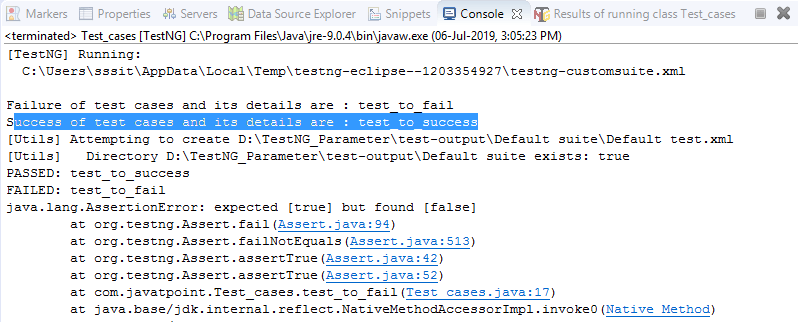
15) What is the use of @Listener annotation in TestNG?

TestNG provides different kinds of listeners which can perform different actions whenever the event is triggered. The most widely used listener in TestNG is ITestListener interface. The ITestListener interface contains methods such as onTestSuccess, onTestfailure, onTestSkipped, etc.

Following are the scenarios that can be made:

  • If the test case is failed, then what action should be performed by the listener.
  • If the test case is passed, then what action should be performed by the listener.
  • If the test case is skipped, then what action should be performed by the listener.

Let’s understand through an example.

  1. package com.javatpoint;  
  2. import org.testng.Assert;  
  3. import org.testng.annotations.Listeners;  
  4. import org.testng.annotations.Test;  
  5. @Listeners(com.javatpoint.Listener.class)  
  6. public class Test_cases  
  7. {  
  8.       
  9.  @Test  
  10.  public void test_to_success()  
  11.  {  
  12.      Assert.assertTrue(true);  
  13.  }  
  14.  @Test  
  15.  public void test_to_fail()  
  16.  {  
  17.      Assert.assertTrue(false);  
  18.  }  
  19.   
  20. }  

Listener.java

  1. package com.javatpoint;  
  2. import org.testng.ITestContext;  
  3. import org.testng.ITestListener;  
  4. import org.testng.ITestResult;  
  5. public class Listener implements ITestListener   
  6. {  
  7. @Override  
  8. public void onTestStart(ITestResult result) {  
  9. // TODO Auto-generated method stub  
  10. }  
  11. @Override  
  12. public void onTestSuccess(ITestResult result) {  
  13. // TODO Auto-generated method stub  
  14. System.out.println(“Success of test cases and its details are : “+result.getName());  
  15. }  
  16. @Override  
  17. public void onTestFailure(ITestResult result) {  
  18. // TODO Auto-generated method stub  
  19. System.out.println(“Failure of test cases and its details are : “+result.getName());  
  20. }  
  21. @Override  
  22. public void onTestSkipped(ITestResult result) {  
  23. // TODO Auto-generated method stub  
  24. System.out.println(“Skip of test cases and its details are : “+result.getName());  
  25. }  
  26. @Override  
  27. public void onTestFailedButWithinSuccessPercentage(ITestResult result) {  
  28. // TODO Auto-generated method stub  
  29. System.out.println(“Failure of test cases and its details are : “+result.getName());  
  30. }  
  31. @Override  
  32. public void onStart(ITestContext context) {  
  33. // TODO Auto-generated method stub  
  34. }  
  35. @Override  
  36. public void onFinish(ITestContext context) {  
  37. // TODO Auto-generated method stub  
  38. }}  

Output

TestNG Interview Questions

16) What is the use of @Factory annotation?

The @Factory annotation is useful when we want to run multiple test cases through a single test class. It is mainly used for the dynamic execution of test cases.

Let’s understand through an example.

testcase1.java

  1. package com.javatpoint;  
  2. import org.testng.annotations.Test;  
  3. public class Testcase1  
  4. {  
  5. @Test  
  6. public void test1()  
  7. {  
  8. System.out.println(“testcase 1”);  
  9. }  
  10. }  

testcase2.java

  1. package com.javatpoint;  
  2. import org.testng.annotations.Test;  
  3. public class Testcase2   
  4. {  
  5. @Test  
  6. public void test1()  
  7. {  
  8. System.out.println(“testcase 2”);  
  9. }  
  10. }  

Factory.java

  1. import org.testng.annotations.Factory;  
  2. public class Factory1  
  3. {  
  4. @Factory  
  5. public Object[] getTestClasses()  
  6. {  
  7. Object tests[]=new Object[2];  
  8. tests[0]=new Testcase1();  
  9. tests[1]=new Testcase2();  
  10. return tests;  
  11. }  
  12. }  

17) What is the difference between @Factory and @DataProvider annotation?

@DataProvider: It is annotation used by TestNG to execute the test method multiple numbers of times based on the data provided by the DataProvider.

@Factory: It is annotation used by the TestNG to execute the test methods present in the same test class using different instances of the respective class.

Automation Testing

Selenium Interview Questions

Selenium Interview Questions

Selenium is based on automating web applications for testing purpose, but it is certainly not limited to just that. The web-based administration tasks can be automated as well. It automates browsers

Selenium has the support of some of the leading browser vendors who have adopted it to make Selenium an essential part of their browser. It is also the core technology in many other browser automation tools, APIs, and frameworks.

A list of most frequently asked Selenium interview questions, and their answers are given below.

Basic Level – Selenium Interview Questions

1) What is test automation or automation testing?

Automation testing uses automation tools to write and execute test cases, no manual involvement is necessary for executing an automated test suite. Testers prefer automation tools to write test scripts and test cases and then group into test suites.

Automation testing enables the use of specialized tools to automate the execution of manually designed test cases without any human intervention. Automation testing tools can access the test data, controls the execution of tests and compares the actual result against the expected result. Consequently, generating detailed test reports of the system under test.

Selenium Interview Questions

2) What are the advantages of automation testing?

Some basic Advantages of automation testing are as follows.

  • Automation testing supports both functional and performance test on an application.
  • It supports the execution of repeated test cases.
  • It facilitates parallel execution.
  • It aids in testing a large test matrix.
  • It improves accuracy because there are no chances of human errors.
  • It saves time and money.

3) Name some of the commonly used Automation Testing tools that are used for Functional Automation.

Lists of top 10 used automation testing tools for Functional Automation are as follows.

  • Teleric Test Studio, Developed by Teleric.
  • TestingWhiz
  • HPE Unified Functional Testing (HP – UFT formerly QTP)
  • Tosca Testsuite
  • Watir
  • Quick Test Professional, provided by HP.
  • Rational Robot, provided by IBM.
  • Coded UI, provided by Microsoft.
  • Selenium, open source.
  • Auto It, Open Source.

4) Name some of the commonly used Automation Testing tools that are used for Non-Functional Automation.

Lists of some commonly used Automation Testing tools for Non-Functional Automation are as follows.

  • Load Runner, provided by Hp.
  • JMeter, provided by Apache.
  • Burp Suite, provided by PortSwigger.
  • Acunetix, provided by Acunetix.

5) What is Selenium?

Selenium is a portable framework for software testing. Selenium tool facilitates with a playback tool for authoring functional tests without the need to learn a test scripting language.

Selenium is one of the most widely used open source Web UI (User Interface) automation testing suite. Jason Huggins developed Selenium in 2004 as an internal tool at Thought Works. Selenium supports automation across different browsers, platforms, and programming languages.


6) What are the different components of Selenium?

Selenium is not just a single tool but a suite of software’s, each having a different approach to support automation testing. It comprises of four major components which include:

  1. Selenium Integrated Development Environment (IDE)
  2. Selenium Remote Control (Now Deprecated)
  3. WebDriver
  4. Selenium Grid

7) List out the names of programming languages, browsers and operating systems that are supported by Selenium.

Selenium supports various operating systems, browsers and programming languages. Following is the list:

  • Programming Languages: C#, Java, Python, PHP, Ruby, Perl, JavaScript.
  • Operating Systems: Android, iOS, Windows, Linux, Mac, Solaris.
  • Browsers: Google Chrome, Mozilla Firefox, Internet Explorer, Edge, Opera, Safari, etc.

8) What are the significant changes/upgrades in various Selenium versions?

Selenium v1.0:

  • Version 1.0 was the initial release of Selenium.
  • It included three tools: Selenium IDE, Selenium RC, and Selenium Grid.

Selenium v2.0:

  • Selenium WebDriver was introduced replacing Selenium RC in version “2.0”.
  • With the onset of WebDriver, RC got deprecated and moved to the legacy package.

Selenium v3:

  • The latest release Selenium 3 has new added features and functionalities.
  • It includes Selenium IDE, Selenium WebDriver, and Selenium Grid.

9) List some of the test types that are supported by Selenium.

Different types of testing’s that we can achieve through Selenium are.

  • Functional Testing
  • Regression Testing
  • Sanity Testing
  • Smoke Testing
  • Responsive Testing
  • Cross Browser Testing
  • UI testing (black box)
  • Integration Testing

10) What is Selenium IDE?

Selenium IDE is implemented as Firefox extension which provides record and playback functionality on test scripts. It allows testers to export recorded scripts in many languages like HTML, Java, Ruby, RSpec, Python, C#, JUnit and TestNG.

Selenium IDE has limited scope, and the generated test scripts are not very robust, and portable.


11) What do you mean by Selenese?

Selenium commands, also known as “Selenese” are the set of commands used in Selenium that run your tests. For example, command – open (URL); launches the desired URL in the specified browser and it accept both relative and absolute URLs.

A sequence of Selenium commands (Selenese) together is known as a test script.


12) What are the different ways of locating a web element in Selenium?

In Selenium, web elements are identified and located with the help of Locators. Locators specify a target location which uniquely defines the web element in the context of a web application. Thus, to identify web elements accurately and precisely we have different types of locators in Selenium:

  • ID
  • ClassName
  • Name
  • TagName
  • LinkText
  • PartialLinkText
  • Xpath
  • CSS Selector
  • DOM

13) How many types of WebDriver API’s are available in Selenium?

The list of WebDriver API’s which are used to automate browser include:

  • AndroidDriver
  • ChromeDriver
  • EventFiringWebDriver
  • FirefoxDriver
  • HtmlUnitDriver
  • InternetExplorerDriver
  • iPhoneDriver
  • iPhoneSimulatorDriver
  • RemoteWebDriver

14) List out some of the Automation tools which could be integrated with Selenium to achieve continuous testing.

Selenium can be used to automate functional tests and can be integrated with automation test tools such as Maven, Jenkins, &Docker to achieve continuous testing. It can also be integrated with tools such as TestNG, &JUnit for managing test cases and generating reports.


15) What do you mean by the assertion in Selenium?

The assertion is used as a verification point. It verifies that the state of the application conforms to what is expected. The types of assertion are “assert”, “verify” and “waitFor”.


16) Explain the difference between assert and verify commands?

Assert: Assert command checks if the given condition is true or false. If the condition is true, the program control will execute the next phase of testing, and if the condition is false, execution will stop, and nothing will be executed.

Verify: Verify command also checks if the given condition is true or false. It doesn’t halt program execution, i.e., any failure during verification would not stop the execution, and all the test phases would be executed.


17) What do you mean by XPath?

XPath is also defined as XML Path. It is a language used to query XML documents. It is an important approach to locate elements in Selenium. XPath consists of a path expression along with some conditions. Here, we can easily write XPath script/query to locate any element in the webpage. It is developed to allow the navigation of XML documents. The key factors that it considered while navigating are selecting individual elements, attributes, or some other part of an XML document for specific processing. It also produces reliable locators. Some other points about XPath are as follows.

  • XPath is a language used for locating nodes in XML documents.
  • XPath can be used as a substitute when you don’t have a suitable id or name attribute for the element you want to locate.
  • XPath provides locating strategies like:
    • XPath Absolute
    • XPath Attributes

18) Explain XPath Absolute and XPath attributes.

XPath Absolute:

  • XPath Absolute enables users to mention the complete XPath location from the root HTML tag to the specific elements.
  • Syntax: //html/body/tag1[index]/tag2[index]/…/tagN[index]
  • Example: //html/body/div[2]/div/div[2]/div/div/div/fieldset/form/div[1]/input[1]

XPath Attributes:

  • XPath Attributes is always recommended when you don’t have a suitable id or name attribute for the element you want to locate.
  • Syntax: //htmltag[@attribute1=’value1′ and @attribute2=’value2′]
  • Example: //input[@id=’passwd’ and @placeholder=’password’]

19) What is the difference between “/” and “//” in XPath?

Single Slash “/”: Single slash is used to create XPath with absolute path.

Double Slash “//”: Double slash is used to create XPath with the relative path.


20) What are the different types of annotations which are used in Selenium?

JUnit annotations which can be used are:

  • Test
  • Before
  • After
  • Ignore
  • BeforeClass
  • AfterClass
  • RunWith

21) What are the WebDriver supported Mobile Testing Drivers?

WebDriver supported “mobile testing drivers” are:

  • AndroidDriver
  • IphoneDriver
  • OperaMobileDriver

22) What are the popular programming languages supported by Selenium WebDriver to write Test Cases?

Selenium WebDriver supports the below languages to write Test Cases.

  • JAVA
  • PHP
  • Python
  • C#
  • Ruby
  • Perl

23) What is the difference between type keys and type commands?

TypeKeys() will trigger JavaScript event in most of the cases whereas .type() won’t.


24) What is the difference between “type” and “typeAndWait” command?

“type” command is used to type keyboard key values into the text box of software web application. It can also be used for selecting values of combo box whereas “typeAndWait” command is used when your typing is completed and software web page start reloading. This command will wait for software application page to reload. If there is no page reload event on typing, you have to use a simple “type” command.


25) What is the difference between findElement() and findElements()?

findElement(): It is used to find the first element within the current page using the given “locating mechanism”. It returns a single WebElement.

findElements(): It uses the given “locating mechanism” to find all the elements within the current page. It returns a list of web elements.


26) What is the wait? How many types of waits in selenium?

Selenium Webdriver introduces the concept of waits for the AJAX-based application. There are two types of waits:

  1. Implicit Wait
  2. Explicit Wait

27) What is the main disadvantage of implicit wait?

The main disadvantage of implicit wait is that it slows down test performance.

Another disadvantage of implicit wait is:

Suppose, you set the waiting limit to be 10 seconds, and the elements appear in the DOM in 11 seconds, your tests will be failed because you told it to wait a maximum of 10 seconds.


28) What is Selenium Grid?

Selenium Grid facilitates you to distribute your tests on multiple machines and all of them at the same time. So, you can execute tests on Internet Explorer on Windows and Safari on Mac machine using the same text script. It reduces the time of test execution and provides quick feedback.

Advance Level – Selenium Interview Questions

29) How can we launch different browsers in Selenium WebDriver?

We have to create an instance of a driver of that particular browser.

  1. WebDriver driver =newFirefoxDriver();  

Here, “WebDriver” is an interface, and we are creating a reference variable “driver” of type WebDriver, instantiated using “FireFoxDriver” class.


30) Write a code snippet to launch Firefox browser in WebDriver.

  1. public class FirefoxBrowserLaunchDemo {  
  2.   
  3. public static void main(String[] args) {  
  4.   
  5. //Creating a driver object referencing WebDriver interface  
  6. WebDriver driver;  
  7.   
  8. //Setting webdriver.gecko.driver property  
  9. System.setProperty(“webdriver.gecko.driver”, pathToGeckoDriver + “\\geckodriver.exe”);  
  10.   
  11. //Instantiating driver object and launching browser  
  12. driver = newFirefoxDriver();  
  13.   
  14. //Using get() method to open a webpage  
  15. driver.get(“http://javatpoint.com”);  
  16.   
  17. //Closing the browser  
  18. driver.quit();  
  19.   
  20.     }  
  21.   
  22. }  

31) Write a code snippet to launch Chrome browser in WebDriver.

  1. public class ChromeBrowserLaunchDemo {  
  2.   
  3. public static void main(String[] args) {  
  4.   
  5. //Creating a driver object referencing WebDriver interface  
  6. WebDriver driver;  
  7.   
  8. //Setting the webdriver.chrome.driver property to its executable’s location  
  9. System.setProperty(“webdriver.chrome.driver”, “/lib/chromeDriver/chromedriver.exe”);  
  10.       
  11. //Instantiating driver object  
  12. driver = newChromeDriver();  
  13.   
  14. //Using get() method to open a webpage  
  15. driver.get(“http://javatpoint.com”);  
  16.   
  17. //Closing the browser  
  18. driver.quit();  
  19.   
  20.     }  
  21.   
  22. }  

32) Write a code snippet to launch Internet Explorer browser in WebDriver.

  1. public class IEBrowserLaunchDemo {  
  2.   
  3. public static void main(String[] args) {  
  4.   
  5. //Creating a driver object referencing WebDriver interface  
  6. WebDriver driver;  
  7.   
  8. //Setting the webdriver.ie.driver property to its executable’s location  
  9. System.setProperty(“webdriver.ie.driver”, “/lib/IEDriverServer/IEDriverServer.exe”);  
  10.       
  11. //Instantiating driver object  
  12. driver = newInternetExplorerDriver();  
  13.   
  14. //Using get() method to open a webpage  
  15. driver.get(“http://javatpoint.com”);  
  16.   
  17. //Closing the browser  
  18. driver.quit();  
  19.   
  20.     }  
  21.   
  22. }  

33) Write a code snippet to perform right-click an element in WebDriver.

We will use Action class to generate user event like right-click an element in WebDriver.

  1. Actions action = newActions(driver);  
  2. WebElement element = driver.findElement(By.id(“elementId”));  
  3. action.contextClick(element).perform();  

34) Write a code snippet to perform mouse hover in WebDriver.

  1. Actions action = newActions(driver);  
  2. WebElement element = driver.findElement(By.id(“elementId”));  
  3. action.moveToElement(element).perform();  

35) How do you perform drag and drop operation in WebDriver?

Code snippet to perform drag and drop operation:

  1. //WebElement on which drag and drop operation needs to be performed  
  2. WebElementfromWebElement = driver.findElement(By Locator of fromWebElement);  
  3.   
  4. //WebElement to which the above object is dropped  
  5. WebElementtoWebElement = driver.findElement(By Locator of toWebElement);  
  6.   
  7. //Creating object of Actions class to build composite actions  
  8. Actions builder = newActions(driver);  
  9.   
  10. //Building a drag and drop action  
  11. Action dragAndDrop = builder.clickAndHold(fromWebElement)  
  12.              .moveToElement(toWebElement)  
  13.              .release(toWebElement)  
  14.          .build();  
  15.   
  16. //Performing the drag and drop action  
  17. dragAndDrop.perform();  

36) What are the different methods to refresh a web page in WebDriver?

There are multiple ways of refreshing a page in Webdriver.

1. Using driver.navigate command –

  1. driver.navigate().refresh();  

2. Using driver.getCurrentUrl() with driver.get() command –

  1. driver.get(driver.getCurrentUrl());  

3. Using driver.getCurrentUrl() with driver.navigate() command –

  1. driver.navigate().to(driver.getCurrentUrl());  

4. Pressing an F5 key on any textbox using the sendKeys command –

  1. driver.findElement(By textboxLocator).sendKeys(Keys.F5);  

5. Passing ascii value of the F5 key, i.e., “\uE035” using the sendKeys command –

  1. driver.findElement(By textboxLocator).sendKeys(“\uE035”);  

37) Write a code snippet to navigate back and forward in browser history?

Navigate back in browser history:

  1. driver.navigate().back();  

Navigate forward in browser history:

  1. driver.navigate().forward();  

38) How to invoke an application in WebDriver?

  1. driver.get(“url”); or  
  2. driver.navigate().to(“url”);  

Misc. Questions – Selenium Interview Question.

39) What are the benefits of Automation Testing?

Benefits of Automation testing are as follows.

  • It allows execution of repeated test cases
  • It enables parallel execution
  • Automation Testing encourages unattended execution
  • It improves accuracy. Thus, it reduces human-generated errors
  • It saves time and money.

40) How can we get a text of a web element?

Get command is used to get the inner text of the specified web element. The get command doesn’t require any parameter, but it returns a string type value. It is also one of the widely used commands for verification of messages, labels, and errors,etc.,from web pages.

Syntax

  1. String Text = driver.findElement(By.id(“Text”)).getText();  

41) How to select value in a dropdown?

We use the WebDriver’s Select class to select the value in the dropdown.

Syntax:

selectByValue:

  1. Select selectByValue = new Select(driver.findElement(By.id(“SelectID_One”)));  
  2. selectByValue.selectByValue(“greenvalue”);  

selectByVisibleText:

  1. Select selectByVisibleText = new Select (driver.findElement(By.id(“SelectID_Two”)));  
  2. selectByVisibleText.selectByVisibleText(“Lime”);  

  1. Select selectByIndex = new Select(driver.findElement(By.id(“SelectID_Three”)));  
  2. selectByIndex.selectByIndex(2);  

42) What are the different types of navigation commands?

The navigation commands are as follows.

navigate().back()

The above command needs no parameters and takes back the user to the previous webpage.

Example

  1. driver.navigate().back();  

navigate().forward()

The above command allows the user to navigate to the next web page with reference to the browser’s history.

Example

  1. driver.navigate().forward();  

navigate().refresh()

The navigate().refresh() command allows the user to refresh the current web page by reloading all the web elements.

Example

  1. driver.navigate().refresh();  

navigate().to()

The navigate().to() command allows the user to launch a new web browser window and navigate to the specified URL.

Example

  1. driver.navigate().to(“https://google.com”);  

43) How to deal with frame in WebDriver?

An inline frame abbreviates as an iframe. It is used to insert another document within the current document. These document can be HTML document or simply web page and nested web page.

Select iframe by id

  1. driver.switchTo().frame(“ID of the frame”);  

Locating iframe using tagName

  1. driver.switchTo().frame(driver.findElements(By.tagName(“iframe”).get(0));  

Locating iframe using index

frame(index)

  1. driver.switchTo().frame(0);  

frame(Name of Frame)

  1. driver.switchTo().frame(“name of the frame”);  

frame(WebElement element)

Select Parent Window

  1. driver.switchTo().defaultContent();  

44) Is there an HtmlUnitDriver for .NET?

To use HtmlUnit first use the RemoteWebDriver and pass it in the desired capabilities.

  1. IWebDriver driver  
  2. new RemoteWebDriver(DesiredCapabilities.HtmlUnit())  

For the Firefox implementation to run, use

  1. IWebDriver driver  
  2. new RemoteWebDriver(DesiredCapabilities.HtmlUnitWithJavaScript())  

45) How can you redirect browsing from a browser through some proxy?

Selenium facilitates with a PROXY class to redirect browsing from a proxy. Look at the example below.

Example

  1. String PROXY = “199.201.125.147:8080”;  
  2. org.openqa.selenium.Proxy proxy = new.org.openqa.selenium.Proxy();  
  3. proxy.setHTTPProxy(Proxy)  
  4.  .setFtpProxy(Proxy)  
  5.  .setSslProxy(Proxy)  
  6. DesiredCapabilities cap = new DesiredCapabilities();  
  7. cap.setCapability(CapabilityType.PROXY, proxy);  
  8. WebDriver driver = new FirefoxDriver(cap);  

46) What is POM (Page Object Model)? What are its advantages?

Page Object Model is a design pattern for creating an Object directory for web UI elements. Each web page is required to have its page class. The page class is responsible for finding the WebElements in web pages and then perform operations on WebElements.

The benefits of using POM are as follows.

  • It facilitates with separate operations and flows in the UI from Verification – improves code readability
  • Multiple tests can use the same Object Repository because the Object Repository is independent of Test Cases.
  • Reusability of code

47) How to capture screenshot in WebDriver?

Below is the program to capture screenshot in WebDriver.

  1. import org.junit.After;  
  2. import org.junit.Before;  
  3. import org.junit.Test;  
  4. import java.io.File;  
  5. import java.io.IOException;  
  6. import org.apache.commons.io.FileUtils;  
  7. import org.openqa.selenium.OutputType;  
  8. import org.openqa.selenium.TakesScreenshot;  
  9. import org.openqa.selenium.WebDriver;  
  10. import org.openqa.selenium.firefox.FirefoxDriver;  
  11.   
  12. public class TakeScreenshot {  
  13. WebDriver drv;  
  14. @Before  
  15. public void setUp() throws Exception {  
  16. driver = new FirefoxDriver();  
  17. drv.get(“https://google.com”);  
  18. }  
  19. @After  
  20. public void tearDown() throws Exception {  
  21. drv.quit();  
  22. }  
  23.   
  24. @Test  
  25. public void test() throws IOException {  
  26. //capture the screenshot  
  27. File scrFile = ((TakeScreenshot)drv).getScreenshotAs(OutputType.FILE);  
  28. // paste the screenshot in the desired location  
  29. FileUtils.copyFile(scrFile, new File(“C:\\Screenshot\\Scr.jpg”))  
  30. }  
  31. }  

48) How to type text in a textbox using Selenium?

The sendKeys(“String to be entered”) is used to enter the string in a textbox.

Syntax

  1. WebElement username = drv.findElement(By.id(“Email”));  
  2. // entering username  
  3. username.sendKeys(“sth”);  

49) How can you find if an element is displayed on the screen?

WebDriver allows user to check the visibility of the web elements. These web elements can be buttons, radio buttons, drop, checkboxes, boxes, labels etc. which are used with the following methods.

  • isDisplayed()
  • isSelected()
  • isEnabled()

Syntax:

  1. isDisplayed():  
  2. boolean buttonPresence = driver.findElement(By.id(“gbqfba”)).isDisplayed();  
  3. isSelected():  
  4. boolean buttonSelected = driver.findElement(By.id(“gbqfba”)).isSelected();  
  5. isEnabled():  
  6. boolean searchIconEnabled = driver.findElement(By.id(“gbqfb”)).isEnabled();  

50) How to click on a hyper link using linkText?

  1. driver.findElement(By.linkText(“Google”)).click();  

The above command search the element using a link text, then click on that element and thus the user will be re-directed to the corresponding page.

The following command can access the link mentioned earlier.

  1. driver.findElement(By.partialLinkText(“Goo”)).click();  

The above-given command searches the element based on the substring of the link provided in the parenthesis. And after that partialLinkText() finds the web element with the specified substring and then clicks on it.

Automation Testing

Screenshot of a particular element with Python Selenium and…

import openpyxl
from selenium import webdriver
#configure workbook path
b = openpyxl.load_workbook("F:\\Data1.xlsx")
#get active sheet
sht = b.active
#get cell address of email within active sheet
e = sht.cell (row = 2, column = 1)
#get cell address of password within active sheet
p = sht.cell (row = 2, column = 2)
#get values
email = e.value
passw = p.value
#set chromodriver.exe path
driver = webdriver.Chrome(executable_path="F:\\Work Environment\\MyProject\\chromedriver.exe")
driver.implicitly_wait(0.5)
#launch URL
driver.get("https://www.facebook.com/")
#identify element
l = driver.find_element_by_id("email")
#enter email obtained from excel
l.send_keys(email)
l.screenshot("screenshot_text.png")
m = driver.find_element_by_id("pass")
#enter password obtained from excel
m.send_keys(passw)
m.screenshot("screenshot_text2.png")
#get values entered
s = l.get_attribute("value")
t = m.get_attribute("value")
print("Email is: ")
print(s)
print("Password is: ")
print(t)
#browser quit
driver.quit()