Automation Testing

Extent Report in Page Object Modal

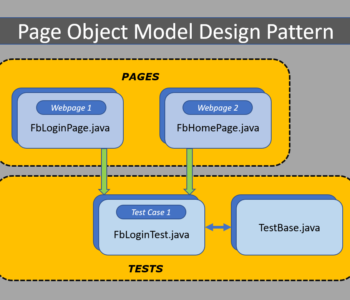
Page Object Model with Page Factory in Selenium and Generating Extent report.
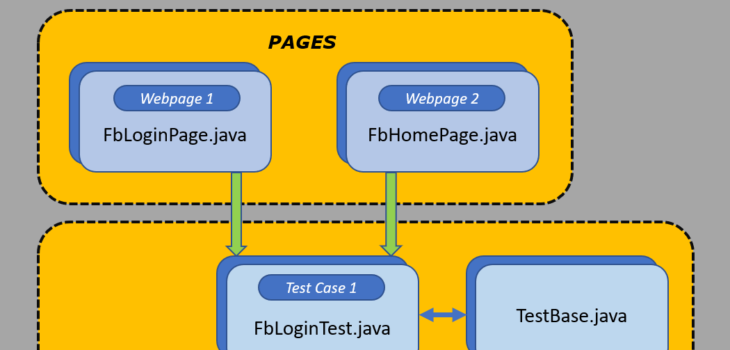
Creating a Page Object Model with Page Factory in Selenium WebDriver:

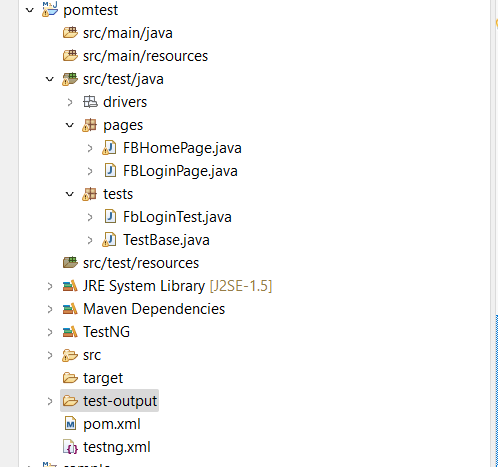
Project Structure:

Step 1: Creating TestBase class. Here we create an object of WebDriver, maximize browser, implementing waits, launching URL and etc.,

In the below example program, I have taken chrome browser and set the System Property to launch chrome browser.

TestBase.java (BASE CLASS)

package tests;

import java.io.File;
import java.io.IOException;
import java.text.SimpleDateFormat;
import java.util.Date;
import java.util.concurrent.TimeUnit;

import org.apache.commons.io.FileUtils;
import org.openqa.selenium.OutputType;
import org.openqa.selenium.TakesScreenshot;
import org.openqa.selenium.WebDriver;
import org.openqa.selenium.chrome.ChromeDriver;
import org.openqa.selenium.chrome.ChromeOptions;
import org.testng.annotations.AfterSuite;
import org.testng.annotations.BeforeSuite;
import org.testng.annotations.Test;

import com.aventstack.extentreports.ExtentReports;
import com.aventstack.extentreports.ExtentTest;
import com.aventstack.extentreports.reporter.ExtentSparkReporter;
import com.aventstack.extentreports.reporter.configuration.Theme;

public class TestBase {
	public static WebDriver driver = null;
	public static ExtentSparkReporter spark = null;
	public static ExtentReports extent = null;
	public static ExtentTest logger = null;
	
	
	@BeforeSuite
	public void initialize() throws IOException{
		
		extent = new ExtentReports();
		 
		spark = new ExtentSparkReporter(System.getProperty("user.dir") + "/test-output/RKExtentReport.html");
		extent.attachReporter(spark);
		extent.setSystemInfo("Host Name", "Testing Buddy");
         extent.setSystemInfo("Environment", "Production");
         extent.setSystemInfo("User Name", "Rahulkundu");
         spark.config().setDocumentTitle("Title of the Report Comes here ");
                // Name of the report
         spark.config().setReportName("Name of the Report Comes here ");
                // Dark Theme
         spark.config().setTheme(Theme.STANDARD);
         
         
         /*
 			String dateName = new SimpleDateFormat("yyyyMMddhhmmss").format(new Date());
 			TakesScreenshot ts = (TakesScreenshot) driver;
 			File source = ts.getScreenshotAs(OutputType.FILE);
 			// after execution, you could see a folder "FailedTestsScreenshots" under src folder
 			String destination = System.getProperty("user.dir") + "/Screenshots/" + screenshotName + dateName + ".png";
 			File finalDestination = new File(destination);
 			FileUtils.copyFile(source, finalDestination);*/
 			
 			
	System.setProperty("webdriver.chrome.driver", System.getProperty("user.dir")+"\\src\\test\\java\\drivers\\chromedriver.exe");
	
	ChromeOptions coptions = new ChromeOptions();
	coptions.addArguments("--disable-notifications");
	
	driver = new ChromeDriver(coptions);
	//To maximize browser
	                driver.manage().window().maximize();
	        //Implicit wait
	         driver.manage().timeouts().implicitlyWait(20, TimeUnit.SECONDS);
	//To open facebook
	                driver.get("https://www.facebook.com/login");
	}


	@AfterSuite
	//Test cleanup
	public void TeardownTest()
	    { 
			TestBase.extent.flush();
	        TestBase.driver.quit();
	    }
}


Step 2: Creating classes for each page (Eg., Facebook Login Page, Facebook Inbox Page) to hold element locators and their methods. Usually, we create page objects for all available pages in the AUT. For each page, we create a separate class with a constructor. Identify all the locators and keep them in one class. It allows us to reuse the locators in multiple methods. It allows us to do easy maintenance, if there is any change in the UI, we can simply change on one Page.

Here, I create java files (FacebookLoginPage.java and FacebookInboxPage.java) for the corresponding pages (Facebook Login Page, and Facebook Inbox Page) to hold element locators and their methods.

FBHomePage.java (Webpage 1)

package pages;
import org.openqa.selenium.By;
import org.openqa.selenium.WebDriver;
import org.openqa.selenium.WebElement;
import org.openqa.selenium.support.FindBy;
import org.openqa.selenium.support.How;
public class FBHomePage {
WebDriver driver;

public FBHomePage(WebDriver driver){
this.driver=driver;
}
//Using FindBy for locating elements


@FindBy(how=How.CLASS_NAME, using="x3ajldb") WebElement profileDropdown;
@FindBy(how=How.XPATH, using="//span[contains(.,'Log Out')]") WebElement logoutLink;
@FindBy(how=How.XPATH, using="//a[@aria-label='Rahul Kundu'][contains(.,'Rahul Kundu')]") WebElement loggedInUserNameText;

//Defining all the user actions (Methods) that can be performed in the Facebook home page
// This method to click on Profile Dropdown
public void clickOnProfileDropdown(){
//WebElement profileDropdown = driver.findElement(By.className("x3ajldb"));
profileDropdown.click();
}
//This method to click on Logout link
public void clickOnLogoutLink(){

logoutLink.click();
}
//This method to verify LoggedIn Username Text
public String verifyLoggedInUserNameText(){
String userName = loggedInUserNameText.getText();
return userName;
}
}

FBLoginPage.java (Webpage 2)

package pages;
import org.openqa.selenium.WebDriver;
import org.openqa.selenium.WebElement;
import org.openqa.selenium.support.FindBy;
import org.openqa.selenium.support.How;
public class FBLoginPage {
WebDriver driver;

public FBLoginPage(WebDriver driver){
this.driver=driver;
}
//Using FindBy for locating elements
@FindBy(how=How.XPATH, using="//input[contains(@name,'email')]") WebElement emailTextBox;
@FindBy(how=How.XPATH, using="//input[@type='password']") WebElement passwordTextBox;
@FindBy(how=How.XPATH, using="//button[@name='login']") WebElement signinButton;
// Defining all the user actions (Methods) that can be performed in the Facebook home page
// This method is to set Email in the email text box
public void setEmail(String strEmail){
emailTextBox.sendKeys(strEmail);
}
//This method is to set Password in the password text box
public void setPassword(String strPassword){
passwordTextBox.sendKeys(strPassword);
}
//This method is to click on Login Button
public void clickOnLoginButton(){
signinButton.click();
}
}

Step 3: Creating Test (Eg., FBLoginTest) based on above pages. As per my test scenario which was mentioned above, scripts run as follows.

  1. Launch browser and open facebook.com
  2. Enter user credentials and do signin
  3. Verify the loggedIn user name and do logout

FBLoginTest.java (Test Case 1)

package tests;

import org.openqa.selenium.support.PageFactory;
import org.testng.annotations.AfterTest;
import org.testng.annotations.Test;

import pages.FBHomePage;
import pages.FBLoginPage;

public class FbLoginTest extends TestBase{
	
	@Test
	public void init() throws Exception{

			//driver.get("https://www.facebook.com");
			logger = extent.createTest("To verify FB Login");
			FBLoginPage loginpage = PageFactory.initElements(driver, FBLoginPage.class);
			loginpage.setEmail("rahul.kundu1@gmail.com");
			logger.createNode("Email id entered");
			loginpage.setPassword("Rk@1991987");
			logger.createNode("password entered");
			loginpage.clickOnLoginButton();
			logger.createNode("Click on login button");
			
			logger = extent.createTest("To verify home page");
			FBHomePage homepage = PageFactory.initElements(driver, FBHomePage.class);
			homepage.clickOnProfileDropdown();
			logger.createNode("Clicked on profile dropdown");
			homepage.verifyLoggedInUserNameText();
			logger.createNode("verified that logged in text");
			homepage.clickOnLogoutLink();	
			logger.createNode("Clicked on logout link");
		}
	
}

Step 4: Creating testng.xml file

<?xml version="1.0" encoding="UTF-8"?>
<!DOCTYPE suite SYSTEM "http://testng.org/testng-1.0.dtd">
<suite name="Everjobs Suite">
 
<test name="Page Object Model Project">
<classes>
<class name="tests.TestBase" />
<class name="tests.FbLoginTest" />
</classes>
</test>
</suite> <!-- Suite -->

Please check the pom.xml that i have used.

<project xmlns="http://maven.apache.org/POM/4.0.0" xmlns:xsi="http://www.w3.org/2001/XMLSchema-instance" xsi:schemaLocation="http://maven.apache.org/POM/4.0.0 https://maven.apache.org/xsd/maven-4.0.0.xsd">
  <modelVersion>4.0.0</modelVersion>
  <groupId>PageObjectModel</groupId>
  <artifactId>pomtest</artifactId>
  <version>0.0.1-SNAPSHOT</version>
  
  <dependencies>
    <dependency>
      <groupId>junit</groupId>
      <artifactId>junit</artifactId>
      <version>4.11</version>
      <scope>test</scope>
    </dependency>
    
    <dependency>
    <groupId>org.seleniumhq.selenium</groupId>
    <artifactId>selenium-java</artifactId>
    <version>4.6.0</version>
</dependency>
<dependency>
  <groupId>org.testng</groupId>
  <artifactId>testng</artifactId>
  <version>7.6.0</version>
  <scope>test</scope>
</dependency>
 <dependency>
		<groupId>com.aventstack</groupId>
		<artifactId>extentreports</artifactId>
		<version>5.0.9</version>
	 </dependency>
	 <!-- https://mvnrepository.com/artifact/commons-io/commons-io -->
	<dependency>
    <groupId>commons-io</groupId>
    <artifactId>commons-io</artifactId>
    <version>2.6</version>
	</dependency>

  </dependencies>
</project>
For extent report add the following dependency in your pom.xml:

         <dependency>
		<groupId>com.aventstack</groupId>
		<artifactId>extentreports</artifactId>
		<version>5.0.9</version>
	 </dependency>
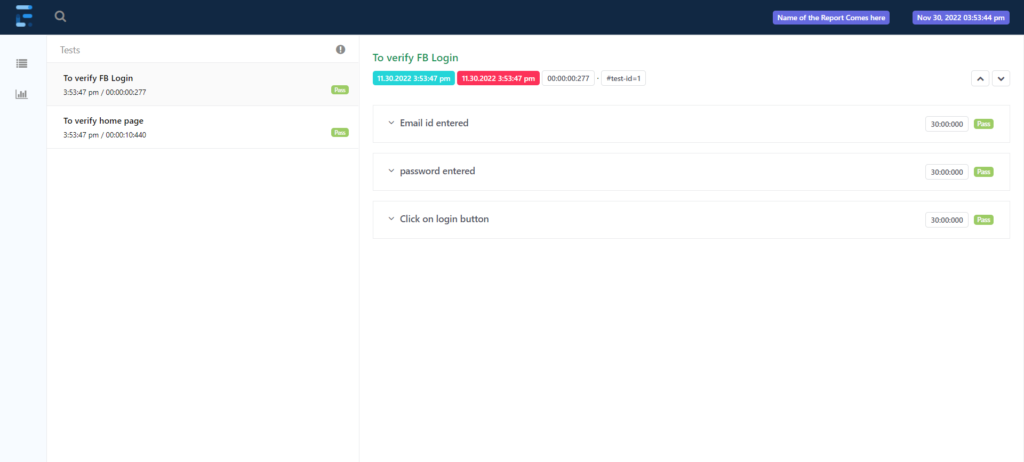
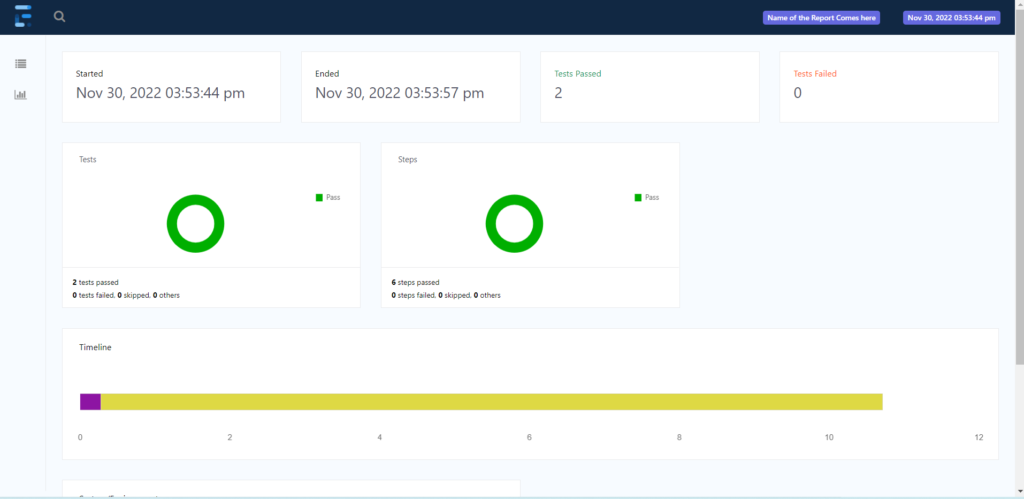
Please check the Extent report generated after refreshing the project, you will see "RKExtentReport.html" under test-output folder.


This is 100% working code and if you find any difficulty then you can post your queries.
RK

Automation Testing

Generate Extent Reports in Selenium Webdriver

What are the Extent Reports?

ExtentReports is an open-source reporting library used in selenium test automation. Extent reports become the first choice of Selenium Automation Testers, even though Selenium comes with inbuilt reports using frameworks like JUnit and TestNG. With extent reports, you can offer a more extensive and insightful perspective on the execution of your automation scripts. So let’s see why Automation testers prefer Extent reports to others.

Advantages of Extent Reports

Some of the advantages of Extent Reports are as follows

  • Extent reports are more customizable than others.
  • Captures screenshots at every test step
  • Displays the time taken for test case execution within the report.
  • Extent API can produce more interactive reports, a dashboard view, graphical view, and emailable reports
  • You can easily track multiple test case runs that occur within a single suite.
  • It can be easily integrated with frameworks like JUnit, NUnit, & TestNG

Steps To Generate Extent Reports

Step #1: Firstly, create a TestNG project in eclipse

Step #2: Download extent library files (Extent reports Version 5 JAR file – Extent Spark Reporter) and add the downloaded library files to your project

If you are using pom.xml file then you can add Extent Reports Maven dependency 5.0.9 in your maven project.

<dependency>
<groupId>com.aventstack</groupId>
<artifactId>extentreports</artifactId>
<version>5.0.9</version>
</dependency>

Step #3: Create a java class say ‘ExtentReportsClass’ and add the following code to it

Code to validate title and logo on Google home page.

Given clear explanation in the comments section with in the program itself. Please go through it to understand the flow.

package com.test.traveltest;

import java.io.File;
import java.io.IOException;
import java.text.SimpleDateFormat;
import java.util.Date;
import org.apache.commons.io.FileUtils;
import org.openqa.selenium.*;
import org.openqa.selenium.chrome.ChromeDriver;
import org.testng.Assert;
import org.testng.ITestResult;
import org.testng.SkipException;
import org.testng.annotations.*;
import com.aventstack.extentreports.ExtentReports;
import com.aventstack.extentreports.ExtentTest;
import com.aventstack.extentreports.Status;
import com.aventstack.extentreports.markuputils.ExtentColor;
import com.aventstack.extentreports.markuputils.MarkupHelper;
import com.aventstack.extentreports.reporter.ExtentSparkReporter;
//import com.aventstack.extentreports.reporter.configuration.ChartLocation;
import com.aventstack.extentreports.reporter.configuration.Theme;
public class ExtentReportsClass {
		public WebDriver driver;
		public ExtentSparkReporter spark;
		public ExtentReports extent;
		public ExtentTest logger;
@BeforeTest
public void startReport() {
         // Create an object of Extent Reports
		extent = new ExtentReports();
 
		spark = new ExtentSparkReporter(System.getProperty("user.dir") + "/test-output/RKExtentReport.html");
		extent.attachReporter(spark);
		extent.setSystemInfo("Host Name", "Testing Buddy");
         extent.setSystemInfo("Environment", "Production");
         extent.setSystemInfo("User Name", "Rahulkundu");
         spark.config().setDocumentTitle("Title of the Report Comes here ");
                // Name of the report
         spark.config().setReportName("Name of the Report Comes here ");
                // Dark Theme
         spark.config().setTheme(Theme.STANDARD);
}
//This method is to capture the screenshot and return the path of the screenshot.
		public static String getScreenShot(WebDriver driver, String screenshotName) throws IOException {
			String dateName = new SimpleDateFormat("yyyyMMddhhmmss").format(new Date());
			TakesScreenshot ts = (TakesScreenshot) driver;
			File source = ts.getScreenshotAs(OutputType.FILE);
			// after execution, you could see a folder "FailedTestsScreenshots" under src folder
			String destination = System.getProperty("user.dir") + "/Screenshots/" + screenshotName + dateName + ".png";
			File finalDestination = new File(destination);
			FileUtils.copyFile(source, finalDestination);
			return destination;
}
@BeforeMethod
public void setup() {
		System.setProperty("webdriver.chrome.driver",System.getProperty("user.dir")+"\\src\\main\\java\\drivers\\chromedriver.exe");
		driver = new ChromeDriver();
		driver.manage().window().maximize();
		driver.get("https://www.google.com/");
}
@Test
public void verifyTitle() {
	logger = extent.createTest("To verify Google Title");
	Assert.assertEquals(driver.getTitle(),"Google");
}
	
@Test
public void verifyLogo() {
	logger = extent.createTest("To verify Google Logo");
	boolean img = driver.findElement(By.xpath("//img[contains(@class,'lnXdpd')]")).isDisplayed();
	logger.createNode("Image is Present");
	Assert.assertTrue(img);
	logger.createNode("Image is not Present");
	Assert.assertFalse(img);
}
@Test
public void verifySearchEnabled() {
	logger = extent.createTest("To verify search field");
	boolean img1 = driver.findElement(By.xpath("//img[contains(@class,'lnXdpd')]")).isEnabled();
	logger.createNode("Text field is enabled ");
	Assert.assertTrue(img1);
}
@Test
public void verifySearch() {
	logger = extent.createTest("To verify search works");
	driver.findElement(By.xpath("//input[@name='q']")).sendKeys("rahul");
	logger.createNode("rahul entered for search");
	driver.findElement(By.className("gNO89b")).click();
	logger.createNode("search button is clicked");
	
}
@AfterMethod
public void getResult(ITestResult result) throws Exception{
		if(result.getStatus() == ITestResult.FAILURE){
//MarkupHelper is used to display the output in different colors
			logger.log(Status.FAIL, MarkupHelper.createLabel(result.getName() + " - Test Case Failed", ExtentColor.RED));
			logger.log(Status.FAIL, MarkupHelper.createLabel(result.getThrowable() + " - Test Case Failed", ExtentColor.RED));
//To capture screenshot path and store the path of the screenshot in the string "screenshotPath"
//We do pass the path captured by this method in to the extent reports using "logger.addScreenCapture" method.
//String Scrnshot=TakeScreenshot.captuerScreenshot(driver,"TestCaseFailed");
			String screenshotPath = getScreenShot(driver, result.getName());
//To add it in the extent report
			logger.fail("Test Case Failed Snapshot is below " + logger.addScreenCaptureFromPath(screenshotPath));
		}
		else if(result.getStatus() == ITestResult.SKIP){
			logger.log(Status.SKIP, MarkupHelper.createLabel(result.getName() + " - Test Case Skipped", ExtentColor.ORANGE));
		}
		else if(result.getStatus() == ITestResult.SUCCESS)
		{
			logger.log(Status.PASS, MarkupHelper.createLabel(result.getName()+" Test Case PASSED", ExtentColor.GREEN));
		}
		driver.quit();
	}
@AfterTest
public void endReport() {
		extent.flush();
	}
}
Automation Testing

Page Object Model with Page Factory in Selenium (Facebook…

What is Page Object Model Design Patten (POM):

Page Object Model is a Design Pattern which has become popular in Selenium Test Automation. It is widely used design pattern in Selenium for enhancing test maintenance and reducing code duplication. Page object model (POM) can be used in any kind of framework such as modular, data-driven, keyword driven, hybrid framework etc.  A page object is an object-oriented class that serves as an interface to a page of your Application Under Test(AUT). The tests then use the methods of this page object class whenever they need to interact with the User Interface (UI) of that page. The benefit is that if the UI changes for the page, the tests themselves don’t need to change, only the code within the page object needs to change. Subsequently, all changes to support that new UI is located in one place.

What is Page Factory:

We have seen that ‘Page Object Model’ is a way of representing an application in a test framework. For every ‘page’ in the application, we create a Page Object to reference the ‘page’ whereas a ‘Page Factory’ is one way of implementing the ‘Page Object Model’.

What is the difference between Page Object Model (POM) and Page Factory:

Page Object is a class that represents a web page and hold the functionality and members.
Page Factory is a way to initialize the web elements you want to interact with within the page object when you create an instance of it.

Advantages of Page Object Model Framework:

  • Code reusability – We could achieve code reusability by writing the code once and use it in different tests.
  • Code maintainability – There is a clean separation between test code and page specific code such as locators and layout which becomes very easy to maintain code. Code changes only on Page Object Classes when a UI change occurs. It enhances test maintenance and reduces code duplication.
  • Object Repository – Each page will be defined as a java class. All the fields in the page will be defined in an interface as members. The class will then implement the interface.
  • Readability – Improves readability due to clean separation between test code and page specific code

Creating a Page Object Model with Page Factory in Selenium WebDriver:

Project Structure:

Step 1: Creating TestBase class. Here we create an object of WebDriver, maximize browser, implementing waits, launching URL and etc.,

In the below example program, I have taken chrome browser and set the System Property to launch chrome browser.

TestBase.java (BASE CLASS)

package tests;

import java.io.IOException;
import java.util.concurrent.TimeUnit;

import org.openqa.selenium.WebDriver;
import org.openqa.selenium.chrome.ChromeDriver;
import org.openqa.selenium.chrome.ChromeOptions;
import org.testng.annotations.AfterSuite;
import org.testng.annotations.BeforeSuite;
import org.testng.annotations.Test;

public class TestBase {
	public static WebDriver driver = null;
	@BeforeSuite
	public void initialize() throws IOException{
	System.setProperty("webdriver.chrome.driver", System.getProperty("user.dir")+"\\src\\test\\java\\drivers\\chromedriver.exe");
	
	ChromeOptions coptions = new ChromeOptions();
	coptions.addArguments("--disable-notifications");
	
	driver = new ChromeDriver(coptions);
	//To maximize browser
	                driver.manage().window().maximize();
	        //Implicit wait
	         driver.manage().timeouts().implicitlyWait(20, TimeUnit.SECONDS);
	//To open facebook
	                driver.get("https://www.facebook.com/login");
	}
	@AfterSuite
	//Test cleanup
	public void TeardownTest()
	    {
	        TestBase.driver.quit();
	    }
}

Step 2: Creating classes for each page (Eg., Facebook Login Page,  Facebook Inbox Page) to hold element locators and their methods. Usually, we create page objects for all available pages in the AUT. For each page, we create a separate class with a constructor. Identify all the locators and keep them in one class. It allows us to reuse the locators in multiple methods. It allows us to do easy maintenance, if there is any change in the UI, we can simply change on one Page.

Here, I create java files (FacebookLoginPage.java and FacebookInboxPage.java) for the corresponding pages (Facebook Login Page, and Facebook Inbox Page) to hold element locators and their methods.

FBHomePage.java (Webpage 1)

package pages;

import org.openqa.selenium.By;
import org.openqa.selenium.WebDriver;
import org.openqa.selenium.WebElement;
import org.openqa.selenium.support.FindBy;
import org.openqa.selenium.support.How;

public class FBHomePage {
	WebDriver driver;
	 
    public FBHomePage(WebDriver driver){
            this.driver=driver;
    }
    //Using FindBy for locating elements
    
    
@FindBy(how=How.CLASS_NAME, using="x3ajldb") WebElement profileDropdown;
@FindBy(how=How.XPATH, using="//span[contains(.,'Log Out')]") WebElement logoutLink;
@FindBy(how=How.XPATH, using="//a[@aria-label='Rahul Kundu'][contains(.,'Rahul Kundu')]") WebElement loggedInUserNameText;
    
//Defining all the user actions (Methods) that can be performed in the Facebook home page

    // This method to click on Profile Dropdown
public void clickOnProfileDropdown(){

//WebElement profileDropdown = driver.findElement(By.className("x3ajldb"));
profileDropdown.click();
}
//This method to click on Logout link
public void clickOnLogoutLink(){
	
logoutLink.click();
}
//This method to verify LoggedIn Username Text
public String verifyLoggedInUserNameText(){
String userName = loggedInUserNameText.getText();
return userName;
}

}

FBLoginPage.java (Webpage 2)

package pages;

import org.openqa.selenium.WebDriver;
import org.openqa.selenium.WebElement;
import org.openqa.selenium.support.FindBy;
import org.openqa.selenium.support.How;

public class FBLoginPage {
	WebDriver driver;
	 
    public FBLoginPage(WebDriver driver){
             this.driver=driver;
    }

//Using FindBy for locating elements
@FindBy(how=How.XPATH, using="//input[contains(@name,'email')]") WebElement emailTextBox;
@FindBy(how=How.XPATH, using="//input[@type='password']") WebElement passwordTextBox;
@FindBy(how=How.XPATH, using="//button[@name='login']") WebElement signinButton;
    // Defining all the user actions (Methods) that can be performed in the Facebook home page

    // This method is to set Email in the email text box
public void setEmail(String strEmail){
emailTextBox.sendKeys(strEmail);
}
//This method is to set Password in the password text box
public void setPassword(String strPassword){
passwordTextBox.sendKeys(strPassword);
}
//This method is to click on Login Button
public void clickOnLoginButton(){
signinButton.click();
}

}

Step 3: Creating Test (Eg., FBLoginTest) based on above pages. As per my test scenario which was mentioned above, scripts run as follows.

  1. Launch browser and open facebook.com
  2. Enter user credentials and do signin
  3. Verify the loggedIn user name and do logout

FBLoginTest.java (Test Case 1)

package tests;

import org.openqa.selenium.support.PageFactory;
import org.testng.annotations.Test;

import pages.FBHomePage;
import pages.FBLoginPage;

public class FbLoginTest extends TestBase{
	
	@Test
	public void init() throws Exception{

			//driver.get("https://www.facebook.com");
			FBLoginPage loginpage = PageFactory.initElements(driver, FBLoginPage.class);
			loginpage.setEmail("rahul.******@gmail.com");
			loginpage.setPassword("*********");
			loginpage.clickOnLoginButton();
			
			FBHomePage homepage = PageFactory.initElements(driver, FBHomePage.class);
			homepage.clickOnProfileDropdown();
			homepage.verifyLoggedInUserNameText();
			homepage.clickOnLogoutLink();	
		}
	
}

Step 4: Creating testng.xml file

<?xml version="1.0" encoding="UTF-8"?>
<!DOCTYPE suite SYSTEM "http://testng.org/testng-1.0.dtd">
<suite name="POM Suite">
 
<test name="Page Object Model Project">
<classes>
<class name="tests.TestBase" />
<class name="tests.FbLoginTest" />
</classes>
</test>
</suite> <!-- Suite -->

Please check the pom.xml that i have used.

<project xmlns="http://maven.apache.org/POM/4.0.0" xmlns:xsi="http://www.w3.org/2001/XMLSchema-instance" xsi:schemaLocation="http://maven.apache.org/POM/4.0.0 https://maven.apache.org/xsd/maven-4.0.0.xsd">
  <modelVersion>4.0.0</modelVersion>
  <groupId>PageObjectModel</groupId>
  <artifactId>pomtest</artifactId>
  <version>0.0.1-SNAPSHOT</version>
  
  <dependencies>
    <dependency>
      <groupId>junit</groupId>
      <artifactId>junit</artifactId>
      <version>4.11</version>
      <scope>test</scope>
    </dependency>
    
    <dependency>
    <groupId>org.seleniumhq.selenium</groupId>
    <artifactId>selenium-java</artifactId>
    <version>4.6.0</version>
</dependency>
<dependency>
  <groupId>org.testng</groupId>
  <artifactId>testng</artifactId>
  <version>7.6.0</version>
  <scope>test</scope>
</dependency>

  </dependencies>
</project>

This is 100% working code and if you find any difficulty then you can post your queries.
RK

snapdeal login Uncategorized

Selenium Assignment – 6 (Snapdeal Login)

Scenario:

  • Open a browser of your choice like Mozilla Firefox.
  • Navigate to Snapdeal site (https://www.snapdeal.com/login)
  • Enter Email Id or Phone Number.
  • Enter password.
  • Click login button.
  • Verify that user is logged in successfully.
package com.test.traveltest;

import java.util.concurrent.TimeUnit;

import org.openqa.selenium.By;
import org.openqa.selenium.WebDriver;
import org.openqa.selenium.firefox.FirefoxDriver;
import org.testng.annotations.BeforeClass;
import org.testng.annotations.Test;

public class Assignment6 {
	WebDriver driver;
	String Url = "https://www.snapdeal.com/login";
	//WebElement webFrame;
	
	@BeforeClass
	public void invokeBrowser(){
		System.setProperty("webdriver.gecko.driver",
				"D:\\Selenium\\geckodriver-v0.31.0-win64\\geckodriver.exe");
		driver = new FirefoxDriver();

		driver.manage().window().maximize();

		driver.manage().timeouts().implicitlyWait(10, TimeUnit.SECONDS);

		driver.get(Url);
	}
	
  @Test
  public void Test1() {
	  driver.findElement(By.id("userName")).sendKeys("r-----@gmail.com");
	  driver.findElement(By.id("checkUser")).click();
	  driver.manage().timeouts().implicitlyWait(10, TimeUnit.SECONDS);
  }
  @Test
  public void Test2() {
	  driver.findElement(By.className("otpValueCode")).sendKeys("0000");
	  driver.findElement(By.id("loginUsingOtp")).click();
  }
  @AfterTest
	public void testComplete() {
		driver.close();
	}


}
Flipkart login Automation Testing

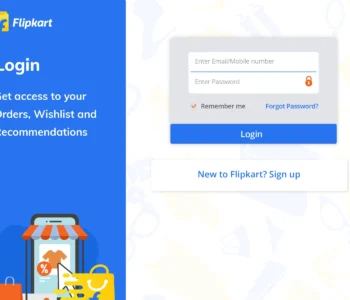
Selenium Assignment – 5 (Flipkart Login)

In this selenium Assignment, we will practice some dynamic xpath using different functions.

Scenario:

  • Open a browser of your choice like Mozilla Firefox.
  • Navigate to Flipkart site (http://www.flipkart.com/login)
  • Enter Email Id or Phone Number.
  • Enter password.
  • Click login button.
  • Verify that user is logged in successfully.
package com.test.traveltest;

import java.util.concurrent.TimeUnit;

import org.openqa.selenium.By;
import org.openqa.selenium.WebDriver;
import org.openqa.selenium.WebElement;
import org.openqa.selenium.firefox.FirefoxDriver;
import org.testng.annotations.AfterTest;
import org.testng.annotations.BeforeClass;
import org.testng.annotations.Test;

public class Assignment5 {
	
	WebDriver driver;
	String Url = "https://www.flipkart.com/account/login";
	//WebElement webFrame;
	
	@BeforeClass
	public void invokeBrowser(){
		System.setProperty("webdriver.gecko.driver",
				"D:\\Selenium\\geckodriver-v0.31.0-win64\\geckodriver.exe");
		driver = new FirefoxDriver();

		driver.manage().window().maximize();

		driver.manage().timeouts().implicitlyWait(10, TimeUnit.SECONDS);

		driver.get(Url);
	}
	
  @Test
  public void Test1() {
	  
	  driver.findElement(By.xpath("(//input[@type='text'])[2]")).sendKeys("test@gmail.com");
      driver.findElement(By.xpath("//input[@type='password']")).sendKeys("test123$");
      driver.findElement(By.xpath("(//button[@type='submit'])[2]")).click();
	  
  }
  
  @AfterTest
	public void testComplete() {
		driver.close();
	}
}

Another method for handling Login popup of Flipkart:

package com.suite1;

import java.util.concurrent.TimeUnit;

import org.openqa.selenium.By;
import org.openqa.selenium.WebDriver;
import org.openqa.selenium.firefox.FirefoxDriver;
import org.testng.annotations.AfterTest;
import org.testng.annotations.BeforeClass;
import org.testng.annotations.Test;

public class flipkart2 {
	WebDriver driver;
    String driverPath = "D:\\Selenium\\geckodriver-v0.31.0-win64\\geckodriver.exe";
	String username = ""; // Change to your username and passwrod
	String password = "";

	// This method is to navigate flipkart URL
	@BeforeClass
	public void init() {
		System.setProperty("webdriver.gecko.driver", driverPath);
		driver = new FirefoxDriver();
		driver.manage().window().maximize();

		driver.manage().deleteAllCookies();

		driver.manage().timeouts().pageLoadTimeout(90, TimeUnit.SECONDS);

		driver.manage().timeouts().implicitlyWait(6, TimeUnit.SECONDS);

		driver.get("https://www.flipkart.com");
	}
	
	
	@Test
	public void loginTest() throws InterruptedException {
		String winHandleBefore = driver.getWindowHandle();
		for (String winHandle : driver.getWindowHandles()) {
			
			driver.switchTo().window(winHandle);
			System.out.println(driver.getTitle());
			
		Thread.sleep(3000);
		
		driver.findElement(By.xpath("//input[@class='_2IX_2- VJZDxU']")).sendKeys("testuser@abc.com");
		Thread.sleep(3000);
		driver.findElement(By.xpath("//input[@type='password']")).sendKeys("Test@1234");
		Thread.sleep(3000);
		driver.findElement(By.xpath("//button[@class='_2KpZ6l _2HKlqd _3AWRsL'][contains(.,'Login')]")).click();
		}
	}
	@AfterTest
	public void TestComplete() {
		driver.close();
	}
}
Drag and Drop Automation Testing

Selenium Assignment – 4 (Drag and Drop)

In this Selenium Assignment, we will be practicing iframe handling, CSS property verification and a mouse hover operation – drop and drop operation using actions class.

Scenario:

  • Open a browser of your choice for example – Chrome Browser.
  • Navigate to http://jqueryui.com/droppable/ webpage.
drag and drop using selenium
  • Consider “Drag me to my target” as a source and “Drop here” as a target.
  • Write a code to perform drag and drop operation from source to target.
Drag and Drop operation
  • After drag and drop verify the operation is successfully by checking the color property of CSS and also verify text change. (Use assert statement to verify that color and text are as expected.)
package com.test.traveltest;

import java.util.concurrent.TimeUnit;

import org.openqa.selenium.By;
import org.openqa.selenium.WebDriver;
import org.openqa.selenium.WebElement;
import org.openqa.selenium.firefox.FirefoxDriver;
import org.openqa.selenium.interactions.Actions;
import org.testng.annotations.AfterTest;
import org.testng.annotations.BeforeClass;
import org.testng.annotations.Test;

public class Assignment4 {

	WebDriver driver;
	String Url = "https://jqueryui.com/droppable/";
	WebElement webFrame;
	
	@BeforeClass
	public void invokeBrowser(){
		System.setProperty("webdriver.gecko.driver",
				"D:\\Selenium\\geckodriver-v0.31.0-win64\\geckodriver.exe");
		driver = new FirefoxDriver();

		driver.manage().window().maximize();

		driver.manage().timeouts().pageLoadTimeout(20, TimeUnit.SECONDS);

		driver.get(Url);
	}
	@Test
	public void Test1() {
		webFrame = driver.findElement(By.className("demo-frame"));
		
		driver.switchTo().frame(webFrame);
		WebElement source = driver.findElement(By.id("draggable"));
		WebElement target = driver.findElement(By.id("droppable"));
		
		Actions action = new Actions(driver);
		String colourBeforeDnD = target.getCssValue("color");
		//action.dragAndDrop(source, target).build().perform();
		action.moveToElement(source).clickAndHold().moveToElement(target).release().build().perform();
		String colorAfterDnD = target.getCssValue("color");
		
		System.out.println("Color before Drag and Drop : "+ colourBeforeDnD);
		
		System.out.println("Color after Drag and Drop : "+ colorAfterDnD);
		
	}
	@AfterTest
	public void testComplete() {
		driver.close();
	}
}
Assignment for finding all links in web page Automation Testing

Selenium Assignment – 3

Here is the third assignment in the series of real-time scenarios to practice. In this assignment, we are focusing on working with links and getAttribute() method.

Number of Links on a Page:

Scenario:

  1. Open a Browser (write the generic code such that by changing the parameter browser can be changed.)
  2. Navigate to https://flipkart.com website.
  3. Write a method to find the count (number of) links on the homepage of Flipkart.
  4. Write another method to print link text and URLs of all the links on the page of Flipkart.

Try this.

package com.test.traveltest;

import java.util.List;
import java.util.concurrent.TimeUnit;

import org.openqa.selenium.By;
import org.openqa.selenium.WebDriver;
import org.openqa.selenium.WebElement;
import org.openqa.selenium.firefox.FirefoxDriver;
import org.testng.annotations.AfterTest;
import org.testng.annotations.BeforeClass;
import org.testng.annotations.Test;

public class Assignment3 {
	WebDriver driver;
	String flipkartUrl = "https://www.flipkart.com";
	
	@BeforeClass
	public void invokeBrowser(){
		System.setProperty("webdriver.gecko.driver",
				"D:\\Selenium\\geckodriver-v0.31.0-win64\\geckodriver.exe");
		driver = new FirefoxDriver();

		driver.manage().window().maximize();
		driver.manage().deleteAllCookies();
		driver.manage().timeouts().pageLoadTimeout(90, TimeUnit.SECONDS);
		driver.manage().timeouts().implicitlyWait(6, TimeUnit.SECONDS);
		driver.get(flipkartUrl);
	}


	@Test
	public void getLinkCount(){
		List<WebElement> allLink = driver.findElements(By.tagName("a"));
		System.out.println("Number of links on a page :: "+allLink.size());
	}
	
	@Test
	public void getLinkUrl(){
		String url = driver.findElement(By.linkText("Amazon Pay")).getAttribute("href");
		
		System.out.println("Url :: "+ url);
	}
	@Test
	public void getAllLinkInfo(){
		List<WebElement> allLink = driver.findElements(By.tagName("a"));
		
		for(WebElement link:allLink){
			System.out.println("Link Text :: "+ link.getText());
			System.out.println("Link URL  :: "+ link.getAttribute("href"));
			
			System.out.println("-------------------------------------------");
		}
	}
	@AfterTest
	public void testComplete() {
		driver.close();
	}
}
Automation for facebook Automation Testing

Selenium Assignment – 2

This is the second assignment in the series of real-time scenarios

Facebook Sign up:

Scenario:

  1. Open a Firefox browser.
  2. Navigate to “http://www.facebook.com/register”
  3. Verify that the page is redirected to “http://www.facebook.com/register”, by getting the current URL. use Assert.assertequals() in case you are familiar with TestNG or JUnit
  4. Verify that there is a “Create an account” section on the page.
  5. Fill in the text boxes: First Name, Surname, Mobile Number or email address, “Re-enter mobile number”, new password.
  6. Update the date of birth in the drop-down.
  7. Select gender.
  8. Click on “Create an account”.
  9. Verify that the account is created successfully.
package com.test.traveltest;

import java.util.concurrent.TimeUnit;

import org.openqa.selenium.By;
import org.openqa.selenium.WebDriver;
import org.openqa.selenium.firefox.FirefoxDriver;
import org.openqa.selenium.support.ui.Select;
import org.testng.Assert;
import org.testng.annotations.AfterClass;
import org.testng.annotations.BeforeClass;
import org.testng.annotations.BeforeTest;
import org.testng.annotations.Test;

public class Assignment2 {
	WebDriver driver;
	
	String fbUrl = "https://www.fb.com";
	String facebookUrl = "https://www.facebook.com/register";
	
	@BeforeClass
	public void invokeBrowser(){
		System.setProperty("webdriver.gecko.driver",
				"D:\\Selenium\\geckodriver-v0.31.0-win64\\geckodriver.exe");
		driver = new FirefoxDriver();

		driver.manage().window().maximize();

		driver.manage().timeouts().pageLoadTimeout(20, TimeUnit.SECONDS);

		driver.get(facebookUrl);
	}
	
	@Test
	public void verifyURL(){
		
		String urlFromBrowser = driver.getCurrentUrl();
		
		Assert.assertEquals(urlFromBrowser, facebookUrl, "No redirection happened");
		
		
	}
	
	
	@Test
	public void facebookSignUp() {
		
		driver.findElement(By.name("firstname")).sendKeys("Test");
		driver.findElement(By.name("lastname")).sendKeys("User");
		driver.findElement(By.name("reg_email__")).sendKeys("testuser@test.com");
		driver.findElement(By.name("reg_passwd__")).sendKeys("testPassword");
		
		Select selDate = new Select(driver.findElement(By.id("day")));
		Select selMonth = new Select(driver.findElement(By.id("month")));
		Select selYear = new Select(driver.findElement(By.id("year")));
		
		selDate.selectByVisibleText("21");
		selMonth.selectByVisibleText("Jun");
		selYear.selectByVisibleText("1989");
		
		driver.findElement(By.xpath("//input[@type='radio' and @value='2']")).click();
		
		driver.findElement(By.xpath("//button[text()='Sign Up']")).click();
	}
	
	
	@AfterClass
	public void closeBrowser(){
		
		driver.quit();
		
	}

}
Automation Testing

Selenium Assignment – 1

Here is the first assignment of this series of real-time scenarios, to practice Selenium from TestingBuddy. This assignment mainly focuses on how to invoke the Firefox browser, maximizing the window, navigate commands, etc.

This assignment is not considering proper framework development. Once you are good with frameworks, try this again considering framework.

Note: If you are very new to selenium, go through Environment setup for Selenium WebDriver and other articles before starting.

Scenario:

  1. Open the Firefox browser.
  2. Maximize the browser window.
  3. Navigate to “https://testingbuddy.co.in/?p=169”.
  4. Write a method to print PASS if the title of the page matches with “QA Automation Tools Trainings and Tutorials | QA Tech Hub” else FAIL. (If you are familiar with TestNG or JUnit use assert statement like assert.assertequals(actual, expected) to give a verdict of the pass or fail status.
  5. Navigate to the Facebook page (https://www.facebook.com)
  6. Navigate back to the QA Tech Hub website.
  7. Print the URL of the current page.
  8. Navigate forward.
  9. Reload the page.
  10. Close the Browser.

Try this code. Send us your feedback and if you have any questions, queries or comments.

package com.test.traveltest;

import java.util.concurrent.TimeUnit;

import org.openqa.selenium.firefox.FirefoxDriver;
import org.testng.Assert;
import org.testng.annotations.AfterTest;
import org.testng.annotations.BeforeTest;
import org.testng.annotations.Test;

public class Assignment1 {
	FirefoxDriver driver;
	String tbUrl = "https://testingbuddy.co.in/?p=169";
	String facebookUrl = "https://www.facebook.com";
	
	@BeforeTest
	public void invokeBrowser(){
		System.setProperty("webdriver.gecko.driver",
				"D:\\Selenium\\geckodriver-v0.31.0-win64\\geckodriver.exe");
		driver = new FirefoxDriver();

		driver.manage().window().maximize();

		driver.manage().timeouts().pageLoadTimeout(20, TimeUnit.SECONDS);

		driver.get(tbUrl);
	}
	

	@Test(priority=0)
	public void Test1() {


		String titleOfThePage = driver.getTitle();
		System.out.println(titleOfThePage);
		Assert.assertEquals(titleOfThePage, "Difference between abstract class and interface - Testingbuddy");

	}

	@Test(priority= 1)
	public void Test2() {
		driver.navigate().to(facebookUrl);

		String currentUrl = driver.getCurrentUrl();

		System.out.println("Current URL :: " + currentUrl);
		driver.navigate().back();

		driver.navigate().forward();

		driver.navigate().refresh();

                
	}
	
	@AfterTest
	public void testComplete() {
		driver.quit();
	}

}
Automation Testing

Interview Question for Automation Testing

Here are Automation Testing interview questions and answers for fresher and experienced candidates to get their dream job.


1) What is Automation testing?
Automation Testing uses an automation tool to execute test cases. The main goal of Automation Testing is to reduce the number of test cases to be run manually and not eliminate Manual Testing.


2) When will you automate a test?
Automation is preferred in the following cases

Repetitive Tasks.
Regression Testing
Smoke and Sanity Tests.
Test with multiple data sets.
Testing is not recommended for one-off test cases. Usually, the decision on which test cases to automate is based on the ROI (Return on Investment). The more times the automated test is executed, the better the ROI.

3) When will you not Automate testing?
One should not automate in the following cases

When the Application Under Test changes frequently
One-time test cases
Adhoc – Random Testing
Exploratory Testing
Usability tests that generally need manual intervention to check the test results
Test cases with detailed setup requirements to be done before each execution
Test cases that return unpredicted test results
Exclude unplanned test case


4) What are the steps involved in the Automation Process?
In the automation process, the steps involved are

Selecting the Test tool
Define the scope of automation
Planning, design, and development
Test execution
Maintenance


5) What are the points covered while planning the phase of automation?
During the planning phase of automation, things that must be taken into concern are:

Selection of the “right” Automation tool
Selection Automation Framework, if any.
List of in-scope and out-of-scope items for automation.
Test Environment Setup.
Preparing Gantt Chart of Project timelines for test script development & execution.
Identify Test Deliverables.

6) In what condition you can’t use automation testing for the Agile method?
Automation testing is not helpful for agile methods in the following conditions:

When user stories are constantly changing
When an exhaustive level of documentation is required in Agile.
Only suitable for regression tests during agile testing, like continuous integration.
Learn more about Agile Testing.

7) What is a test script?
A test script is a code to perform a set of instructions on an application. It is used to verify whether the application is functioning as per the software requirements.

When you run your script, it gives the test results as a pass or fails, which is determined by whether the application works as per the expectations.

8) How to select a good test automation tool?
Wide Test Environment support
Easy to use
Good debugging facility
Robust object identification
Record and Playback
Supports common programming languages for test script creation, for example, Java
Image testing abilities
Testing of database
Parameterization
Support multiple automation frameworks
Type of support is available for the tools like documentation, tutorials, training, etc
Cost and budget
Good reporting system


9) Can you tell me some good coding practices while automation?
Here are good automation practices:

Add appropriate comments to explain that coding part.
You should identify the reusable methods and write them in a separate file.
Must follow the language-specific coding conventions.
Store the test data in a separate file.
Run your scripts regularly.

10) What is a Modular Testing framework?
Modular Testing framework is built on the concept of abstraction. In this type of framework, the tester creates scripts for all the application modules under test, and then these scripts are combined in a hierarchical order to create test cases.

11) Data-Driven Testing framework
Data Driven Testing Image
In Data driven testing framework, the input and expected output data corresponding to the input data is stored in a file or database.

The automated script runs the same test steps for multiple data sets. It also allows you to run multiple test cases where only the input data differs, but the steps of execution remain the same.

12) What version control systems do you use?
We use GitHub. Version control helps you to track code changes. It controls the test script source code with a recorded history of changes to simplify the modification process. You may also revert to previous code versions if you make a mistake.

13) What are XPath Axes? Name some of them.
XPath is a syntax that manipulates XML (Extensible Markup Language) data. They help to locate nodes related to those on the tree. Some important XPath Axes are ancestor, child, namespace, parent, etc.

14) How can you speed up an auto test suite?
Applications that require UI testing that interacts with multiple elements can slow down the testing process. It’s better to create a simple test script that speeds up test execution.

15) Is documentation necessary in Automation Testing?
Documentation plays a vital role in Test Automation. You should document all the methods and procedures to ensure their repeatability. Test specifications, designs, code changes, test cases, automation plans, bug reports

16) What types of frameworks are used in software automation testing?
Four types of frameworks used are

Data-driven automation framework
Keyword-driven automation framework
Modular automation framework
Hybrid automation framework
Learn more about automation frameworks

17) Is it possible to achieve 100% automation?
No, it is not possible to automate everything. Achieving 100% automation is difficult as there are some scenarios where a registration page has a captcha or some test cases we don’t execute often. Moreover, automating these test cases will not add value to the automation or bring positive ROI.

18) What is the average number of test cases you have automated per day?
The answer depends on the length and complexity of the test scenario. Generally, a QA tester can automate 2-4 test scenarios daily when the complexity is limited. However, sometimes it might reduce to 1-2 when the complexity is high.

19) What is the scripting standard while performing automation testing?
While writing the scripts for automation, you must consider the following things:

Uniform naming convention.
3 lines of comments for every 10 lines of code.
Adequate indentation.
Robust error handling and recovery scenario.
Use of Frameworks wherever possible.
20) What are the most popular tools for automation testing?
The most popular test tool for automation testing are:

Selenium
UFT.
Rational Robot.
Here is a complete list of automation testing tools.

21) How can you measure the success of automation testing?
Following criteria can map the success of automation testing:

Defect Detection Ratio
Automation execution time and time savings to release the product
Reduction in Labour & other costs
22) Can you list out some disadvantages of manual testing?
Manual testing requires more time and more resources.
Inaccuracy
Executing the same test case repeatedly is error-prone and tedious.
It is impractical to do manual testing on very large and time-bound projects.
23) What are the differences between open-source tools, vendor tools, & in-house tools in automation testing?
Here are the differences between all:

Open-Source Tools: They are free tools with source code available on the internet. Example: Selenium
Vendor Tools: These testing tools are developed by companies, and you need to purchase their licenses. Example: Microfocus UFT.
In-house Tools: It is built by companies for their use.
24) What are the Prerequisites of Automation Testing?
A few important pre-requisites of Automation Testing are:

A stable build
Functionalities to be tested
Test cases for automated Testing
25) Can you do automation without a framework?
Frameworks are guidelines and not mandatory to create and execute automation scripts. So, yes, we can automate without a framework. Enhancing and maintaining test scripts would be easy if we created and followed a framework.

26) Tell me what you know about Selenium
Selenium is a free (open source) test automation suite. It is used to automate Web and Mobile environments. It consists of the following.

Selenium IDE (Browser Addon–Record and Playback Tool)
Selenium WebDriver
Selenium Grid (Distributed Testing)
Selenium supports scripting in languages like Java, C#, Python, Ruby, PHP, Perl, and JavaScript.
27) Tell me about QTP
QTP (Quick Test Professional) is now known as Microfocus UFT. It is a commercial automation tool and supports an extensive range of test environments: Web, Desktop, SAP, Delphi, Net, ActiveX, Flex, Java, Oracle, Mobile, PeopleSoft, PowerBuilder, Siebel, Stingray, and Visual Basic, amongst others.

The scripting language is VBScript. The tool gels well with ALM (Test Management Tool) and LoadRunner (Performance Testing Tool).

Salient features of QTP include Business Process Testing, keyword-driven framework, XML support, robust checkpoints, and test results.

28) What is SikuliX?
SikuliX is a tool that uses the “Visual Image Match” method to automate the graphical user interface. All the web elements in SikuliX should be taken as an image and stored inside the project.

SikuliX is comprised of

SikuliX Script
Visual Scripting API for Jython
SikuliX IDE
Practical uses of SikuliX are:

It can automate window-based applications and anything you see on screen without using internal API support.
It provides a simple API.
It can be easily linked with tools like Selenium.
Web applications can be automated.
SikuliX offers extensive support to automate flash objects.
It can work on any technology -.NET, Java.
29) Mention what the difference between Selenium and SikuliX is?
SikuliX Selenium
It provides extensive support to automate flash objects It cannot automate flash objects like video players or audio players.
It has a simple API It has got complicated API
It uses a visual match to find elements on the screen. So, we can automate anything we see on the screen. It uses CSS, ID, locators, and other selected to identify GUI elements
It can automate the web as well as windows application It can automate only web applications
30) What are the attributes of a good automation framework?
Here are some important attributes of a good automation framework:

Modular: It is a framework that should be adaptable to change. So that testers should be able to modify the scripts as per the environment.
Reusable: It should be reusable so that methods or utilities should be written in a common file accessible to all the scripts.
Consistent: It should be written in a consistent format.
Independent: The automation scripts should be written in such a way that they are independent of each other.
Integration: Automation Framework should be developed in such a way that it is easy to integrate with other applications.
31) What is Cross-Browser Testing?
It is a subset of browser automation testing that helps you ensure that the online application operates correctly across different browsers. Google Chrome, Mozilla Firefox, Microsoft Edge, Safari, etc.

Cross Browser Testing using Selenium WebDriver
The main aim of cross-browser testing is to check that your website or web app works correctly on different combinations of browsers and OS.

32) Which Testing can be done using the Selenium Framework?
You can use a Selenium framework for the following testing:

Load testing of web applications.
Regression testing of web applications.
Functional testing of web applications.
33) Is Automation testing white box testing or black box testing?
Automation testing is primarily black box testing.

34) What keyword is used to fetch the URL of the current page in Selenium?
Selenium WebDriver can help you find the current URL of a page with the getcurrentURL(). This method will find the URL of the open applications and result in a string.

35) Where will you maintain information like URL, login, and password?
URL, login, and password are important information used very often and change frequently. They should always be maintained in a separate file. If not done, then the automation tester must change it in every file with its reference.

36) What are the Extensions and Test Assets of QTP?
Some Important Test Assets and extensions of QTP are:

Results .xml
Recovery scenario .qrs
Test batch runner .mtb
Shared object repository .tsr
Local object repository .mtr
Test file .mts
Function library .qfl
37) What are the differences between manual testing and automation testing?
Here are some major differences between manual and automation testing:

Parameters Manual Testing Automation Testing
Time consumption More Less
STLC Follow manually Follows using tool
Cos Less expensive Expensive
Reliability Less Reliable Highly Reliable
Quality Low High
Skill Set Less skill set required High skill set is required.
38) What are the essential modules of an automation testing framework?
Here are some essential modules of the automation testing framework:

Test Assertion Tool: This testing tool will provide assert statements for assessing the expected values in the application under test. For Example, Junit, TestNG, Junit, etc.
Data Setup: Ensures that each test case takes the test data from the database, a file, or embedded in the test script.
Build Management Tool: The framework requires to be built and deployed to create test scripts.
Continuous integration tool: They are required to integrate and deploy the changes done in the framework at each iteration.
Reporting tool: It helps to generate a readable report after the test cases for a better view of the steps, failures, and results.
Logging tool: They help in better debugging of the error and bugs.
39) What is Cucumber?
Cucumber is an open-source (BDE) behavior-driven development tool. It is used tool for web-based application automation testing and supports languages like Java, Ruby, Ruby, Scala, Groovy, etc. Cucumber reads executable specifications written in plain text and tests the application under test for those specifications.

40) What is Test Complete?
TestComplete is an automated UI testing tool for desktop applications, web, mobile, etc. It offers the flexibility to record a test case on one browser and run it on multiple browsers, thus supporting cross browsers testing.

41) What is Cypress?
Cypress is an open-source testing framework. It is developed in JavaScript and has lately gained popularity because of its simplicity and extensive capabilities that enable browser testing, and user manuals should be thoroughly documented.

42) How can you handle the alert popups in Selenium WebDriver?
Selenium gives alerts if there are issues while you test. The pop-up interface allows you to handle the alert by switching the control to the pop-up, pressing the OK or Cancel buttons, and turning back to the source page screen.

String srcPage = driver.getWindowHandle();
Alert pop = driver.switchTo().alert(); // shift control to the alert pop-up.
Pop.accept(); // click k button.


43) What is a Hybrid Testing framework?
The Hybrid Testing framework develops the test cases from modular scripts by combining them in the modular testing framework.

44) Write steps to automate primary “login” functionality test cases for an application?
Here are the steps to automate basic login functionality:

Step 1) Understand the project requirement.

Step 2) Identify the Test scenarios

Step 3) Prepare a data input file with the data corresponding to each scenario

Step 4) Launch the tool from the program.

Step 5) Identify the username, password, and login buttons.

Step 6) Verify that the error message for negative scenarios is the same as the success message for positive test -scenarios.

These are the interview questions