How to Handle alerts in Selenium?
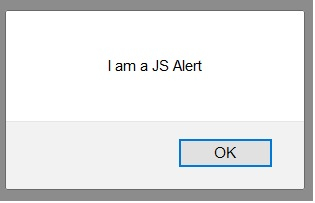
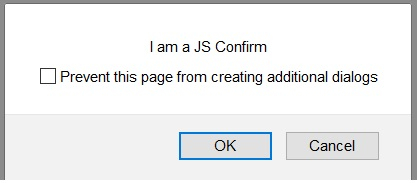
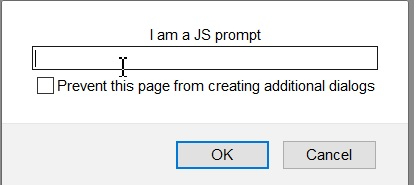
We can handle alerts in Selenium webdriver by using the Alert interface. An alert can be of three types – a prompt which allows the user to input text, a normal alert and a confirmation alert.
By default, the webdriver can only access the main page, once an alert comes up, the method switchTo().alert() is used to shift the focus webdriver control to the alert.
A normal alert is shown below −
A confirmation alert is shown below −
A prompt alert is shown below −
To accept an alert (to click on the OK button in alert), the method switchTo().alert().accept() is used. To dismiss an alert (to click on the Cancel button in alert), the method switchTo().alert().dismiss() is used.
To extract the alert text, the method switchTo().alert().getText() is used. To input text inside a confirmation alert, the method switchTo().alert().sendKeys() is used.
The text to be entered is passed as a parameter to the sendKeys method.
package RK1.Building_a_selenium_project;

import org.openqa.selenium.By;
import org.openqa.selenium.WebDriver;
import org.openqa.selenium.WebElement;
import org.openqa.selenium.chrome.ChromeDriver;
import org.openqa.selenium.firefox.FirefoxDriver;
import java.util.concurrent.TimeUnit;
import org.openqa.selenium.Alert;
public class AlertHandle{
   public static void main(String[] args) {
      System.setProperty("webdriver.chrome.driver",
         "F:\\Work Environment\\MyProject\\chromedriver.exe");
      WebDriver driver = new ChromeDriver();
      //implicit wait
      driver.manage().timeouts().implicitlyWait(5, TimeUnit.SECONDS);
      //URL launch
      driver.get("https://the-internet.herokuapp.com/javascript_alerts");
      // identify element
      WebElement c=driver.findElement(By.xpath("//button[text()='Click for JS Prompt']"));
      c.click();
      //shift to alert
      Alert a = driver.switchTo().alert();
      //get alert text
      String s = a.getText();
      System.out.println("Alert text is: " + s);
      //input text to alert
      a.sendKeys("Selenium");
      //dismiss alert
      a.dismiss();
      c.click();
      //accept alert
      a.accept();
      driver.quit();
   }
}